¶ Windows11 official system installation
Before installing Windows 11, please read the following notes carefully.
¶ Precautions before installation
Prepare a USB flash drive of 8GB or more.
Before installing the system, back up your personal data (the USB flash drive will be formatted during the USB flash drive production process, please also back up important files in the USB flash drive first).
Before installing the system, make sure that the boot format of the hard drive is GUID, otherwise the hard drive recognition problem may occur.
Windows 11 is a pure version of the system, and you need to download the driver from the technical support page of the official website to install it.
In the tutorial, only one system disk is created by default, and if multiple partitions are required, you can create it through disk management after the installation is completed.
The tutorial uses Microsoft official software to make a pure USB flash drive installation. If there are copyright issues such as activation, please solve them yourself.
¶ Operating Steps:
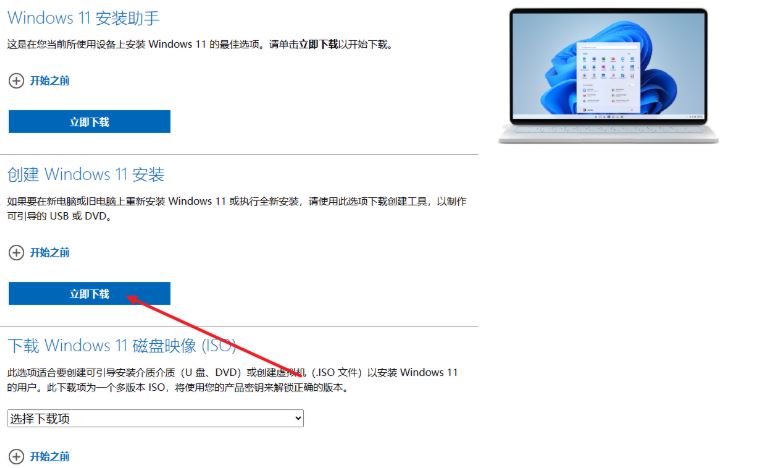
Download the tool: Open the Microsoft official website, download the Windows 11 installation tool, and click [Download Tool Now].
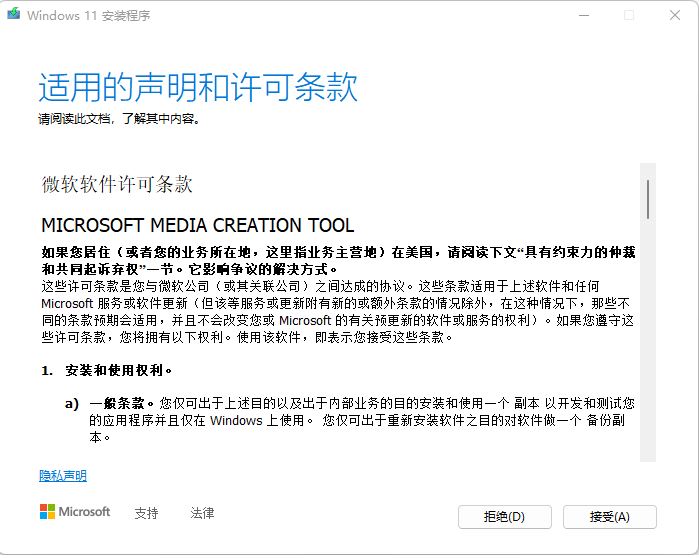
Accept Terms: Find the downloaded software and double-click to run it, prompt Microsoft Software License Terms, and select Accept.
Select the language version: Select the language and version you want to install, and click Next.
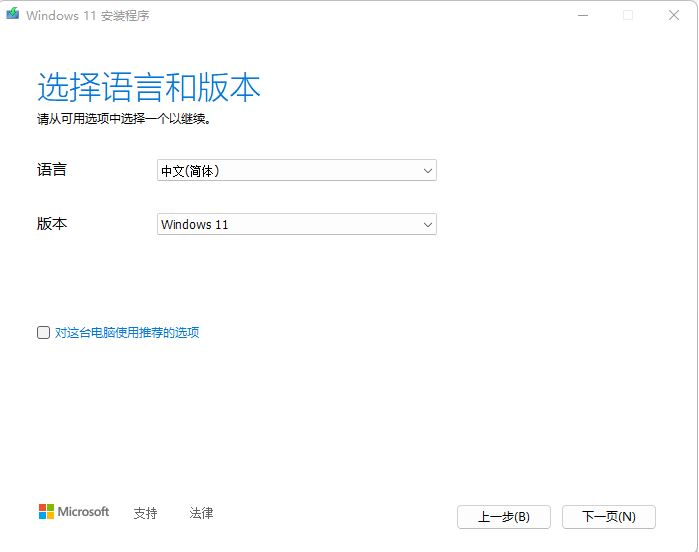
Insert the USB flash drive: After inserting the USB flash drive, select [Next].
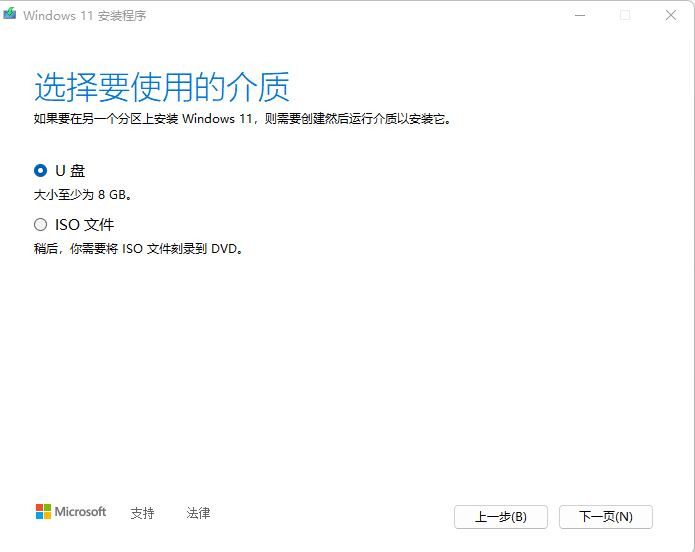
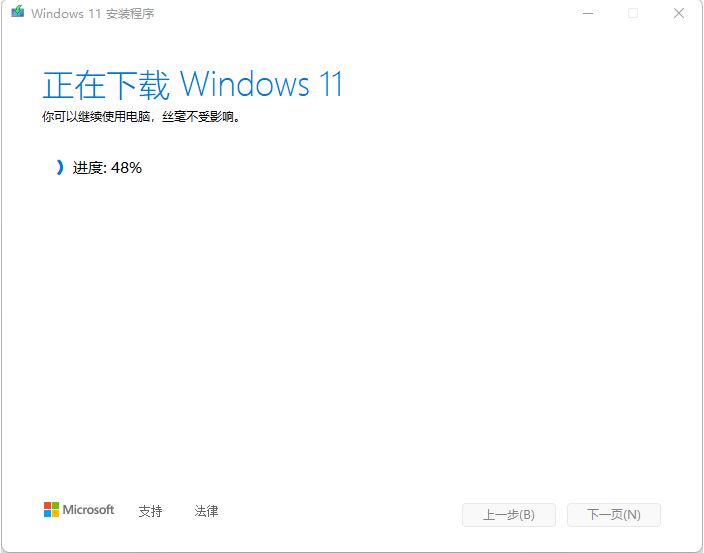
Wait for the download to complete: Automatically create Windows 11 media and write the image file to the USB stick after completion.
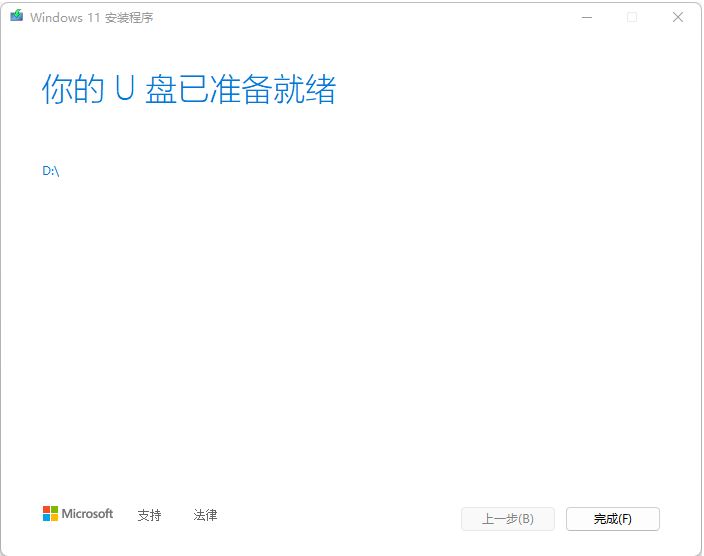
System USB flash drive ready: Click the prompt "Your USB flash drive is ready", click [Finish] to close the window and unplug the USB flash drive.
¶ Initiate the installation
Enter the boot menu: Insert the boot USB flash drive into the machine that needs to install the system, turn on the power, and when you see the logo, quickly press the [F7] button to enter the boot menu.
Select the USB flash drive to start: Select the USB flash drive and press enter to enter.
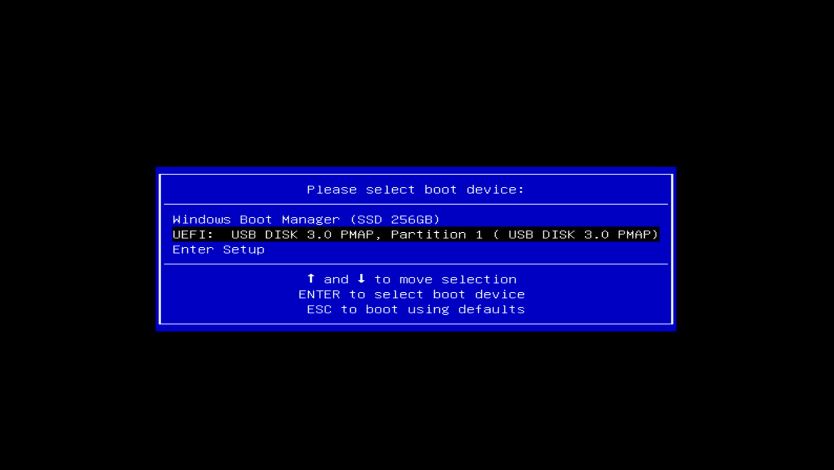
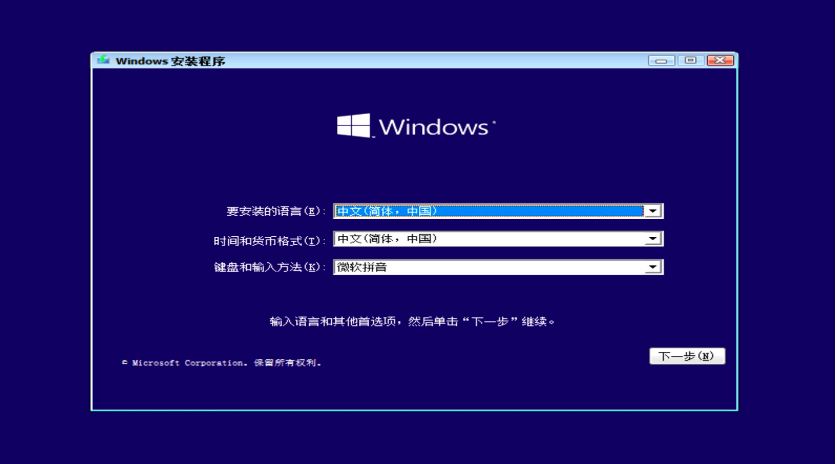
Installation interface: After entering the installation interface, click [Next], and then select [Install Now].
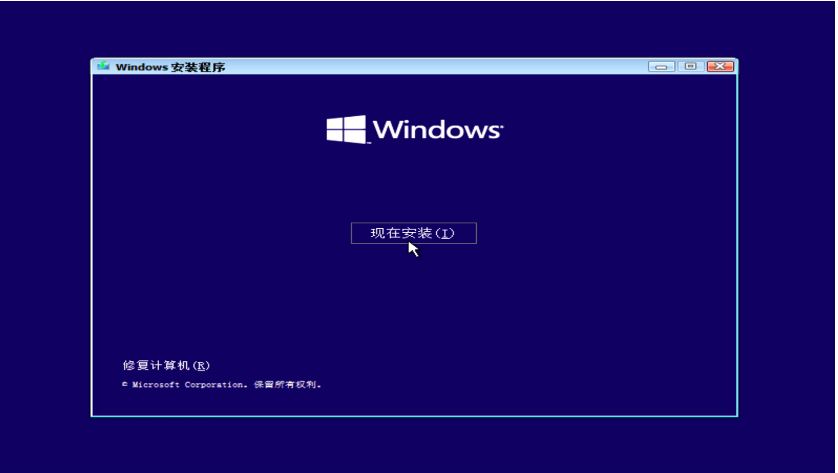
¶ Installation process:
Skip product key: Select I don't have a product key.
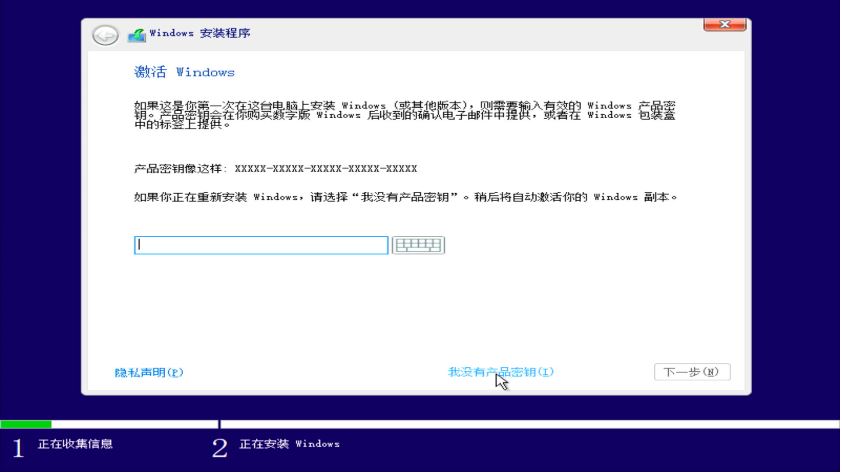
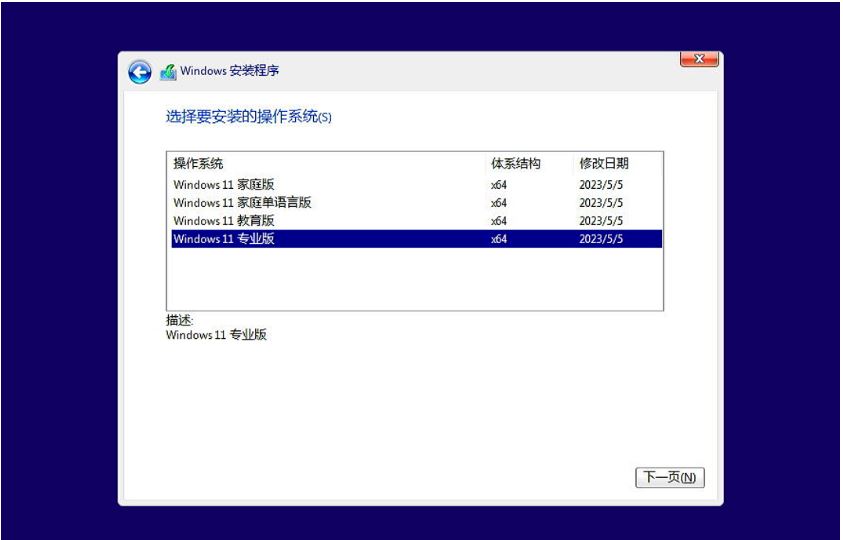
Select the version: Select Windows 11 Pro and click Next.
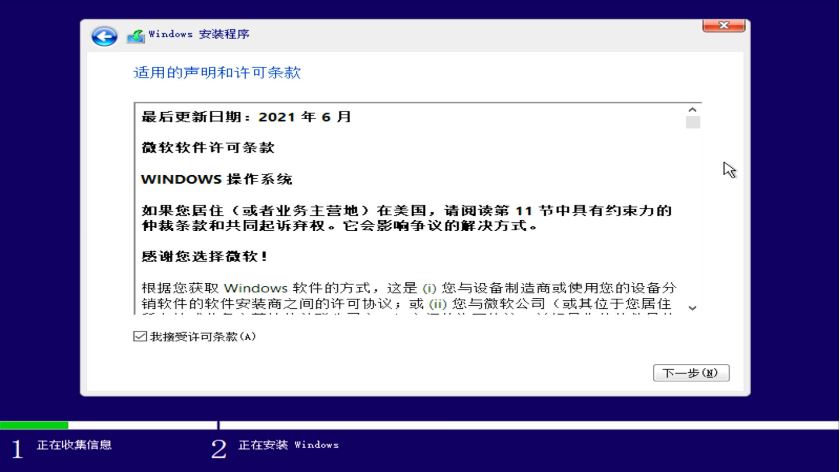
Accept the license terms: Check [I accept the license terms] and proceed to [Next].
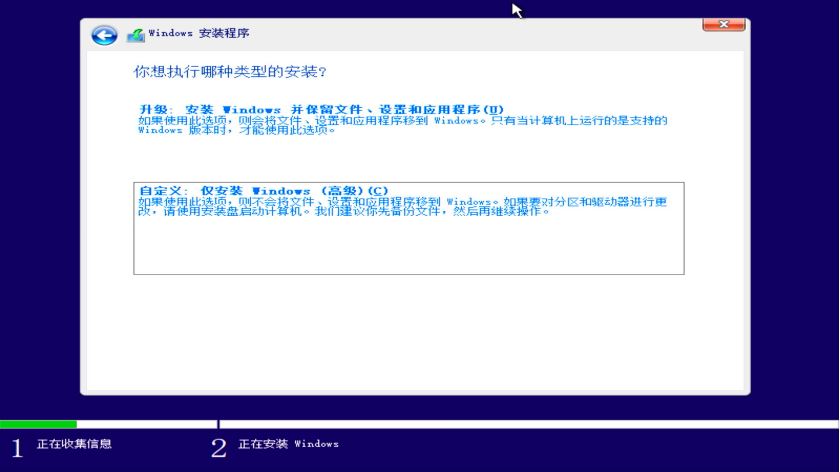
Installation Type Selection: Select Custom: Install Windows Only in the Installation Type.
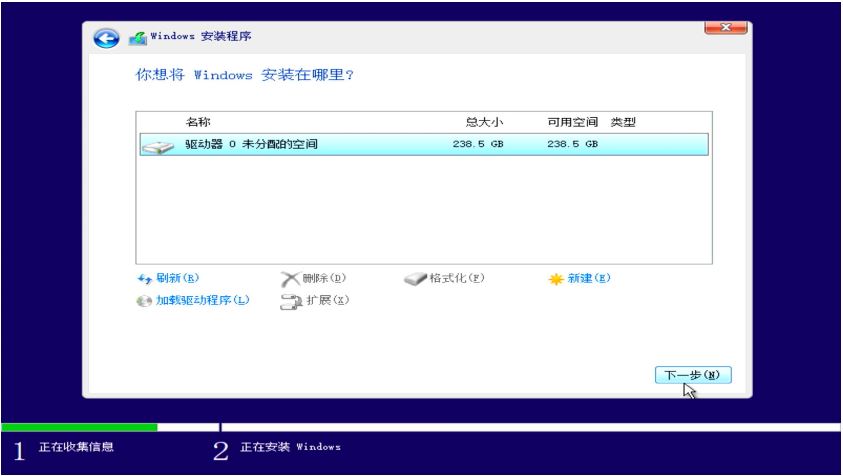
Select installation disk: If using a new hard drive, there are only one or two drives by default; Select the installation location and click Next. If it is an old hard drive, it is recommended to delete other partitions before installing it, and pay attention to backing up data.
¶ Complete the installation
Wait for the installation to complete: Wait patiently for the installation process, and the system will automatically restart after the installation is complete.
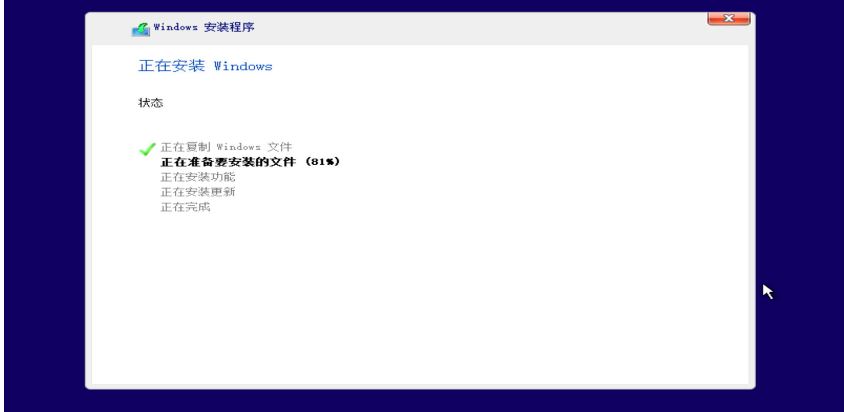
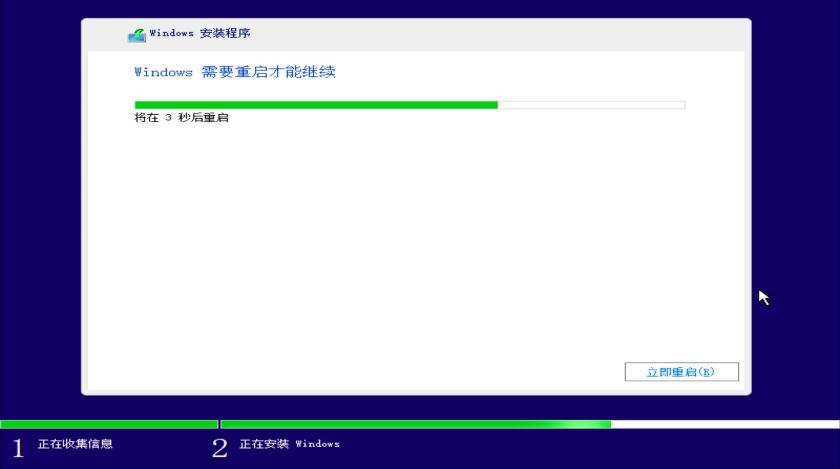
Configure the system: Complete the user system configuration according to personal needs to enter the desktop.
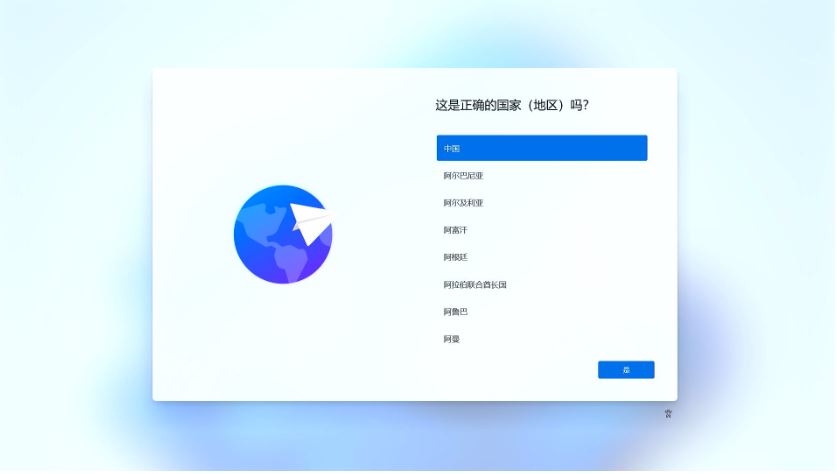
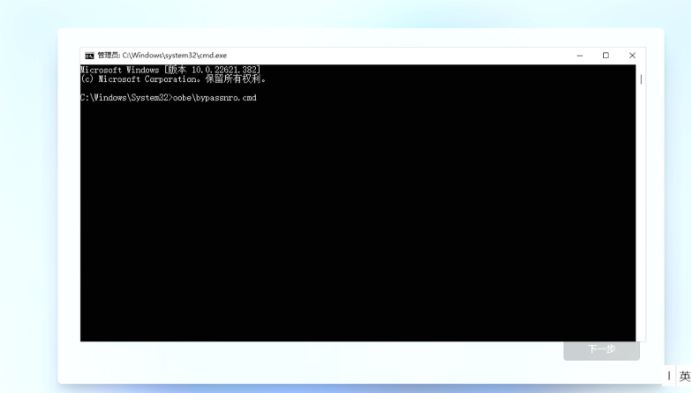
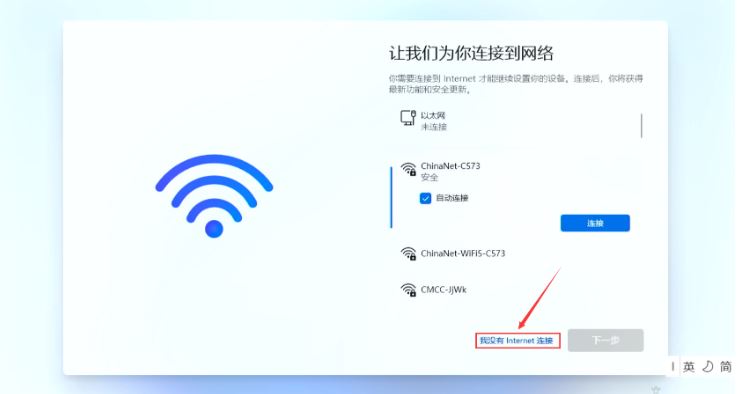
Skip network connection: It is recommended not to connect to the network during installation to avoid lag caused by updates. If you need to skip the network connection, you can refer to the following steps: Press
Shift+F10 to bring up the CMD window.
Enter the command oobe\bypassnro and enter the car.
The system will automatically restart, and after restarting, select "I don't have Intelnet" to skip networking.
¶ Install the driver
Download the driver: Go to the youyeetoo download station to download the required driver package to the USB flash drive.
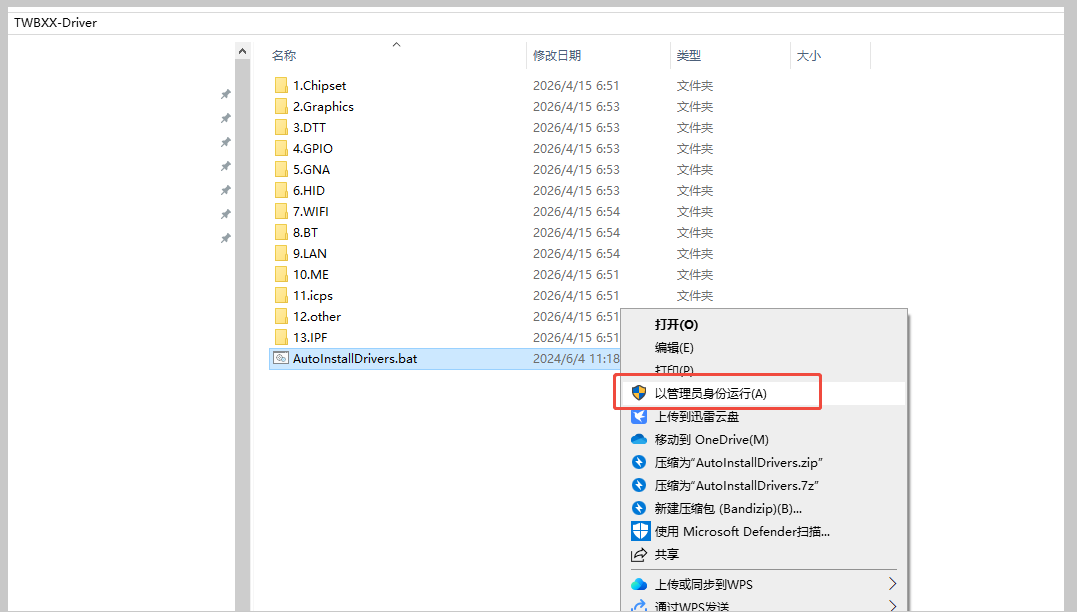
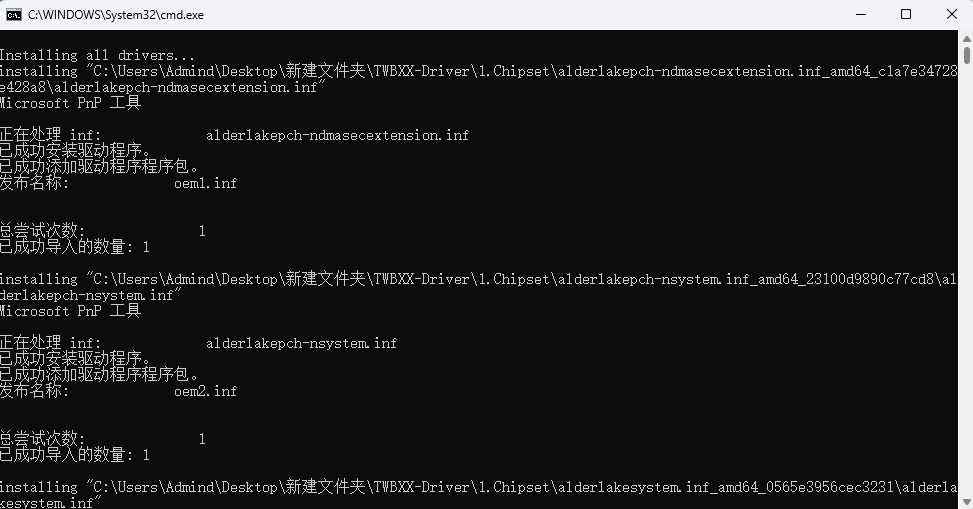
Unzip the driver: Unzip the driver package to the desktop, click to open the folder, right-click the administrator to run, and the computer can be used normally after the run is completed