¶ 02 Image Processing Pipeline
This chapter uses sample_vio as an example to walk through the whole image processing pipeline and, with hands-on steps, to help you understand how it works.
Note
This document only describes how to use the sample. For the implementation, refer to
<SDK_DIR>/sample/vio/sample_vio.cand the related files.
¶ 1 What sample_vio Does
sample_vio is the SDK sample that demonstrates the video input and image processing pipeline. It shows the complete path: capture from the sensor, process through VI -> VPSS, then either display on VO or encode with VENC, depending on configuration. With this sample you can quickly verify the capture capability of the video path, the image processing results, and the stability of the output path, which serves as a reference for your own application.
¶ 2 How sample_vio Works
sample_vio first captures sensor data through the VI module, then sends the stream to VPSS for scaling, cropping, distortion correction, denoising, and image enhancement. The processed frames can be sent to VO for display, or to VENC for encoding and saving to a file. Different work_mode settings also enable online or offline processing, dual-sensor processing, WDR scenario switching, and resolution switching, covering a range of application scenarios.
¶ 3 Using sample_vio
¶ Step 1: Build sample_vio
Switch to the sample directory and run make vio. Expected key output:
#### make "vio" completed successfully!(7 seconds) ####
A sample_vio executable and a sample_vio.o file then appear under <SDK_DIR>/sample/vio.
¶ Step 2: Copy sample_vio
Copy the sample_vio executable to the board.
Important
Board resources are limited. Mount an SD card first (Mounting an SD Card) and copy the binary there to run it.
¶ Step 3: Make sample_vio executable
chmod +x sample_vio
¶ Step 4: Run sample_vio
Parameters
sample_vio — Description: MPP framework pipeline
Command: ./sample_vio [work_mode] [stream_mode]
work_mode:0 VI online, VPSS online 1 VI offline, VPSS online (supports 4K sensor input) 2 VI offline, VPSS offline 3 VI online/offline, VPSS offline, WDR mode (VI online by default) 4 VI offline, VPSS offline, VI linear/WDR switching 5 VI offline, VPSS offline, resolution switching 6 VI offline, VPSS online, dual sensor (any 2-lane sensor combination) 7 VI offline, VPSS online, dual-sensor stitching 8 VI online, VPSS online, dual sensor with built-in switch 9 VI offline, VPSS offline, pre-recording and readback (CV4003 sensor) 10 VI offline, VPSS online, LDC distortion correction 11 VI offline, VPSS online, AHD sensor input
stream_mode:0: output to display device 1: encode to file
Example:
./sample_vio 0 1
Expected output:
[sample_comm_sys_get_wrap_buffer_size]-555: wrap buffer line is  720
[sample_vio_vi_online_vpss_online]-205: wrap vb size : 1992960
[SENSOR][Func]:sc465sl_set_slave_addr [Line]:1637 [Info]:Sensor dev [0] set slave addr 0x60 success.
[SENSOR][Func]:sc465sl_i2c_init [Line]:1664 [Info]:====== i2c[1] init success!=======
[SENSOR][Func]:sc465sl_set_wdr_mode [Line]:487 [Info]:linear mode
[sample_comm_isp_sensor_init]-368: sensor i2c_id = 1, clk_id = 1
[SENSOR][Func]:sc465sl_get_ae_common_default [Line]:858 [Info]:man_ratio_enable: 0
[SENSOR][Func]:sc465sl_calc_fps [Line]:1358 [Info]:sc465sl set fps = 30.000000
[ISP]isp_init[1113]: isp[0] init success
[ISP]isp_run[771]: isp run.

[sample_comm_vi_start_dev]-1066: mipi_rate: 864.
[ISP]isp_start[503]: isp0 start.
[SENSOR][Func]:sc465sl_4lane_linear_2560x1440_init [Line]:952 [Info]:============================================================================
[SENSOR][Func]:sc465sl_4lane_linear_2560x1440_init [Line]:953 [Info]:=== SC465SL_27MInput_MIPI_4lane_12bit_30fps_2560x1440_linear init success! =
[SENSOR][Func]:sc465sl_4lane_linear_2560x1440_init [Line]:954 [Info]:============================================================================

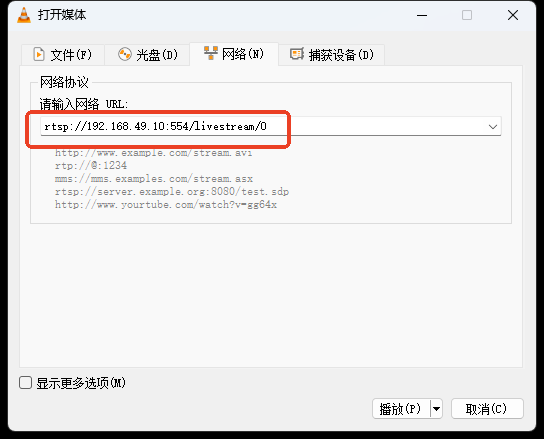
rtsp://192.168.49.10:554/livestream/0
rtsp://192.168.49.10:554/livestream/1
---------------press any key to exit!---------------
[SENSOR][Func]:sc465sl_calc_fps [Line]:1358 [Info]:sc465sl set fps = 25.000000
The network URLs are:
rtsp://192.168.49.10:554/livestream/0— main stream (higher quality)rtsp://192.168.49.10:554/livestream/1— sub stream
¶ Step 5: Check the result
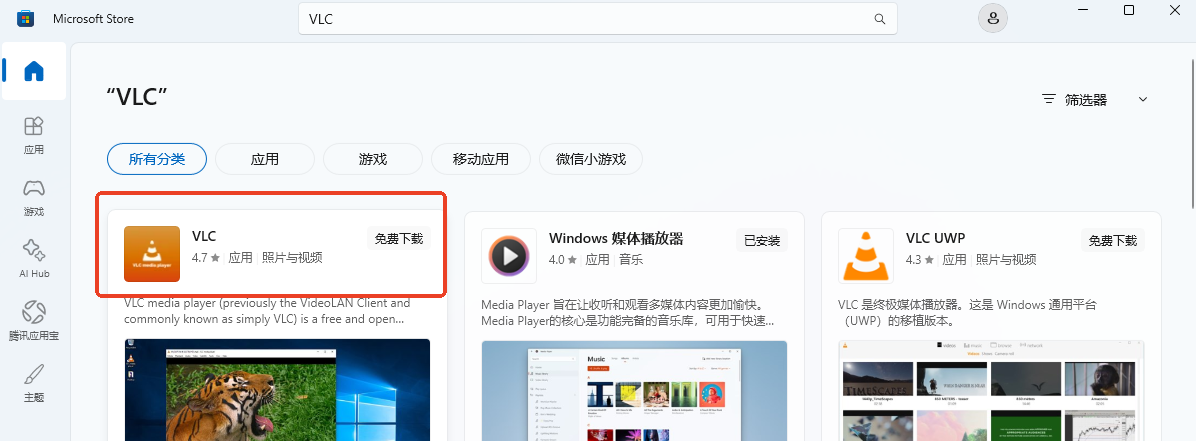
1. Install the VLC media player
It can be installed directly from the Microsoft Store.
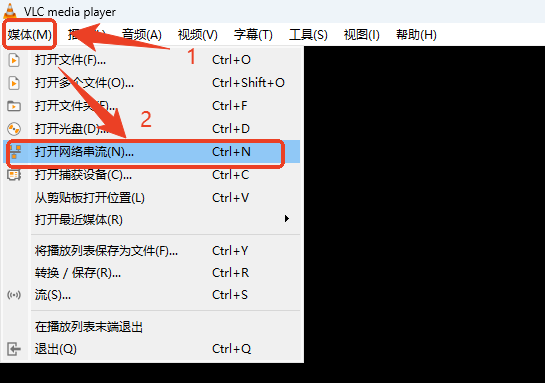
2. Open the network stream tool and pull the stream
3. Enter the network URL
Press play and the camera image appears.
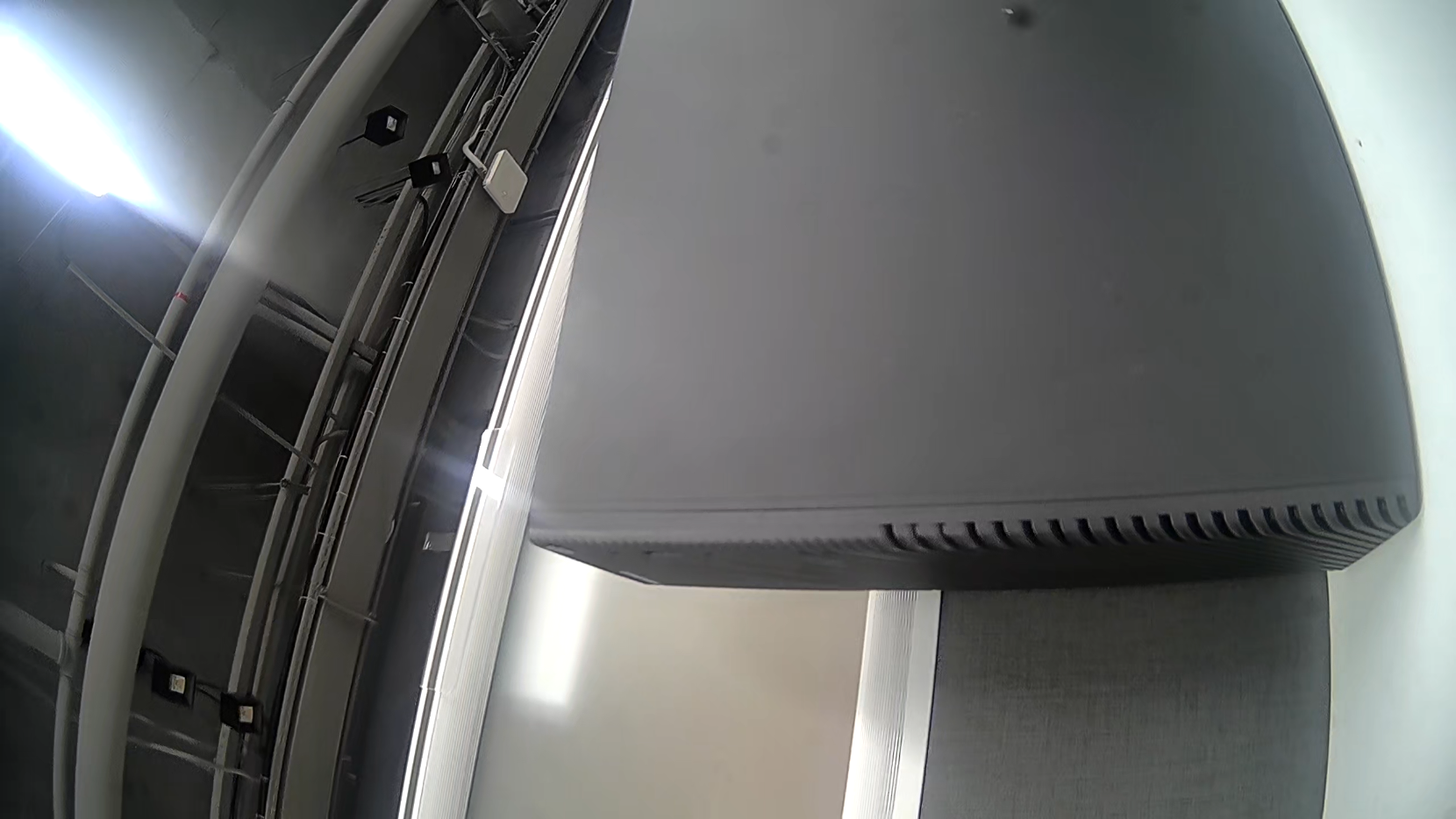
Tip
If the image is heavily distorted, run
./sample_vio 10 1to apply LDC distortion correction.