¶ 03 Image Flashing
This document describes the flashing features of the FastBurn tool.
¶ Installing FastBurn
Step 1: Copy the FastBurn package from the SDK release directory ($SDK_DIR\tools\windows\burning-tool\FastBurn-x.x.xx.zip) to a local folder on your PC and extract it.
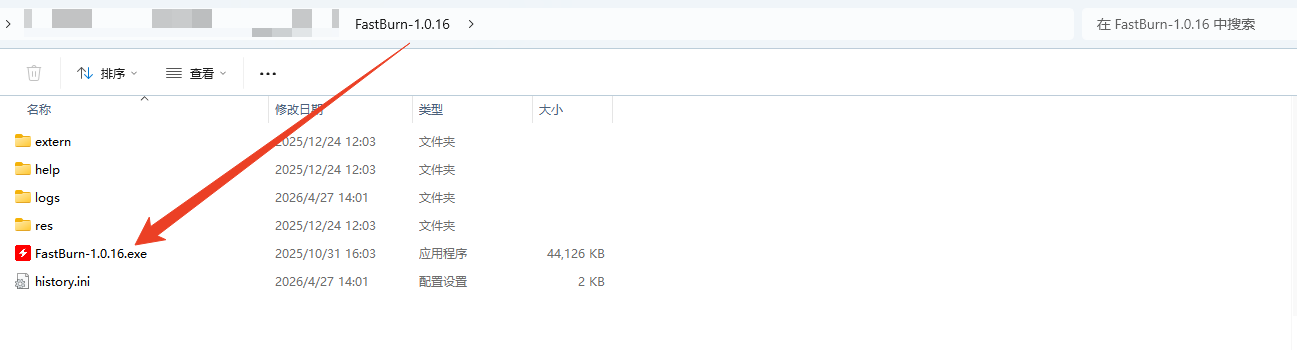
Step 2: Double-click FastBurn-x.x.xx.exe in the extracted folder to start FastBurn.
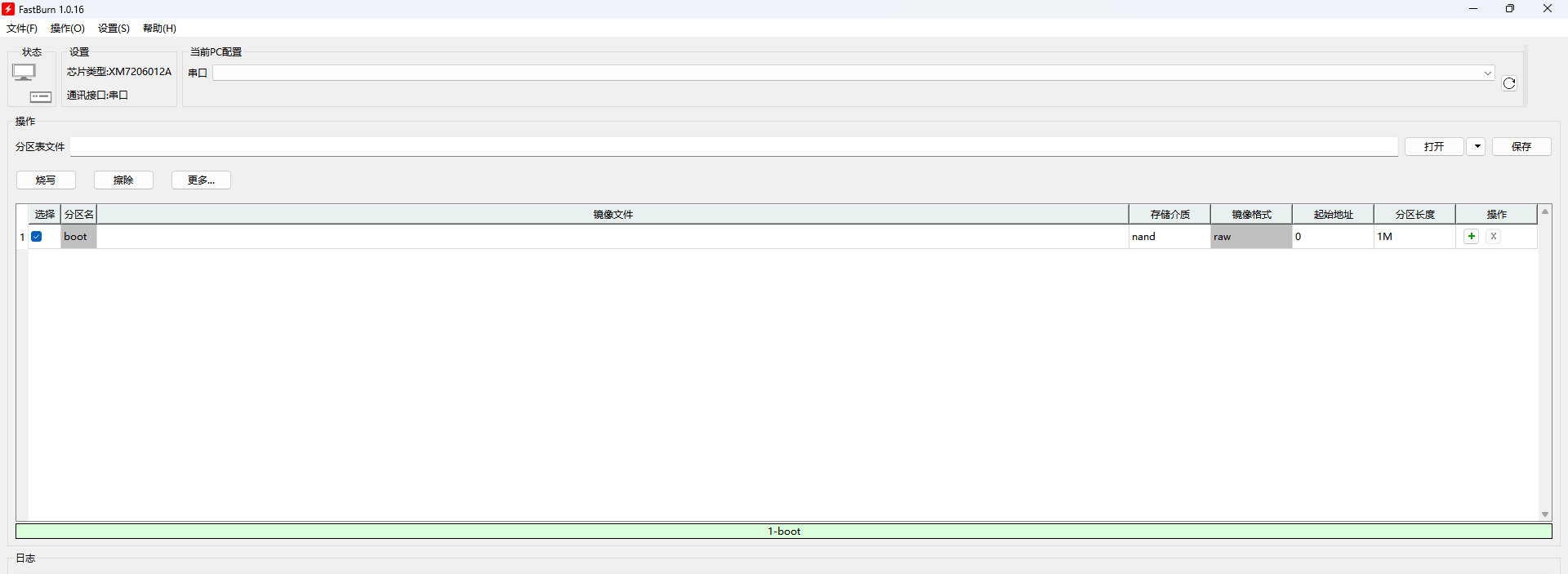
¶ 1. Flashing over Serial Port
Note
Install the serial driver required by your USB-to-TTL module.
The FT232 driver is included in the SDK release package:sdk/tools/windows/burning-tools/ftdi-driver/FTDI-CDM-Driver.exeDouble-click the installer and follow the wizard.
Step 1: In the tool, select the chip type first, then the communication interface (for example "Serial"), then the corresponding port number.
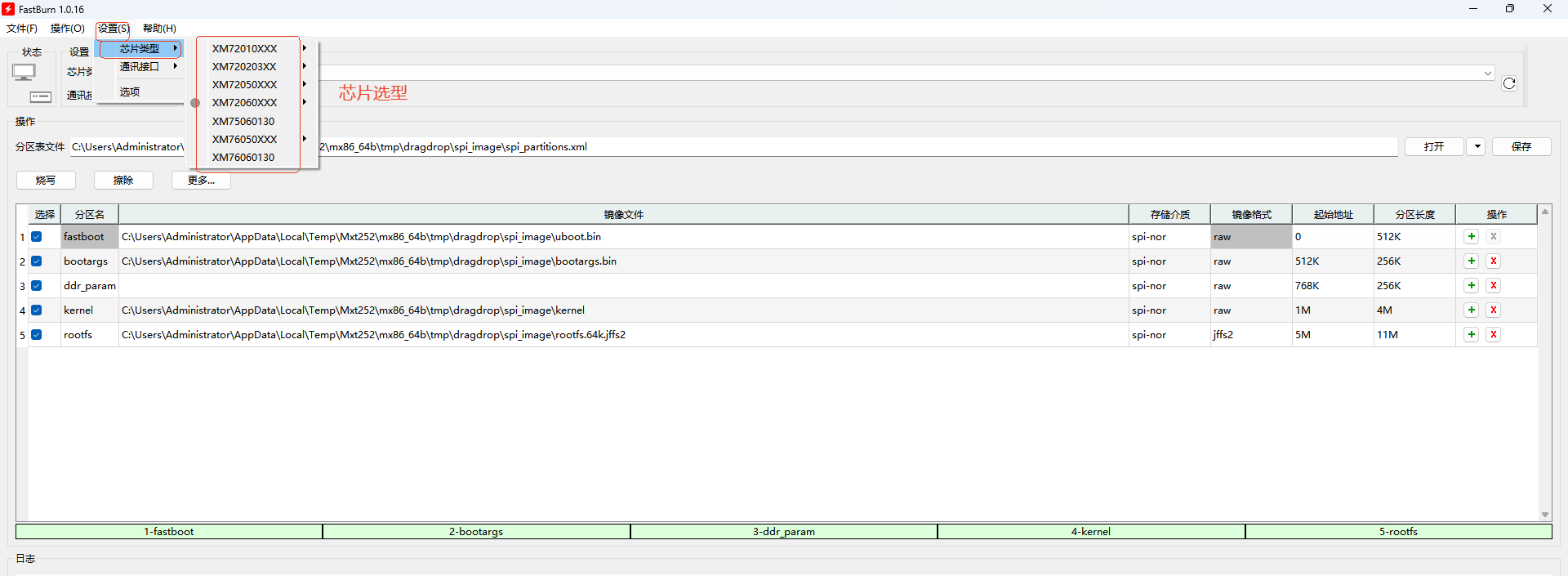
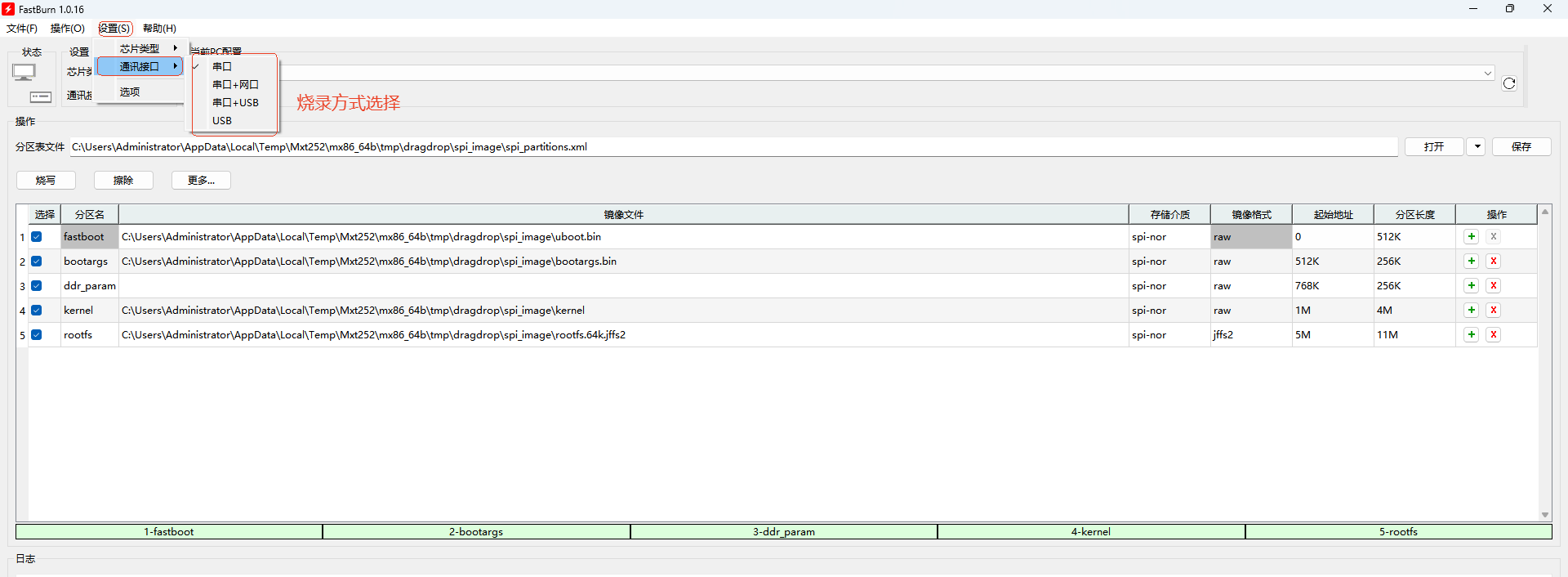
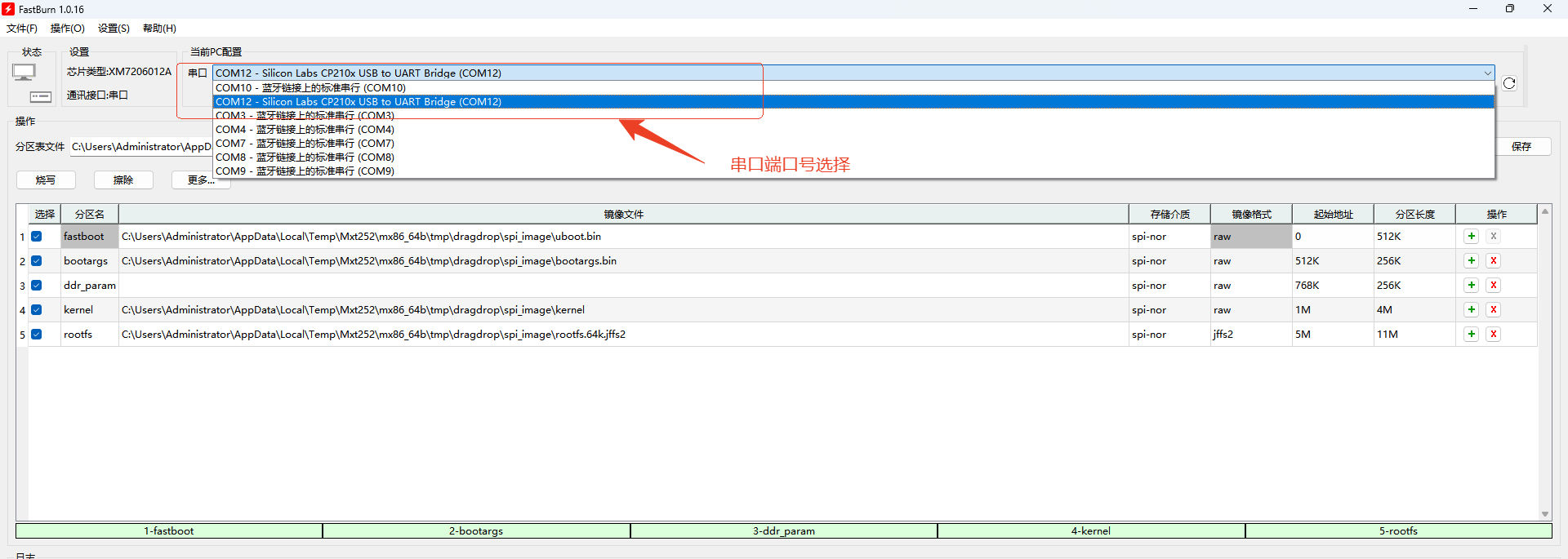
Step 2: Add the image files (directory shown below) to FastBurn. Once added, FastBurn automatically detects the partition table inside the images. To configure the partition table manually, see section 4, Configuring the Partition Table.
~/GK7206$ ls out/xm7206v12a/image/
emmc_image  nand_image  spi_image
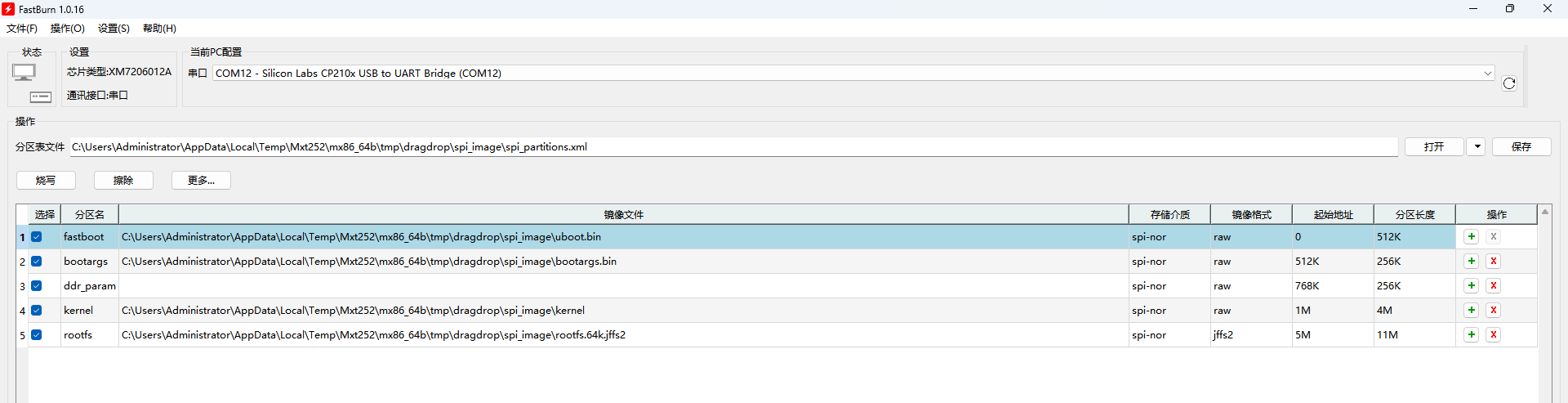
Step 3: Connect the board according to the selected interface, click Burn, then press the RESET button on the board to start flashing.
¶ 2. Flashing over Serial + USB
¶ 2.1 Installing the USB Driver
If you flash over Serial + USB, you must install the USB driver first. The steps are:
¶ Method 1
Step 1: Put Pico-G1 into USB device mode.
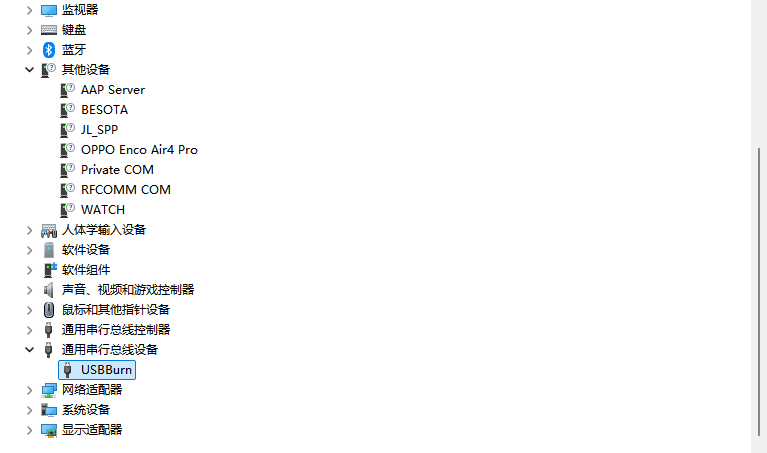
Hold the boot button while powering on Pico-G1 to enter USB device mode. Open Device Manager on the PC; a USB device with a yellow warning mark will appear.
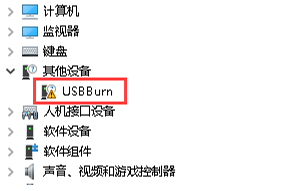
Step 2: Install the driver by following the FastBurn prompts.
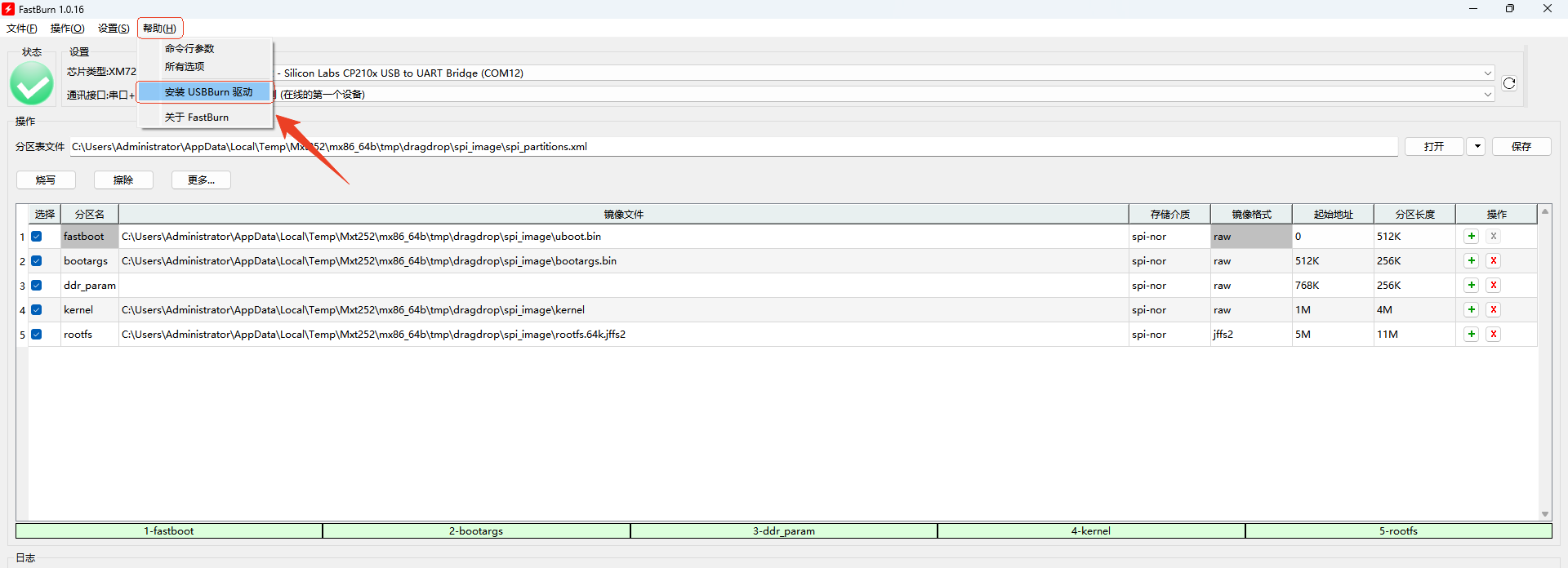
Step 3: When installation finishes, the yellow warning mark disappears. Press RESET to reboot Pico-G1.
¶ Method 2
Step 1: Put Pico-G1 into USB device mode.
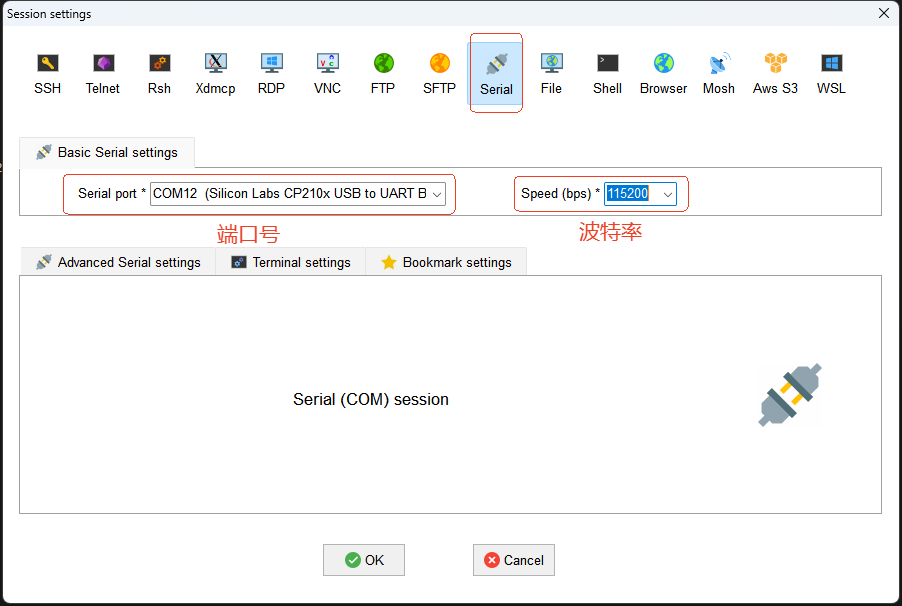
Connect the PC to Pico-G1 with a USB cable, and connect to Pico-G1 over the serial port in MobaXterm.

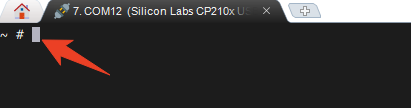
Press Enter. The following output indicates a successful connection.
Press the RESET button on Pico-G1 while repeatedly pressing Enter in the MobaXterm serial terminal to interrupt the automatic boot process and enter the U-Boot command line.
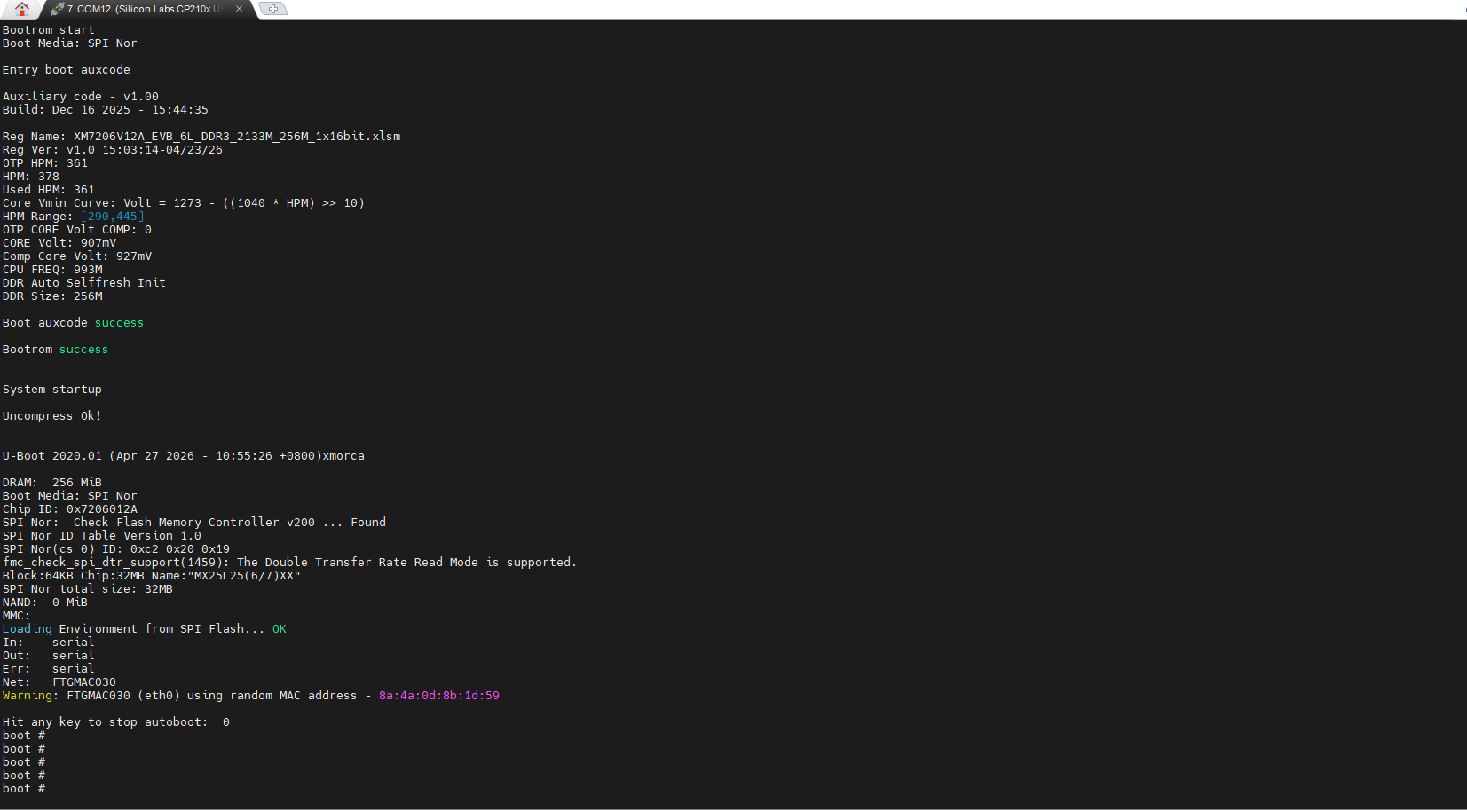
Run the usb device command in the U-Boot console, then check Device Manager on the PC; a USB device with a yellow warning mark will appear.
Step 2: Install the driver by following the FastBurn prompts.
Step 3: When installation finishes, the yellow warning mark disappears. Press RESET to reboot Pico-G1.
¶ 2.2 Flashing Steps
The steps are the same as for Serial; just change the communication mode to Serial + USB.
¶ 3. Flashing over USB
Note
The flashing method is the same as Serial + USB, but the handshake sequence differs: hold the Boot button, click Reset, then release Reset.
¶ 4. Configuring the Partition Table
The partition table describes how the Flash storage space is divided, including each partition's name, start address, size, and the image file flashed to it. When flashing firmware, FastBurn uses the partition table to write each image to the correct location in Flash. Common partitions include fastboot, bootargs, ddr_param, kernel, and rootfs. The partition table may differ across platforms, Flash capacities, and system designs.
In most cases, if you use the default partition table shipped with the SDK and the image sizes have not changed, you do not need to modify it. Check and reconfigure the partition table in the following situations.
- Image size exceeds the original partition size
When an image grows beyond the space reserved for its partition, enlarge that partition. Examples: the kernel image exceeds the kernel partition; the rootfs image exceeds the rootfs partition; flashing reports errors such as image size too large or partition size not enough.
Solution: Re-plan the partition sizes based on the actual image sizes.
2. Flash capacity changes
If the Flash capacity on the hardware changes — for example, from 16 MB SPI NOR Flash to 32 MB, from 256 MB NAND Flash to 128 MB, or a different eMMC capacity.
Solution: Re-adjust the partition layout for the new capacity, so partitions neither exceed the Flash range nor waste the added space.
3. Adding, removing, or adjusting partitions
Functional changes may require new or adjusted partitions — for example, adding a recovery partition, a userdata partition, or app/config/factory partitions; removing unused partitions; merging small partitions; or resizing the rootfs or user data partition.
Solution: Update the partition table accordingly, and keep the partition information in the boot parameters or device tree consistent with it.
4. OTA upgrade scheme changes
If the system must support OTA upgrades, especially A/B partition upgrades, the partitions usually need to be re-planned. For example:
kernel_a, kernel_b, rootfs_a, rootfs_b, recovery, ota, userdata
OTA schemes usually impose specific requirements on partition sizes and ordering, so reconfigure them together with the upgrade scheme.
5. Boot method or system design changes
Changes in the boot method may also require partition adjustments — for example, a different bootloader load address; a different location for kernel, dtb, or rootfs; switching from single-system to dual-system boot; switching from initramfs boot to mounting a rootfs partition; or changes to mtdparts in the boot parameters.
Solution: Determine the new boot chain and image layout first, then update the partition table, flashing configuration, boot parameters, and boot scripts together.
Important
If the partition table configured in FastBurn does not match the partitions actually used by the system, the following problems may occur:
- Flashing succeeds but the board does not boot
- The kernel cannot find the rootfs
- The rootfs fails to mount
- The MTD partitions seen by Linux differ from expectations
- Data is written to the wrong partition, causing system faults
Therefore, after modifying the FastBurn partition table, confirm the partition information in the bootloader, bootargs, device tree, or system configuration.