¶ 04 System Login
This chapter uses MobaXterm as an example to show how to log in to the youyeetoo-Pico-G1 board over serial or SSH and reach the Linux command line for development and debugging.
¶ 1. Installing MobaXterm
Download and install the free edition of MobaXterm from the MobaXterm website.

¶ 2. Logging In over Serial
¶ 2.1 Overview
Serial login is the most basic and most reliable login method. It does not depend on network configuration and is ideal for first-time use and system debugging. The Pico-G1 board connects to the PC's USB port through an FT232 serial adapter and communicates with a serial terminal application.
¶ 2.2 Hardware Connection
Required items:
| Item | Description |
|---|---|
| youyeetoo-Pico-G1 board | Target board |
| FT232 serial adapter | Included with the SDK |
| USB cable | Connects the serial adapter to the PC |
| 3× jumper wires | Connect the serial adapter to the board |
Wiring:
| Serial adapter | youyeetoo-Pico-G1 board |
|---|---|
| TX | RX |
| RX | TX |
| GND | GND |
Important
TX goes to RX and RX goes to TX — never connect same-name pins together. GND must be connected, otherwise communication is unreliable. Do not connect VCC; a voltage mismatch may damage the board.
¶ 2.3 Procedure
Step 1: Install the serial driver.
Install the FT232 driver on the Windows workstation. The driver is included in the SDK release package:
sdk/tools/windows/burning-tools/ftdi-driver/FTDI-CDM-Driver.exe
Double-click the installer and follow the wizard.
Step 2: Confirm the COM port number.
Connect the serial adapter to the PC with a USB cable, open Windows Device Manager, and check the port number under "Ports (COM & LPT)":
Device Manager
└── Ports (COM & LPT)
    └── USB Serial Port (COM3)    ← note this port number
Expected output:
Port examples: COM3, COM5, etc. — depends on your PC
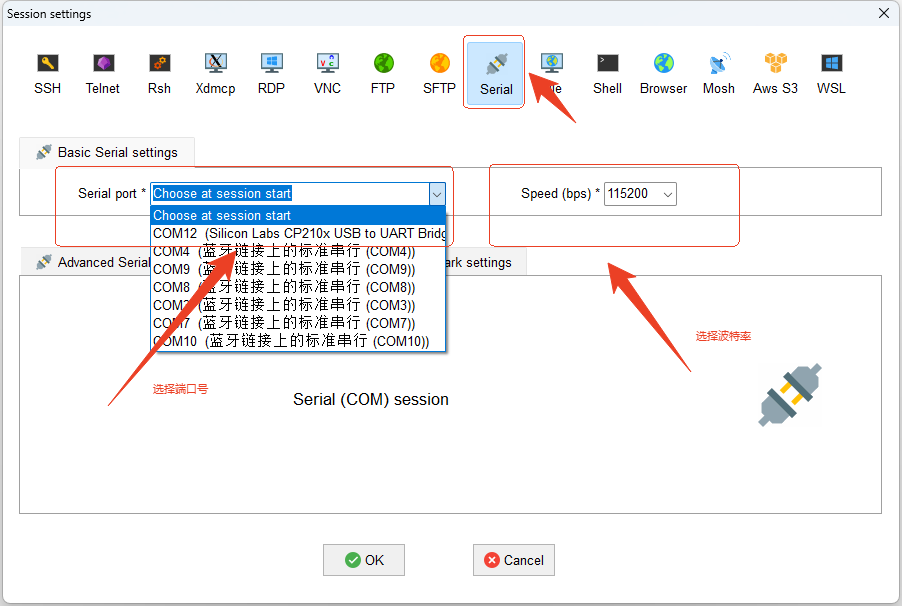
Step 3: Log in with MobaXterm.

Note
Set the baud rate to 115200.
Step 4: Reset the board.
Reset the board; the serial terminal prints the boot log:
U-Boot 2021.04 (Apr 26 2026 - 10:00:00 +0800)

Model: GK7206V11A Demo Board
DRAM:  128 MiB
...
Loading Environment from SPI Flash... OK
Hit any key to stop autoboot:  0
...
Starting kernel ...

[    0.000000] Booting Linux on physical CPU 0x0
[    0.000000] Linux version 5.10.130 (user@server) (arm-gcc12.2.0-linux-uclibceabi-gcc 12.2.0) #1 SMP PREEMPT
...
[    2.500000] Freeing unused kernel memory: 1024K
[    2.600000] Run /sbin/init as init process

Welcome to GK7206
GK7206V11A login:
Tip
Press Enter during boot to enter the U-Boot command line; run
bootto continue booting Linux.
¶ 3. Logging In over SSH
Note
SSH is a network-based remote login method. The Pico-G1 board is connected to the LAN with an Ethernet cable, and an SSH client on the PC (such as MobaXterm) connects to the board for remote command-line access. The prerequisite for SSH is therefore that Pico-G1 and the PC are on the same LAN.
Step 1: Download and install the LAN IP scanner Zenmap.
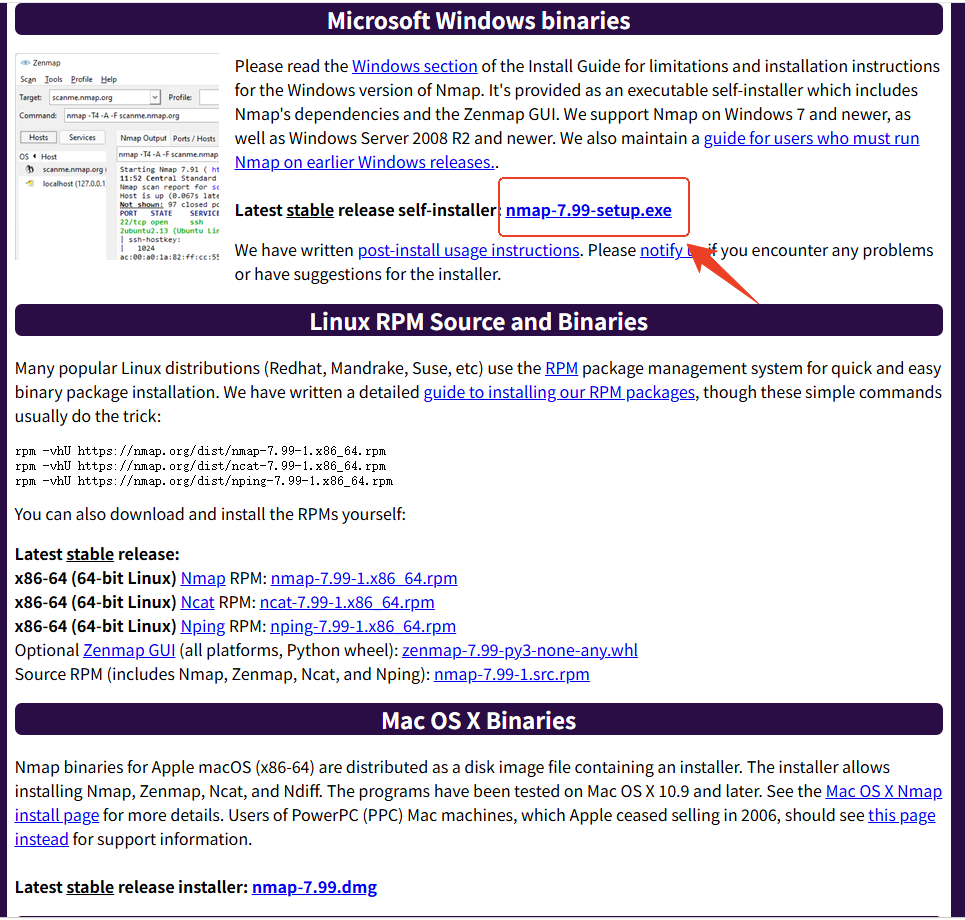
Follow the installer prompts and keep clicking next.
Step 2: Find the IP address of the Pico-G1 board.
-
Open Zenmap.
-
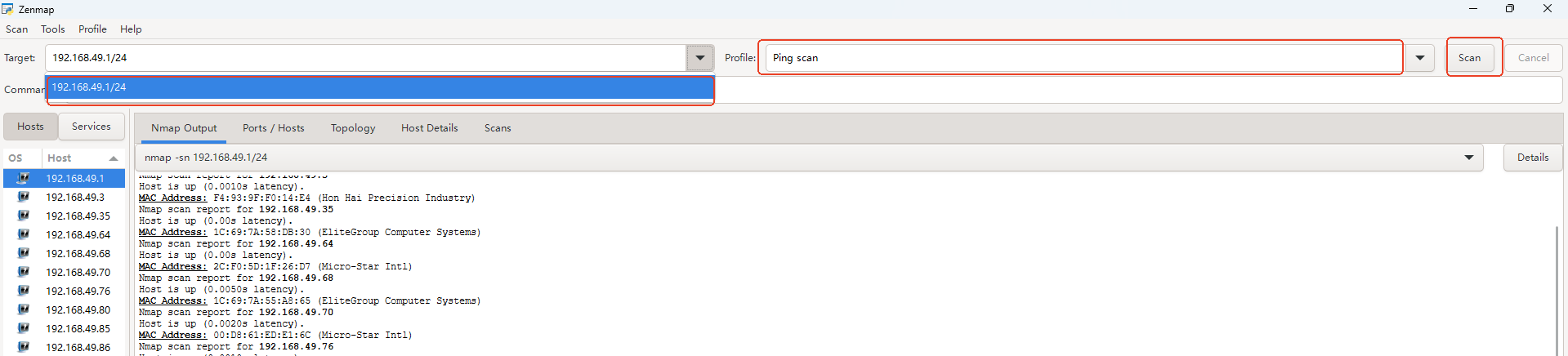
In the Target drop-down, select your subnet; set Profile to Ping scan and click Scan to scan the LAN.
-
Note all IP addresses found in the scan.
-
Power on the board and make sure it is connected to the network (wait about 10 seconds after power-on).
-
Click Scan again to scan the LAN.
-
Exclude all previously recorded IP addresses. The remaining address is the IP address of Pico-G1.
Step 3: Log in with MobaXterm.
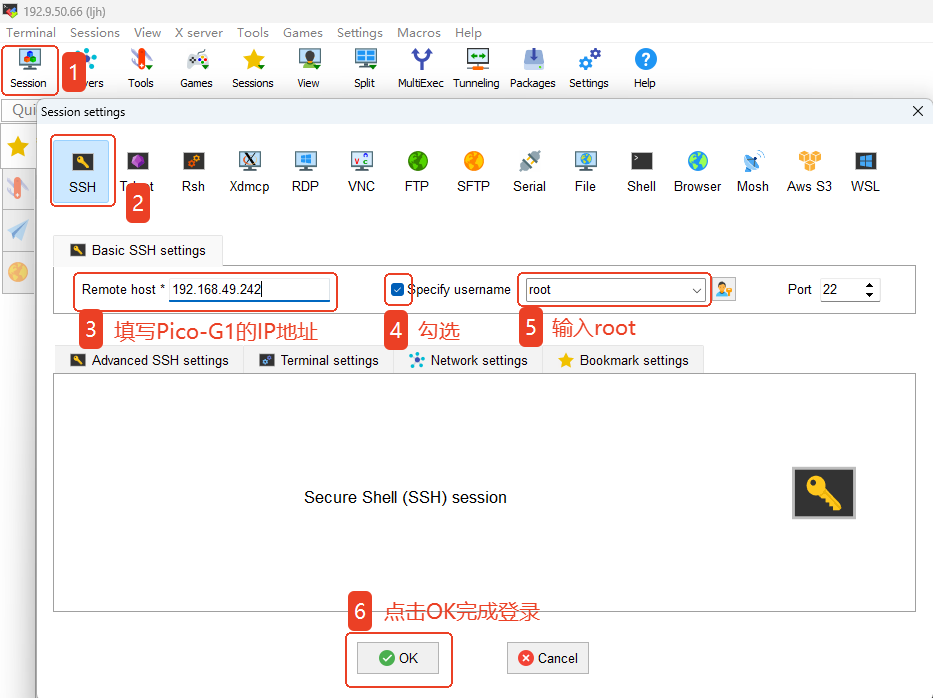
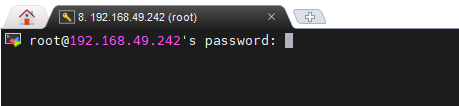
Enter the default password 123456 and press Enter.
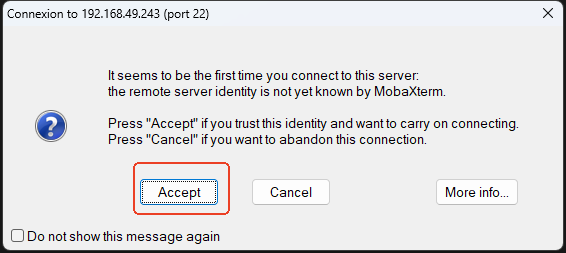
Select Accept.
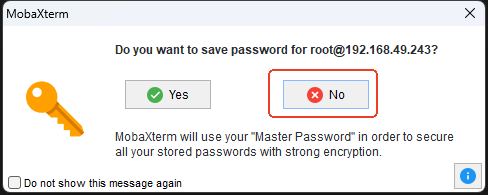
Select No.
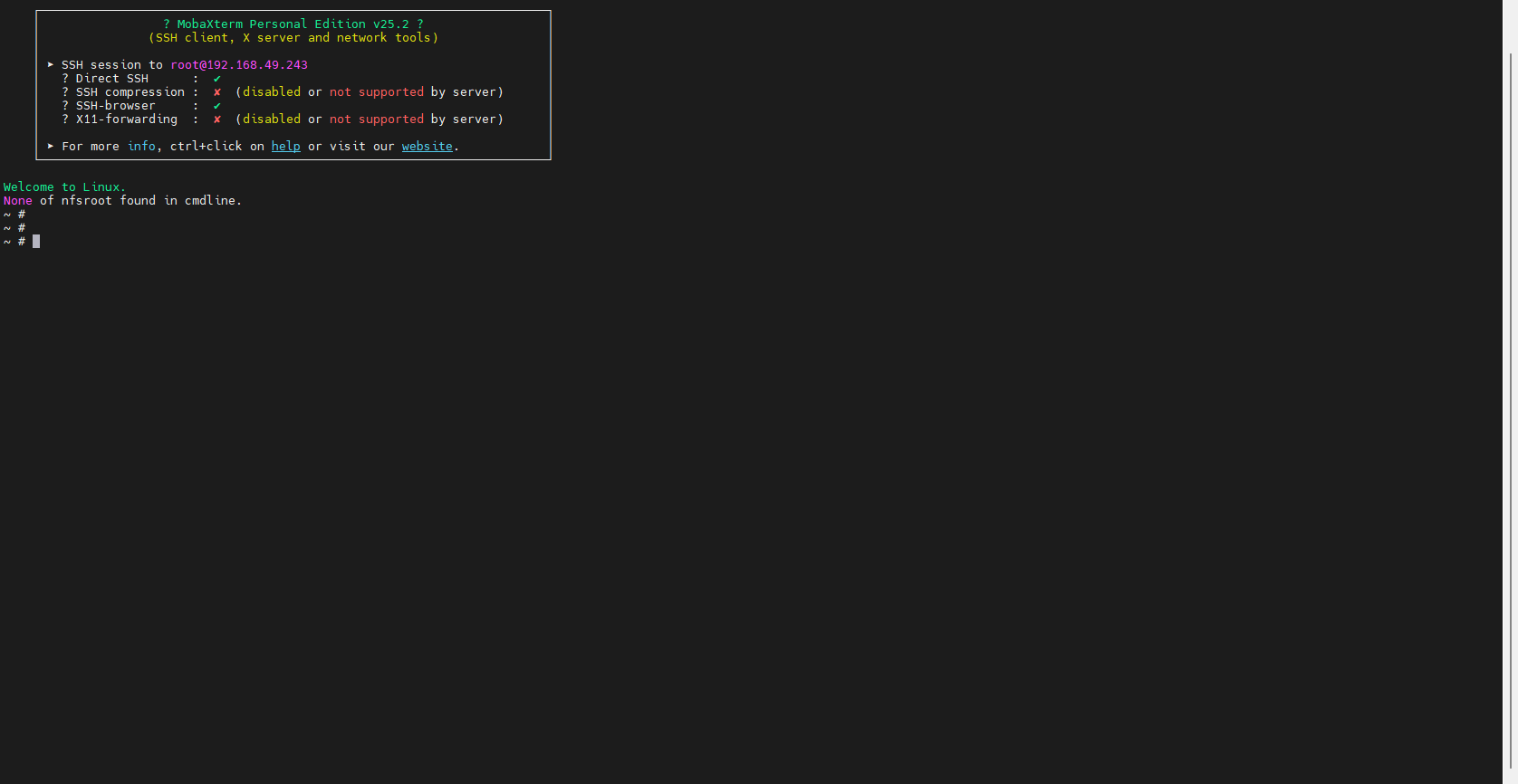
Step 4: Logged in successfully.