¶ Windows System Source
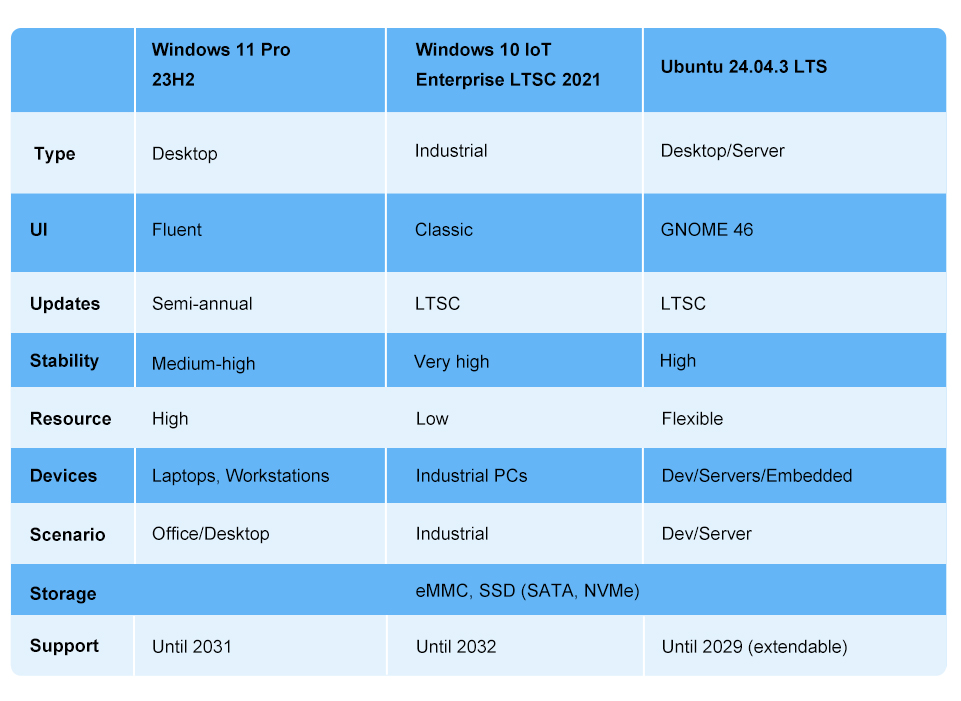
Install a 64-bit windows operating system based on an x64 processor on youyeetoo K1 development board. You can choose from the following two windows system sources:
-
Microsoft Official Windows Image
Users can choose to download and burn the official Windows image from the Microsoft website.This method requires users to manually install the windows system and the windows driver for the K1 development board, and is suitable for users with specific needs or who wish to customize the configuration. -
Youyeetoo Customized Windows System
We provide a pre-customized Windows system for the K1 development board, which includes common Windows drivers and development board drivers. Users do not need to manually install the development board driver; it can be used directly after booting up, simplifying the configuration process.
¶ Windows System Image Download
¶ Download Image
- Windows 11 Professional 23H2 (22631.2428):
Youyeetoo Official Drive Download Link
http://dd.youyeetoo.cn:5000/sharing/tJx5xb0NZ
Google Drive Download Link
https://drive.google.com/drive/folders/1Dr4oKEgljC6NzASFOObxQCzGLv6BpRwh?usp=drive_link - Windows 10 IoT Enterprise Edition LTSC 21H2 (19044.1288)
Youyeetoo Official Drive Download Link
http://dd.youyeetoo.cn:5000/sharing/YaWJ3QOb2
Google Drive Download Link
https://drive.google.com/drive/folders/17O8azj6r0Fjqclvxo84wgp7Sxr6mRE1k?usp=drive_link
¶ Creating a windows boot disk
youyeetoo's customized Windows system is available in both ISO image and compressed formats.
Please choose one of the two formats to create the boot disk.
By default, the system can be installed on youyeetoo K1 development board's onboard storage EMMC.
Preliminary preparation: A working USB flash drive with at least 8GB of storage (file transfer speed depends on the quality of your USB flash drive's flash memory chips).
Insert the usb flash drive into a usb port on a working windows computer. It is recommended to insert it into a usb 3 port (marked in blue).
¶ Method 1: ISO Image File Format
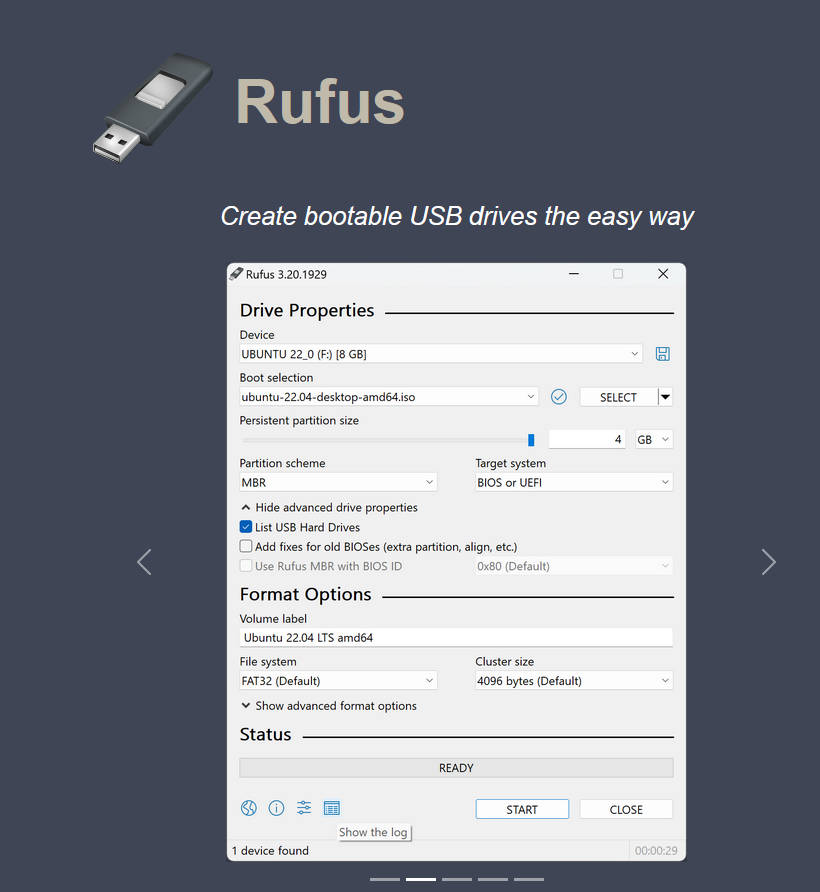
Rufus is an auxiliary tool for formatting and creating USB boot disks.
- Rufus
Official Website Download Link
https://rufus.ie/en/
Youyeetoo Official Drive Download Link
http://dd.youyeetoo.cn:5000/sharing/vjVy6eQ6V
Google Drive Download Link
**
Please download from the official website as shown in the image below.
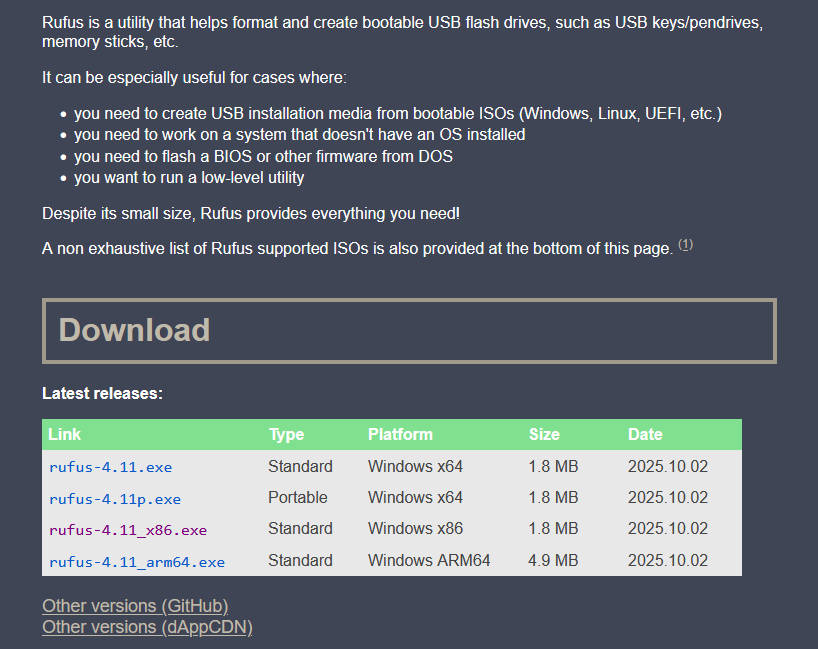
Select the platform corresponding to your computer to download and install.
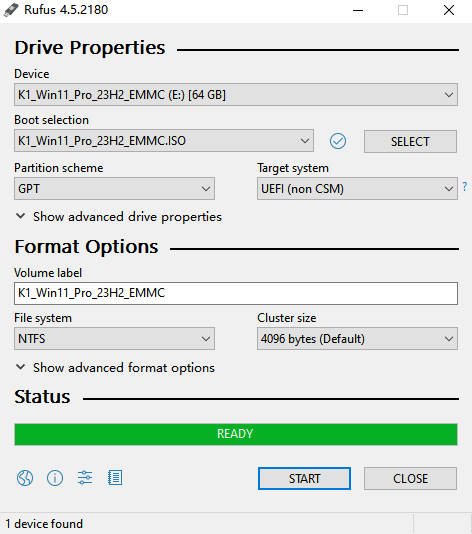
This example uses K1 Windows 11 Professional Edition 23H2 EMMC image adapted by youyeetoo.

Double-click to run the rufus.exe software, and then select your chosen ISO image file.
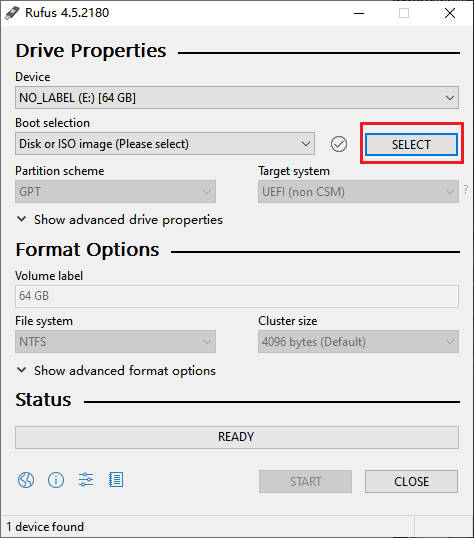
The software will automatically configure the other options; simply click "Start" to begin.
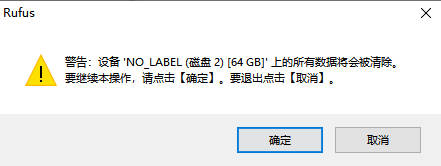
A pop-up option will inform you that the USB drive will be formatted. Please back up any important data on the USB drive beforehand! Please back up any important data on the USB drive beforehand!!!
Click OK
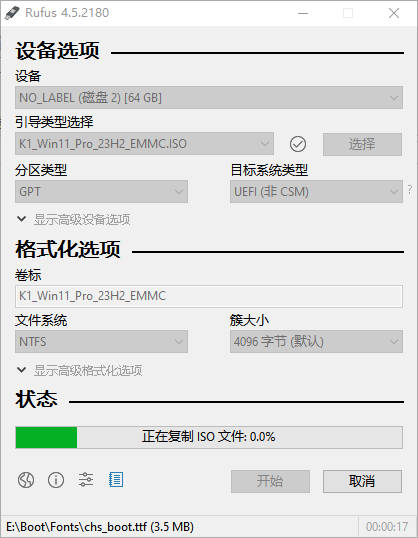
Wait patiently for the progress bar to finish loading.
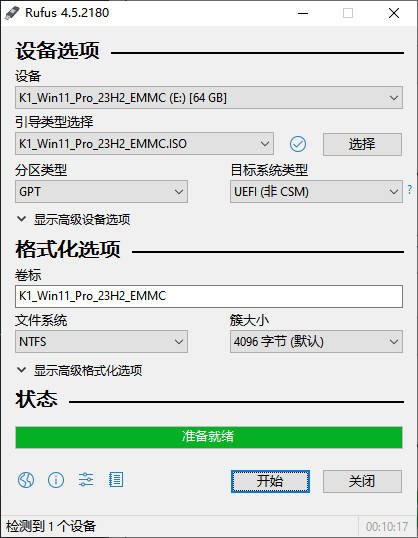
Loading complete, now ready.
¶ Method 2: ZIP compressed file format
Please install compression software on your computer first (WinRAR, 7-zip, 2345 HaoZip, 360 Compression, etc.).
1. Download the Windows system firmware you need. Here, we take the K1 Windows 11 Professional Edition 23H2 adapted by youyeetoo as an example.

2. Unzip the downloaded system archive file; you will get a folder named K1_Win11_Pro_23H2_EMMC.
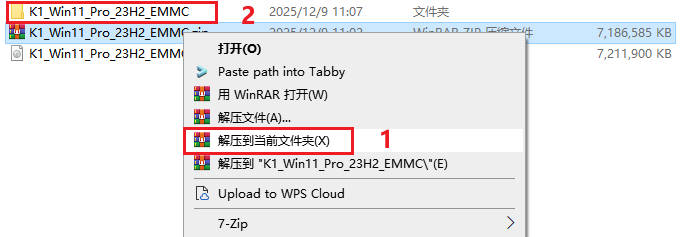
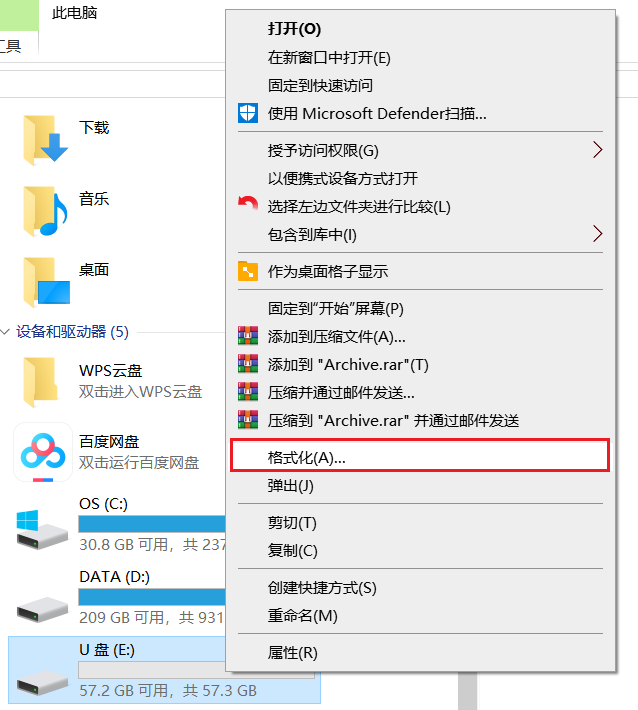
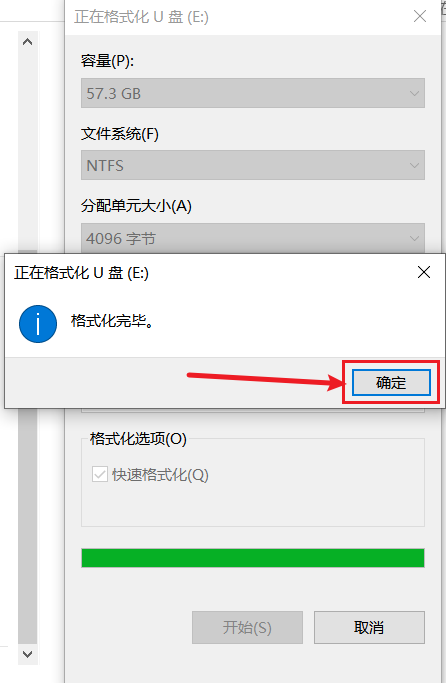
3. Format USB drive
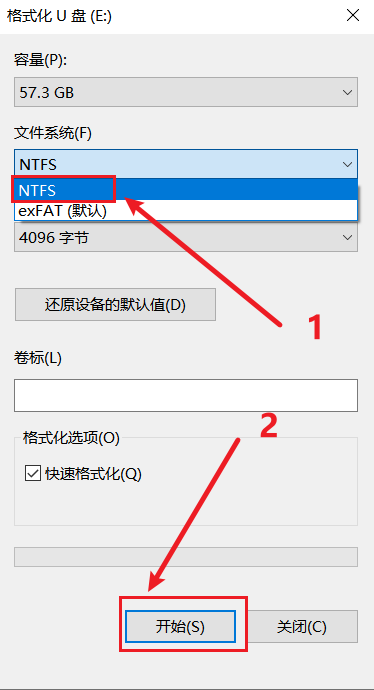
Select NTFS format, then click Start.
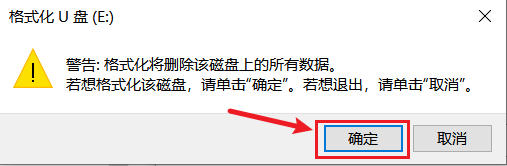
A pop-up option informs you that the USB drive will be formatted; please back up any important data on the USB drive beforehand!!!。
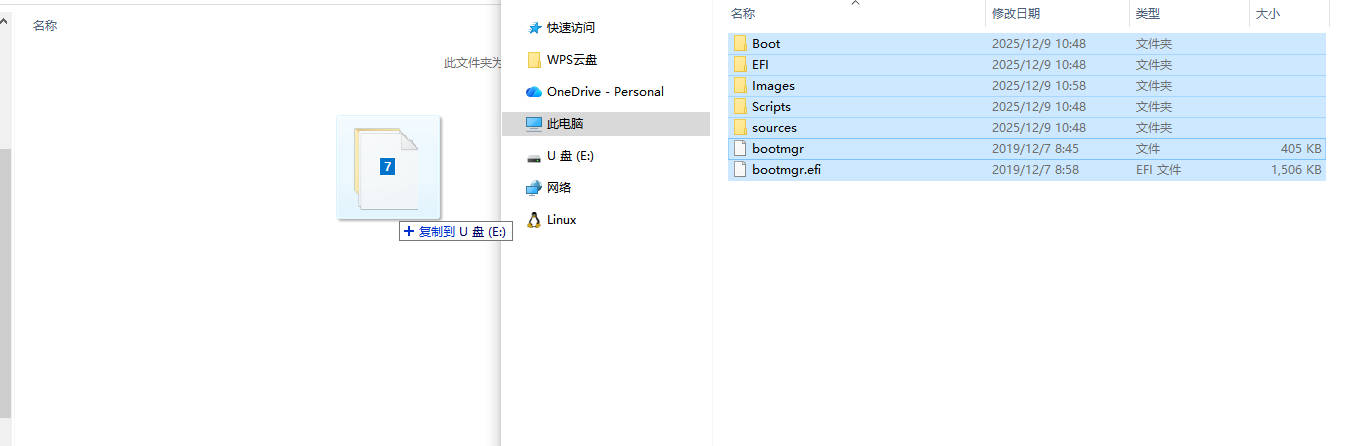
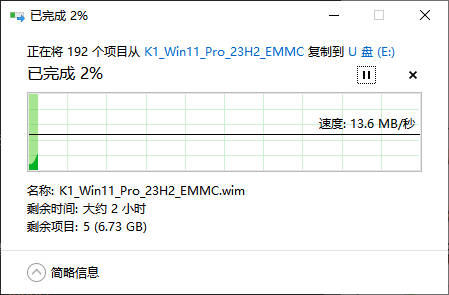
4. Copy all the files shown in the image to the root directory of the USB drive.
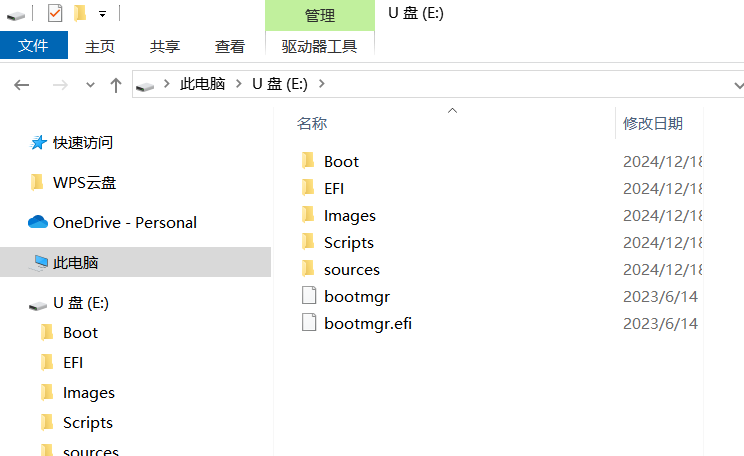
5. The copy is complete as follows
¶ Safely eject windows startup disk
Right-click the USB drive in My Computer and select Eject.
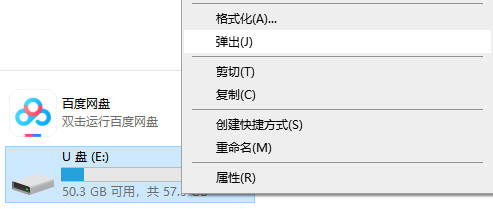
A Windows prompt appears in the lower right corner, informing you that you can manually unplug the USB drive from the computer's usb port.
¶ Start installing Windows system
¶ Automated script installation system
Insert the prepared Windows boot disk into the USB port of the K1 development board (it is recommended to insert it into the USB 3 interface (with blue markings)) and power on to start. The Windows system installation automation script will begin running.
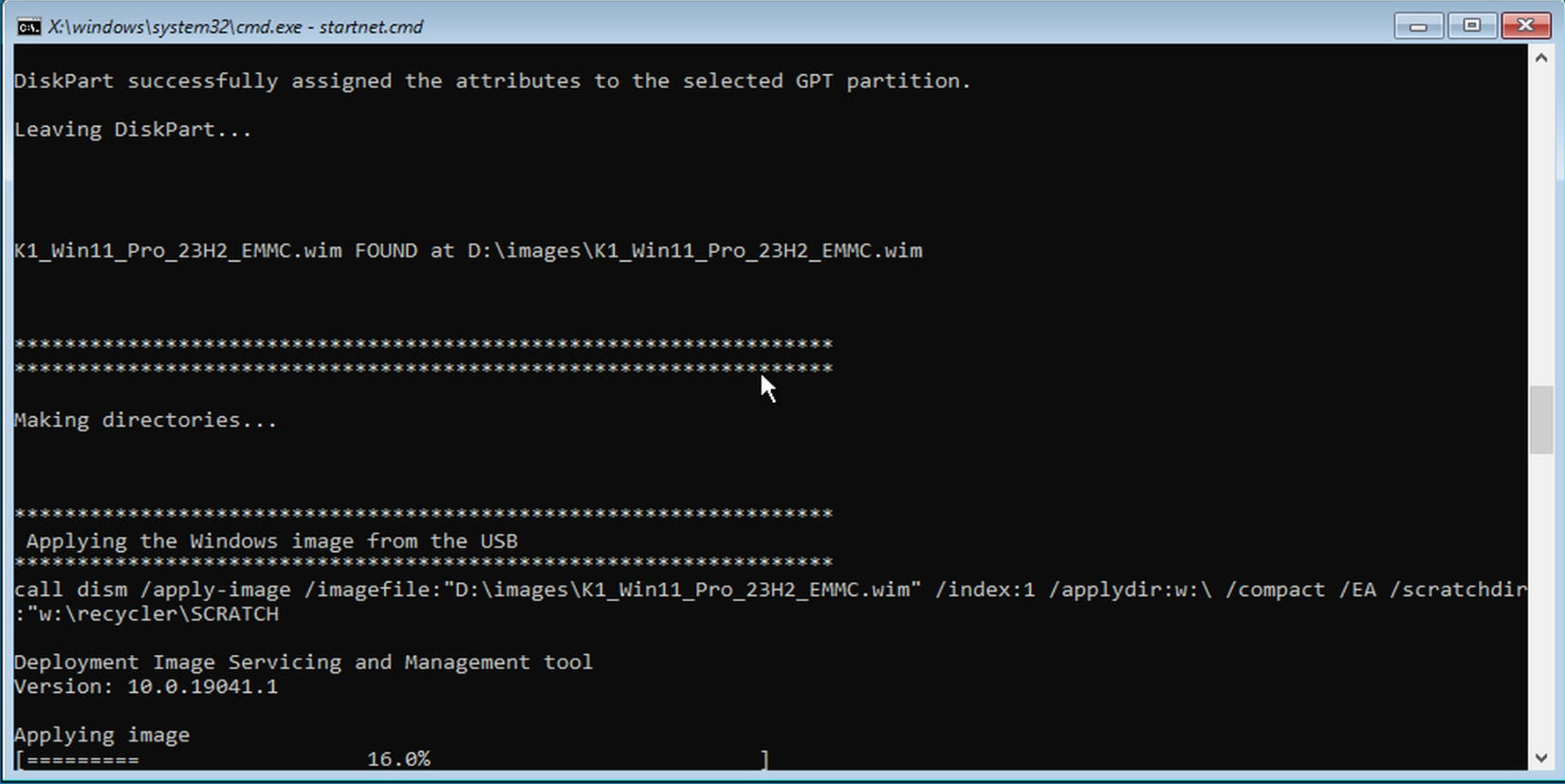
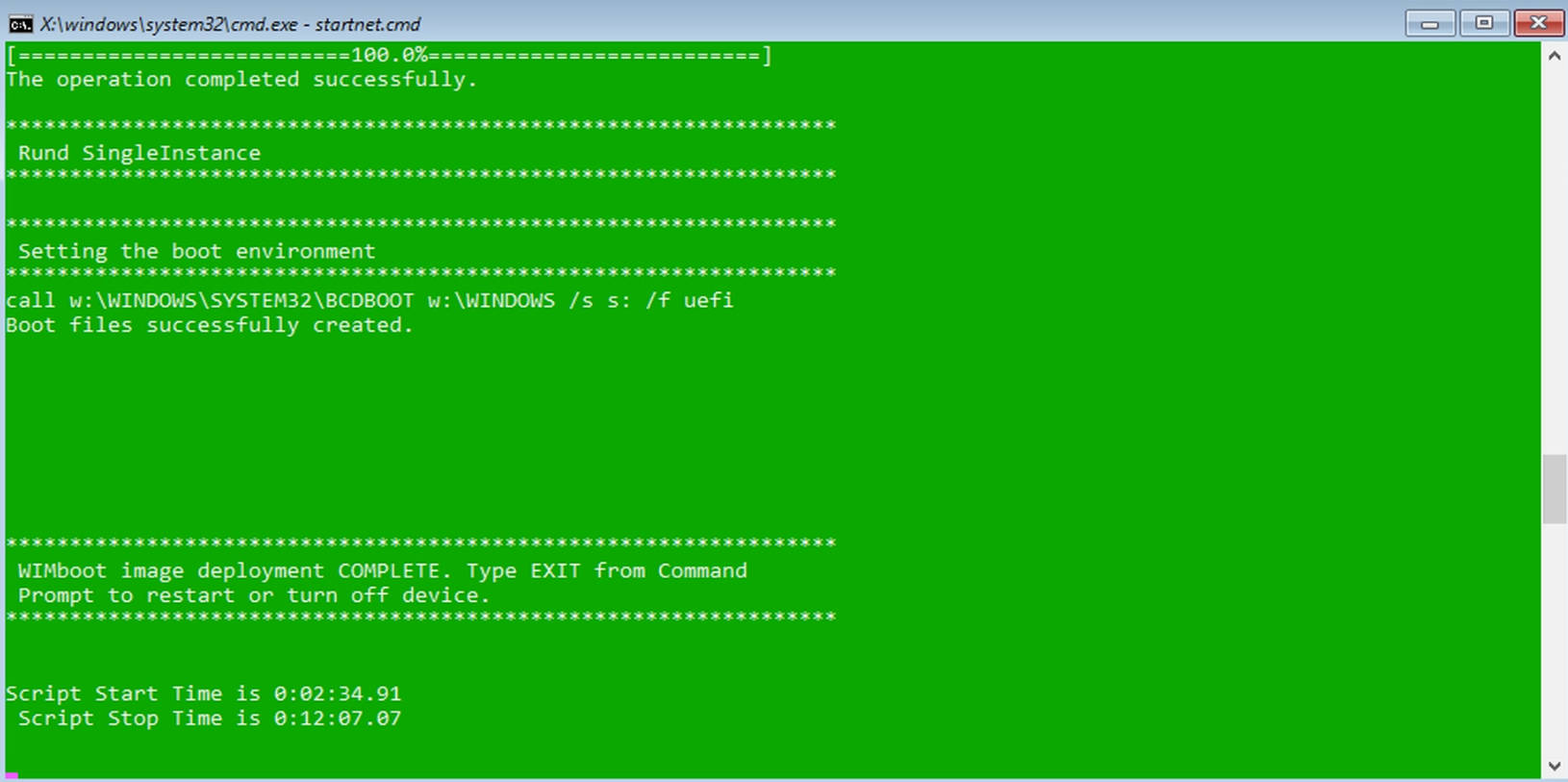
Once the progress bar "Applying image" reaches 100% and the screen displays green, the K1 will automatically shut down.Please unplug the USB drive and then power on the computer again.!!!
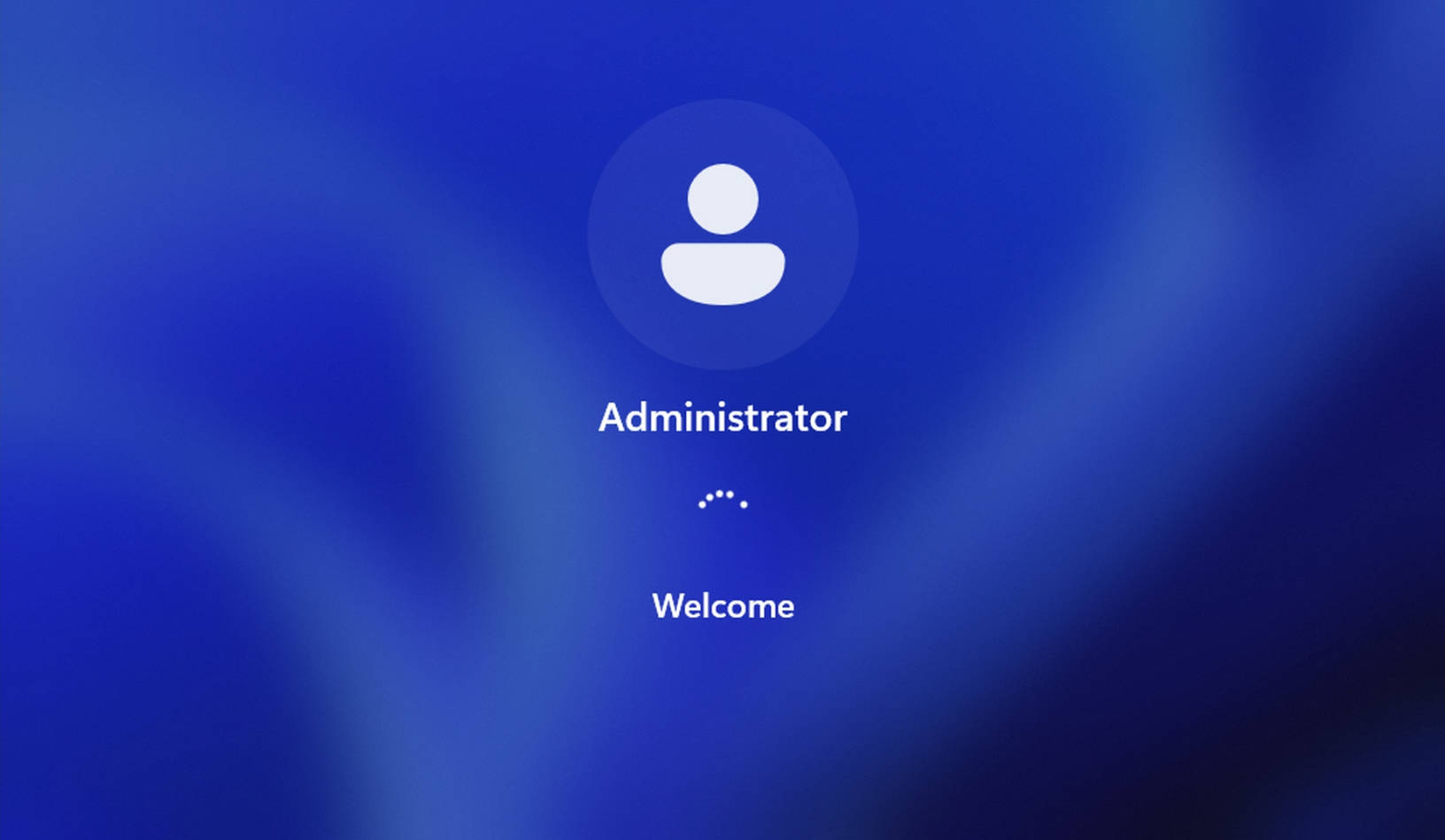
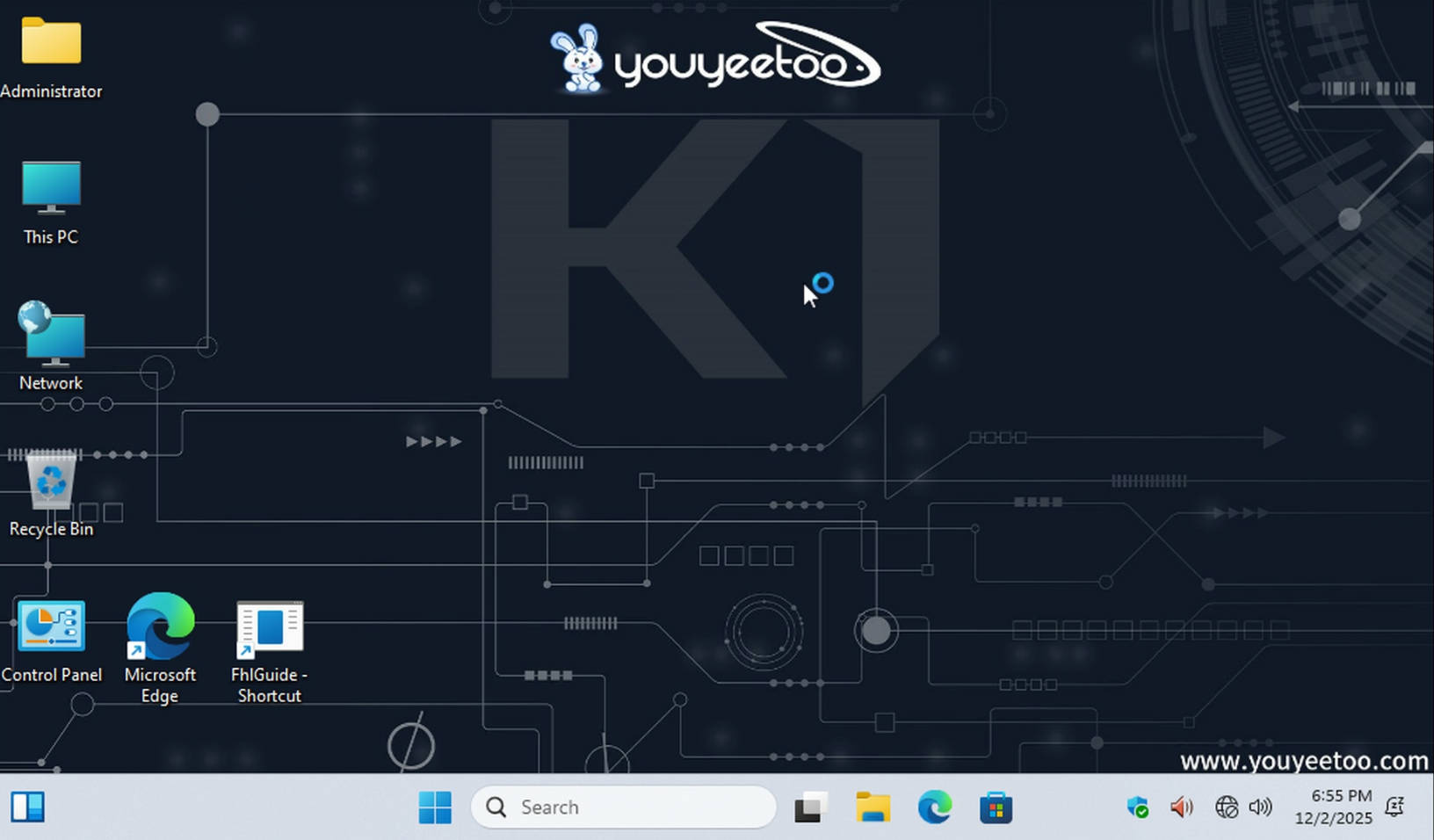
By default, you will be automatically logged into the Administrator account. If you need to create and log into a personal account, please see the next section, "How to Access the Windows Unboxing Experience".
The desktop is shown in the image below.
¶ How to get into the Windows unboxing experience
¶ Windows 10 IoT Enterprise LTSC 21H2
After logging in as Administrator
->Open This PC on your desktop.
->Enter C:\youyeetoo
->Double-click to run Cleanup.cmd
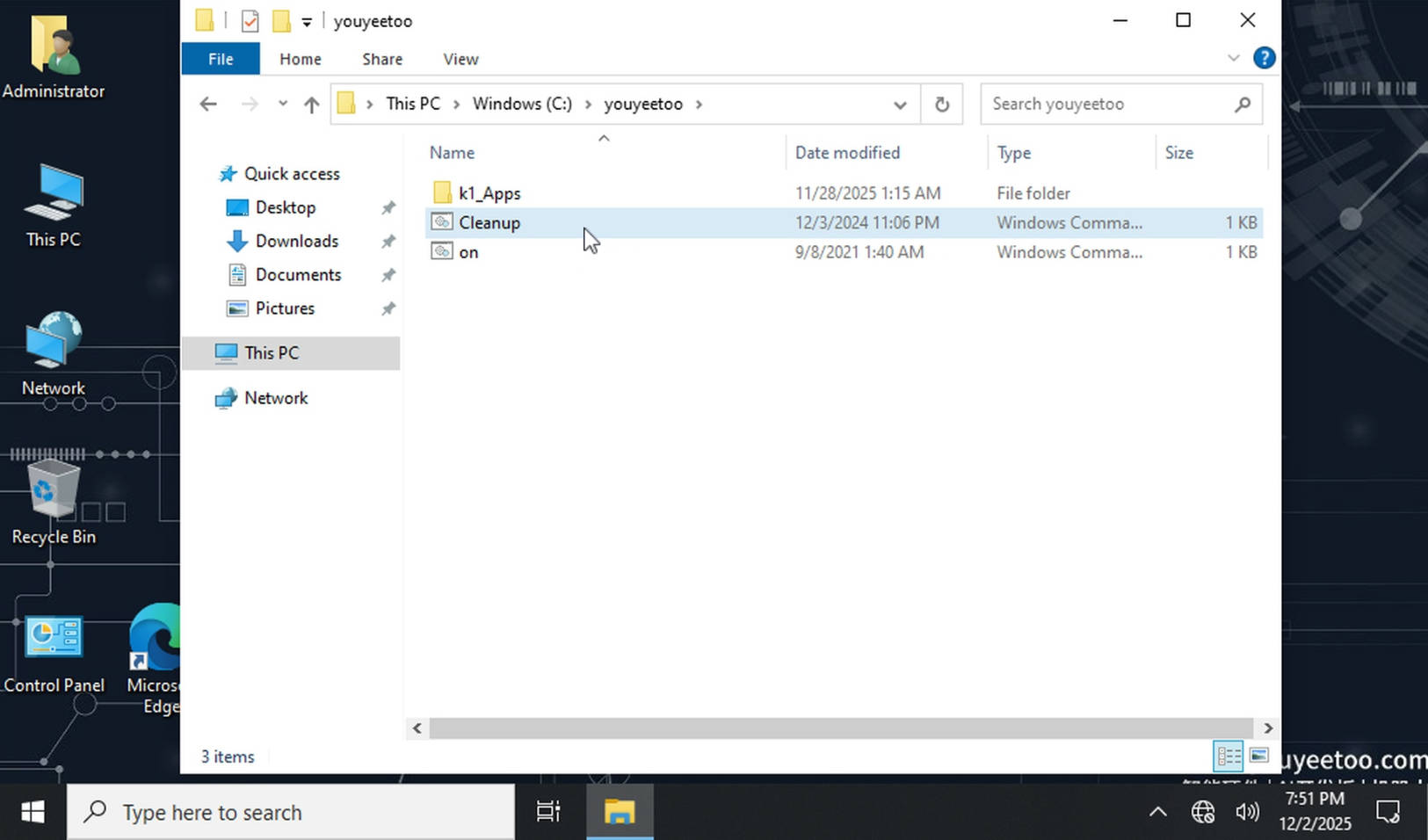
->Type Y or y on the keyboard and wait for the process to complete and then automatically shut down.
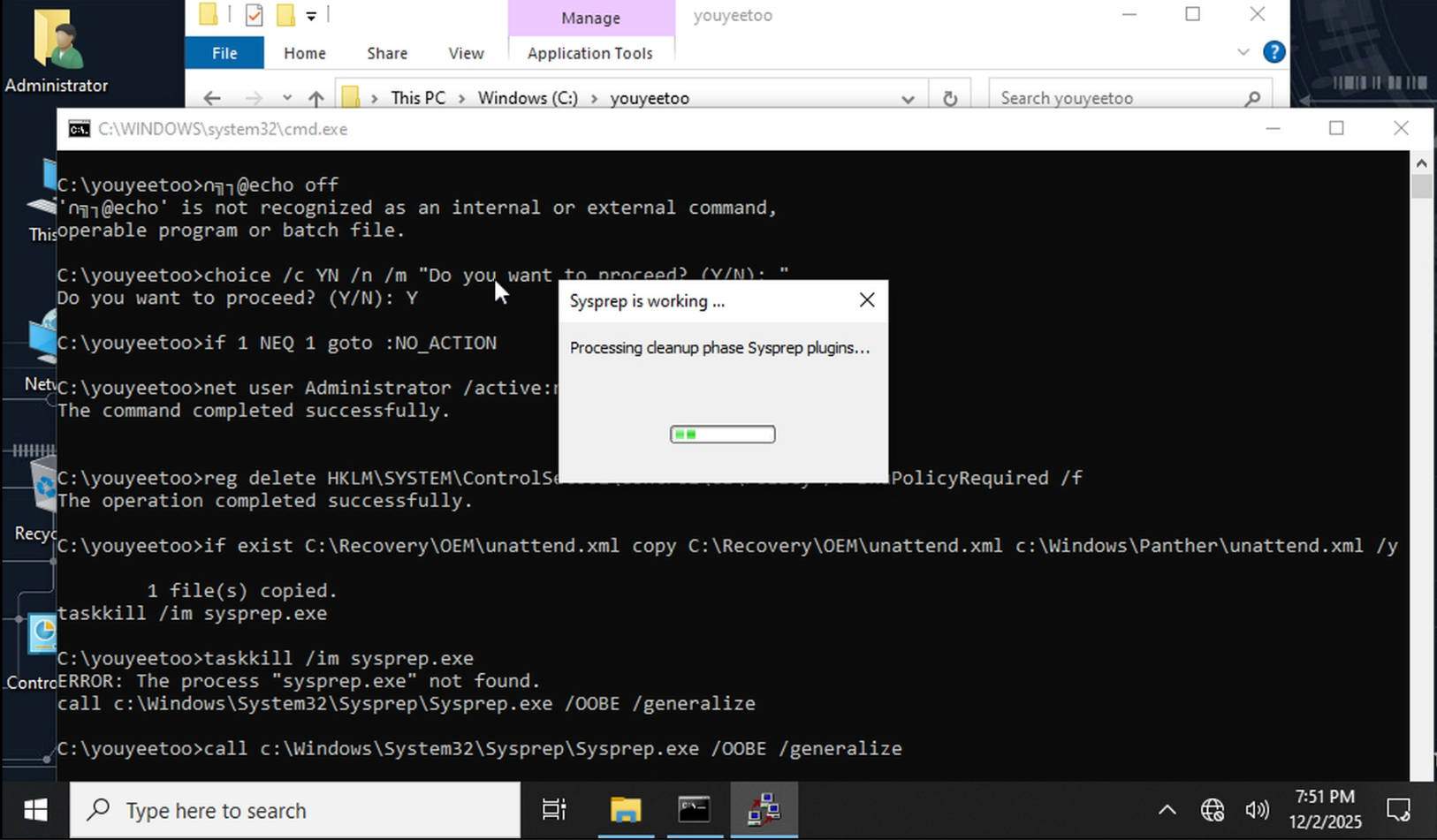
->Upon powering on, you can enter the OOBE startup wizard and select the language interface.
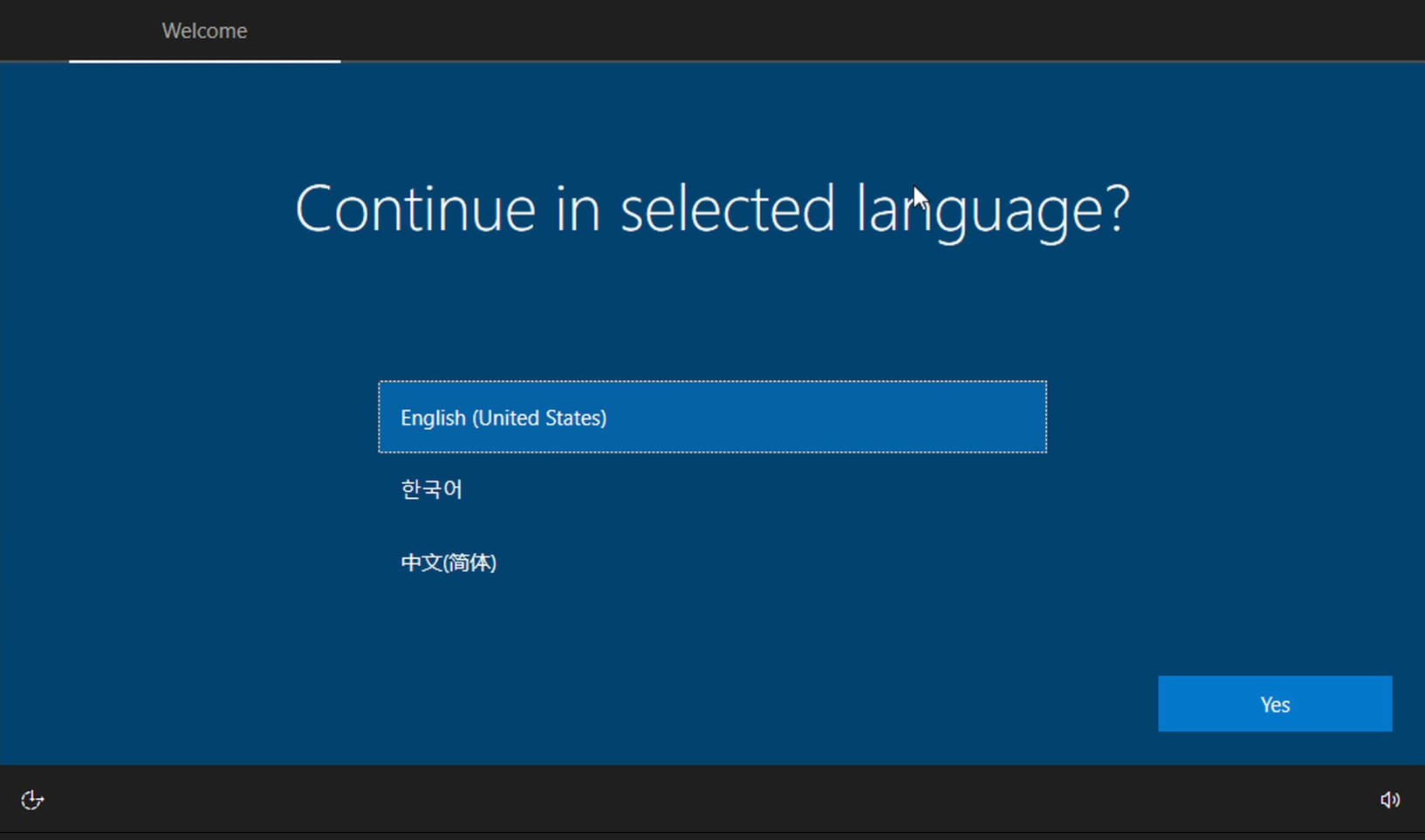
2. Select your country or region

3. Choose your preferred keyboard layout and input method.
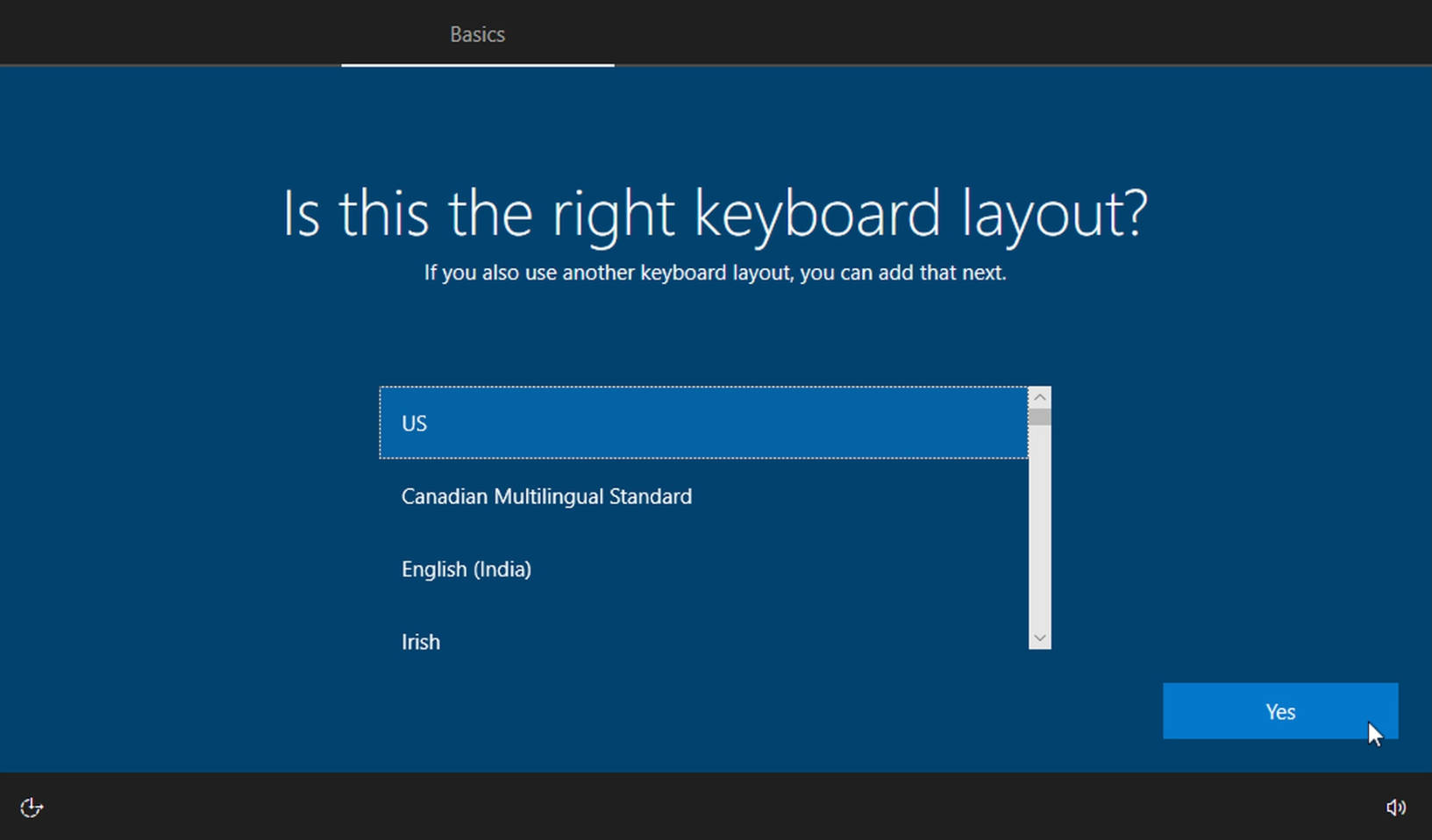
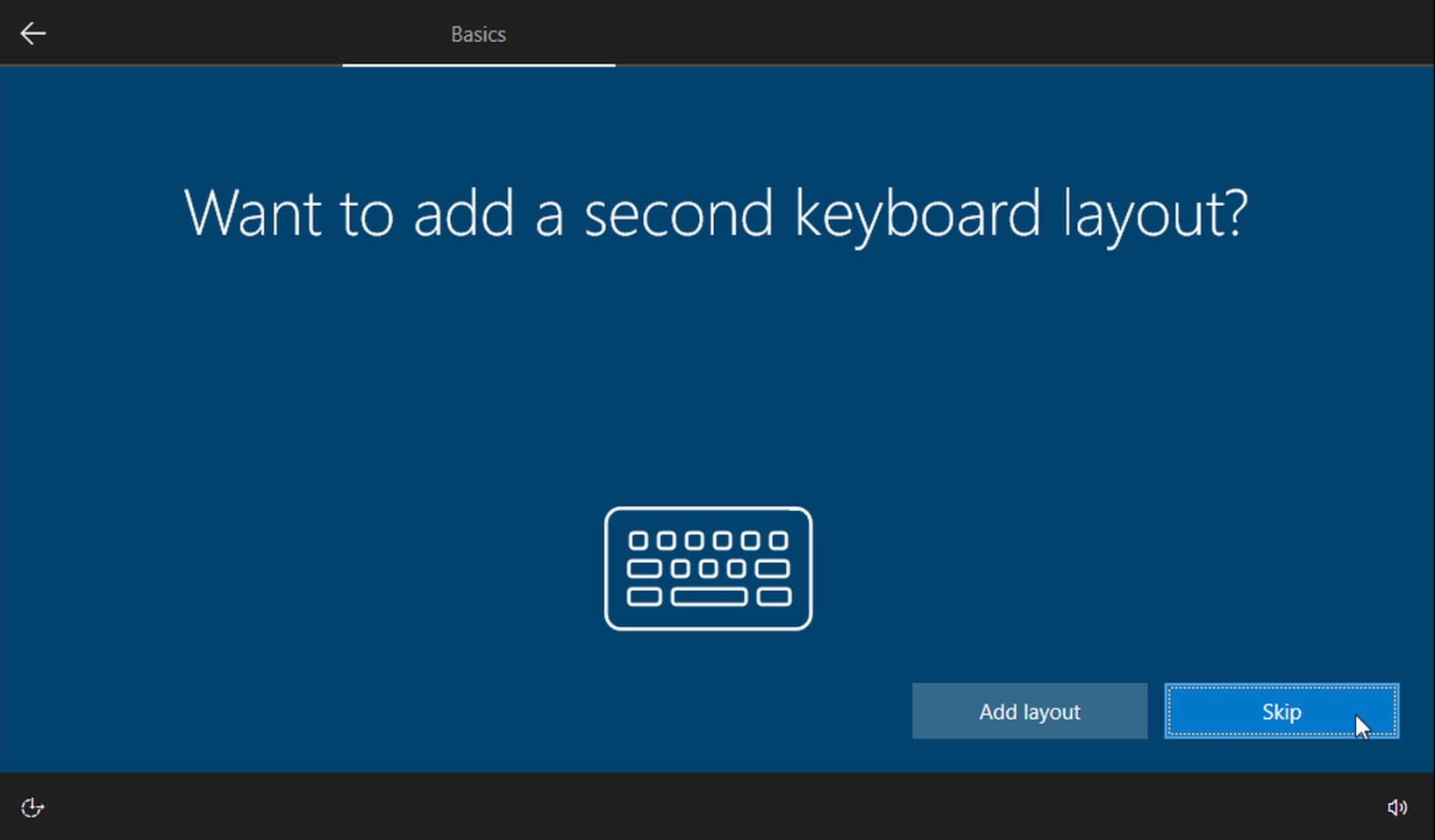
4. To add other keyboard layouts, click "Add layout" if you want, otherwise click "Skip".
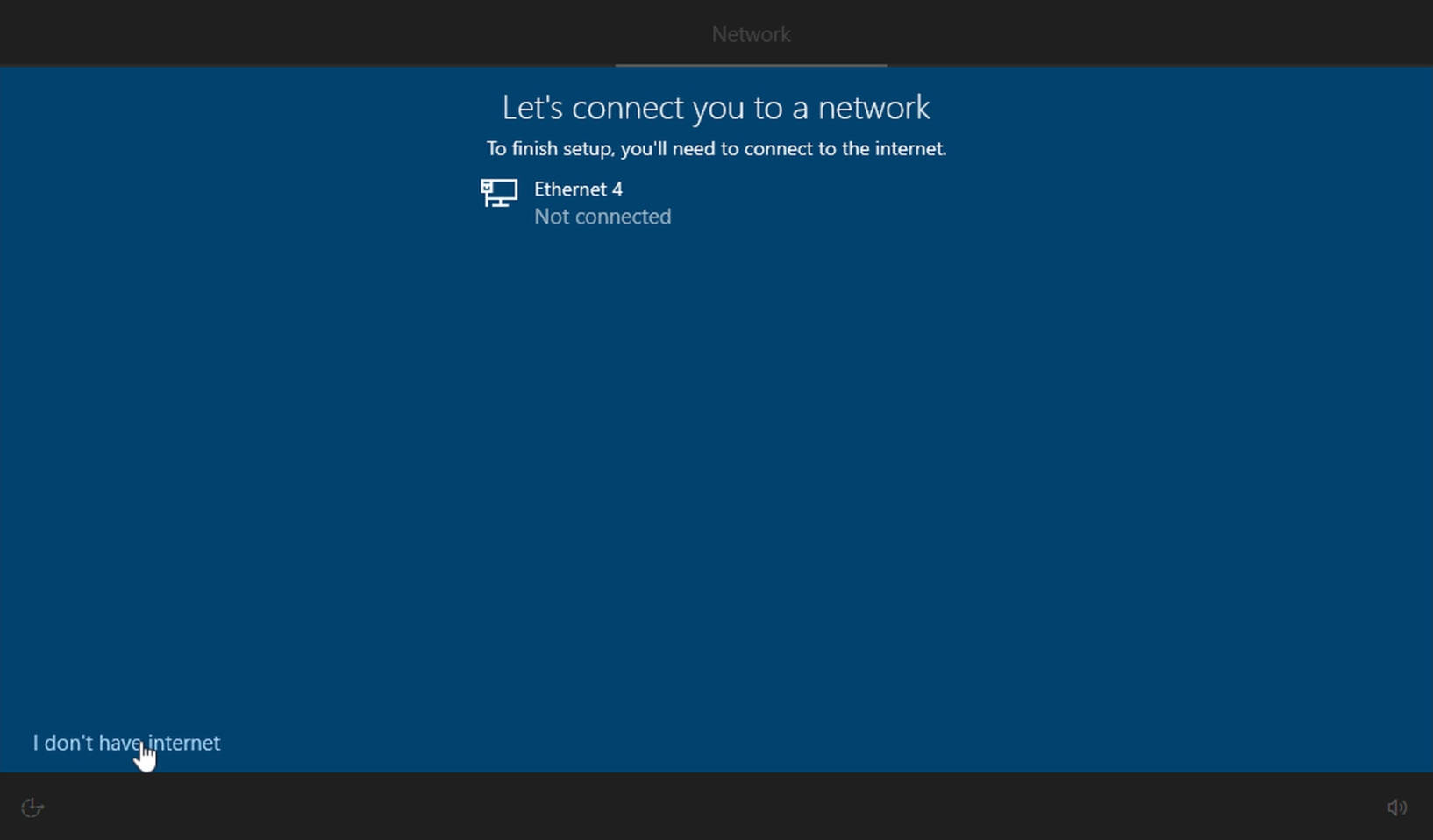
5. Select the "I don't have internet" option.
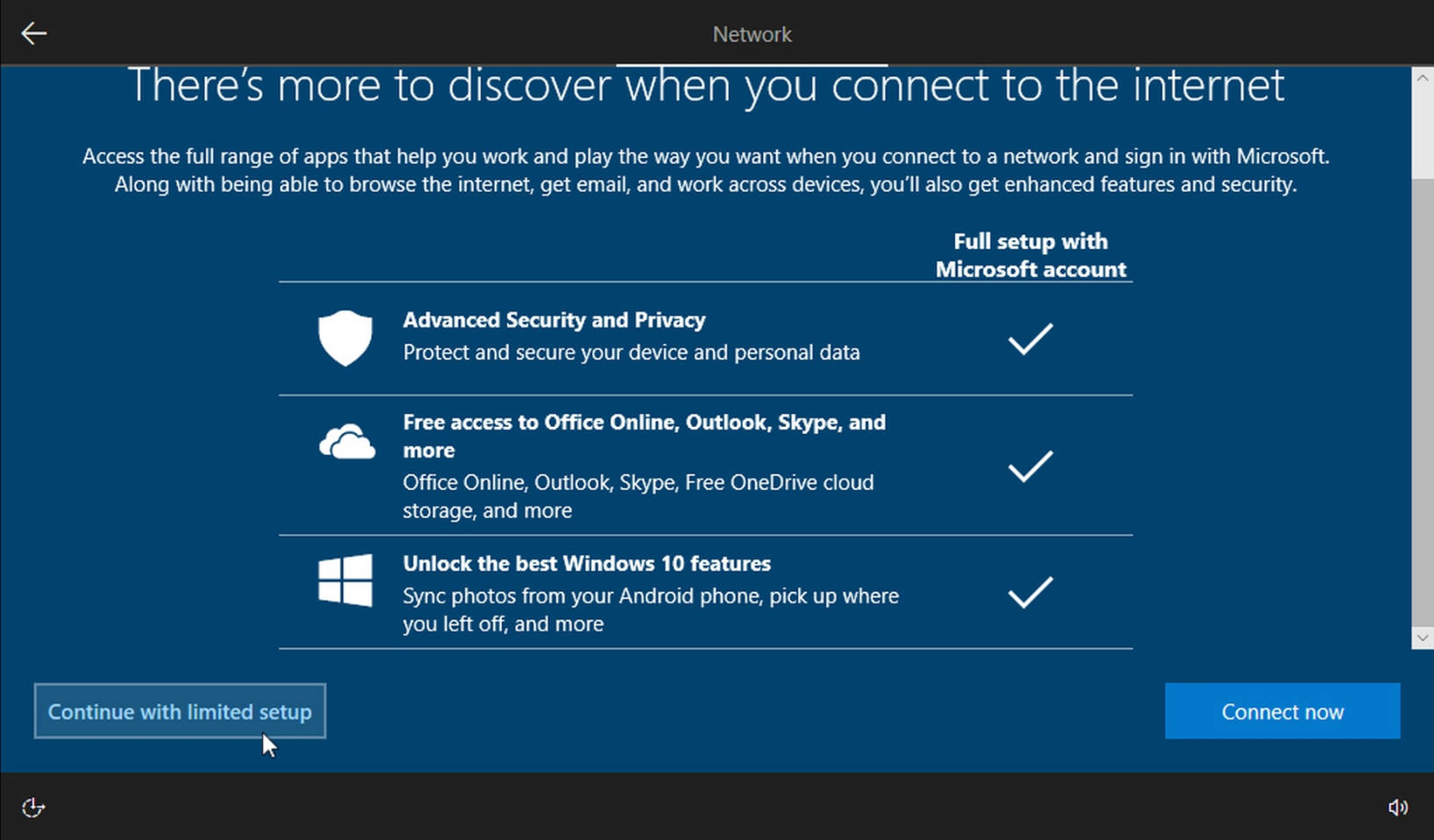
6. Select Continue with limited setup
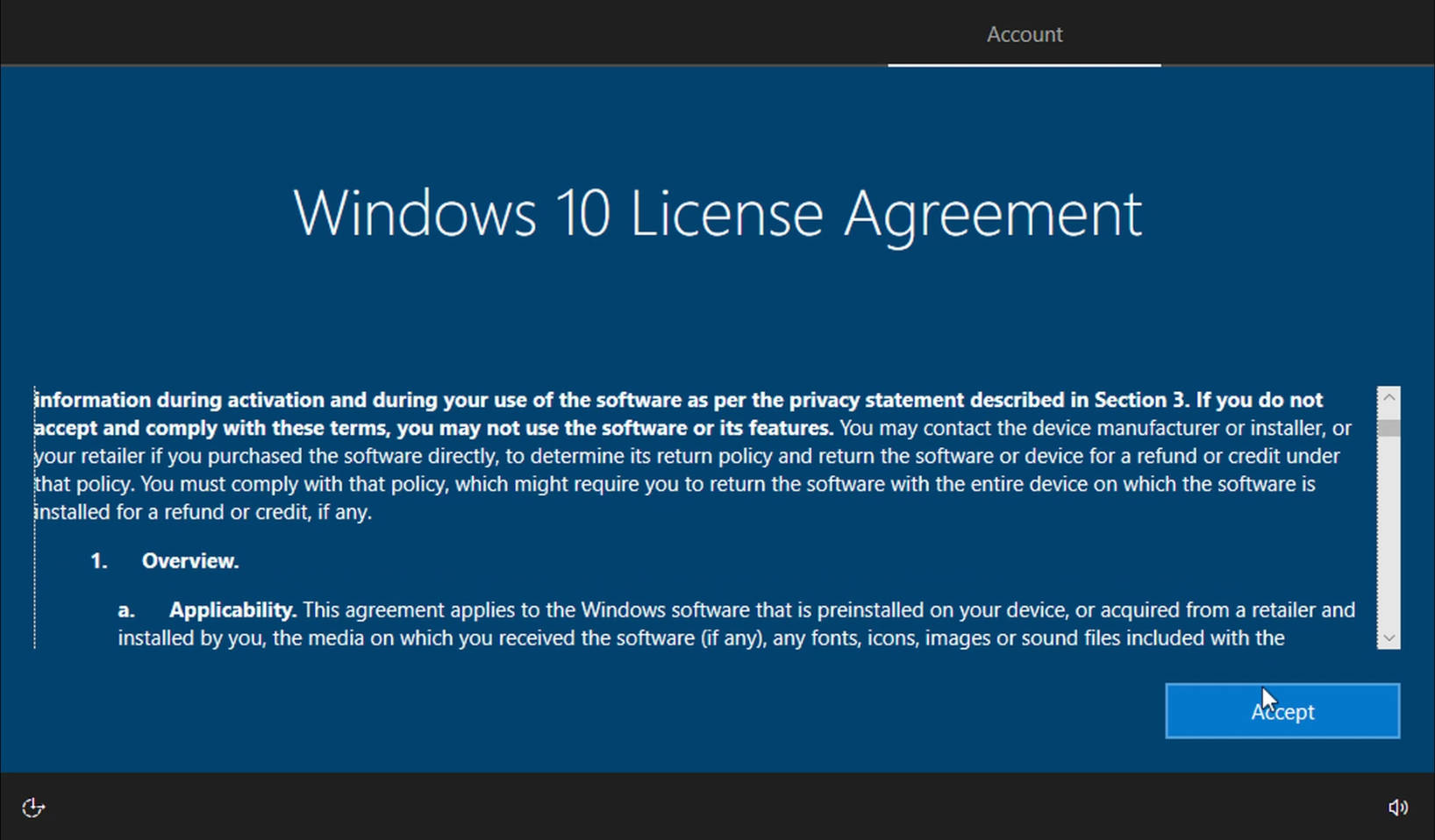
7. Please review the Windows 10 License Agreement and click Accept.
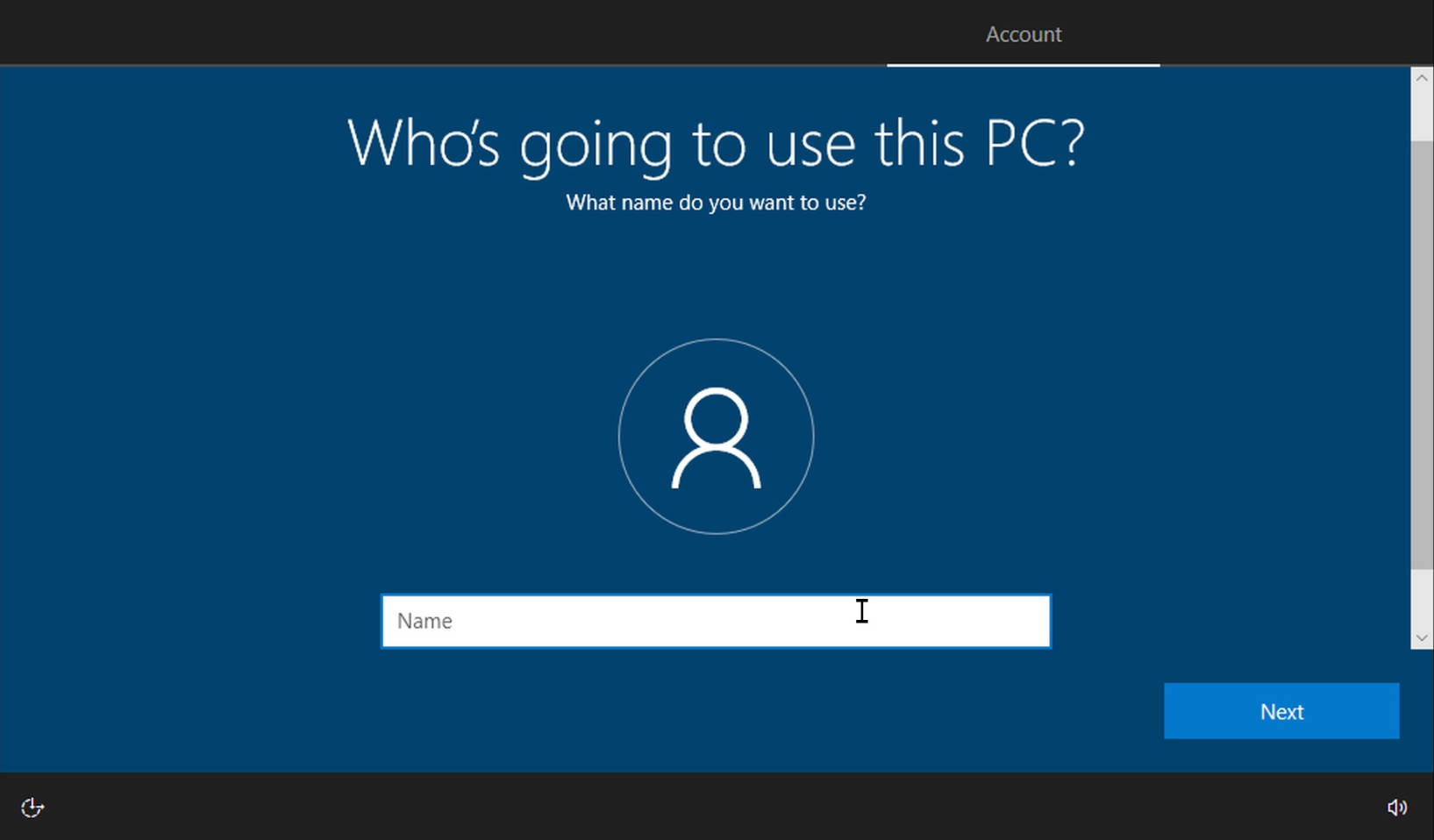
8. Enter your username
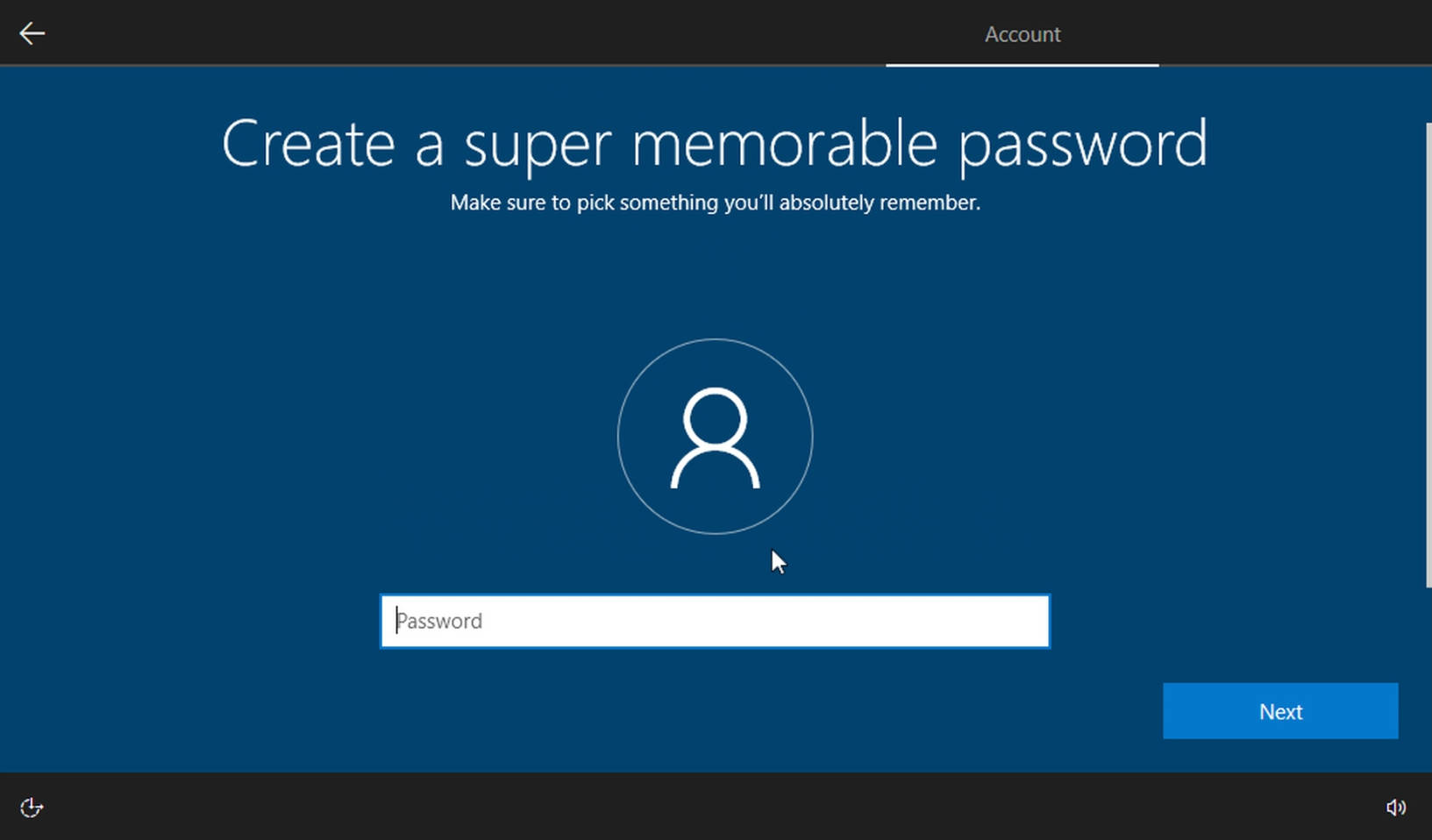
9. Create password
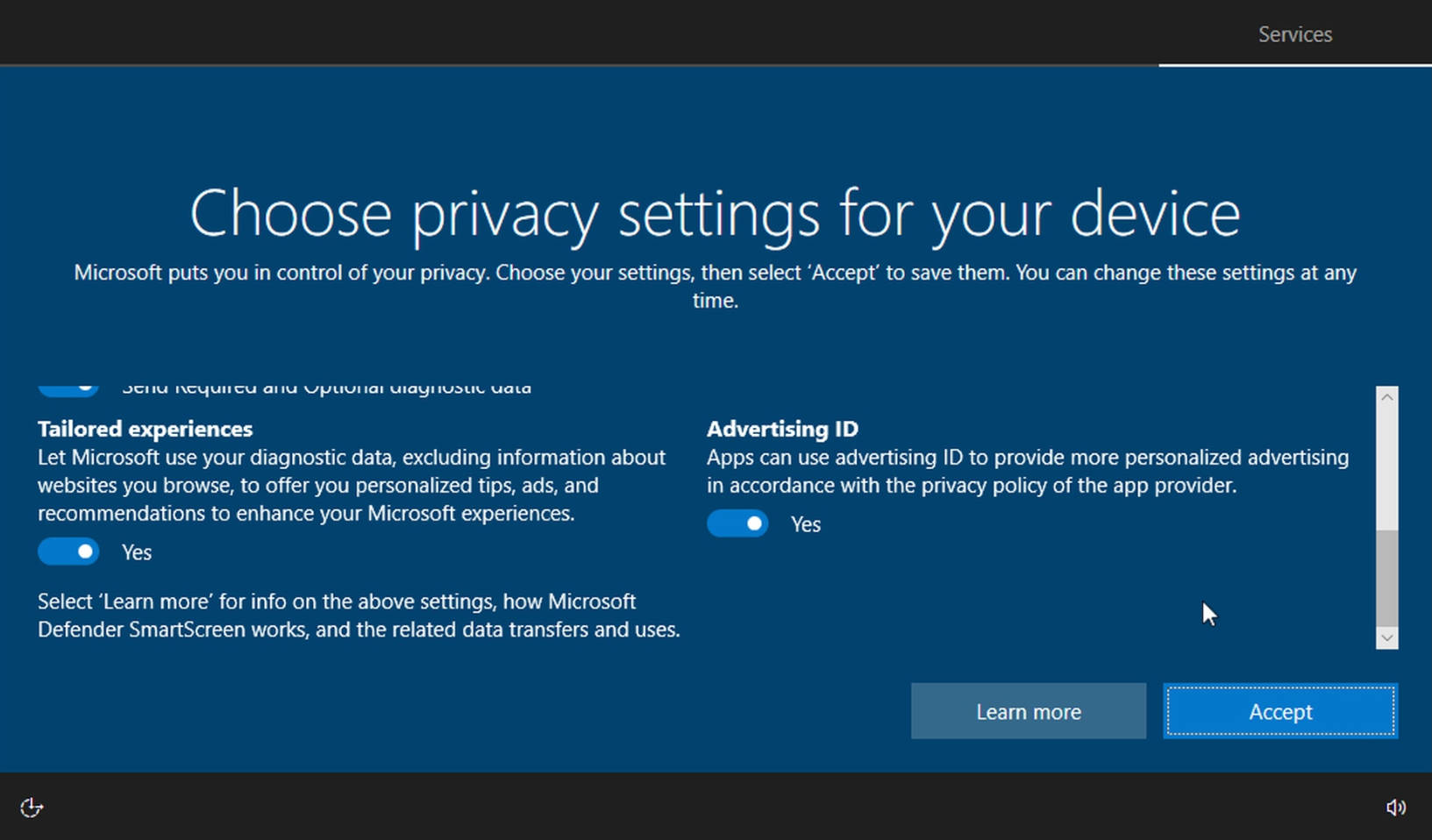
10. Click Accept for privacy settings
Please wait a few minutes
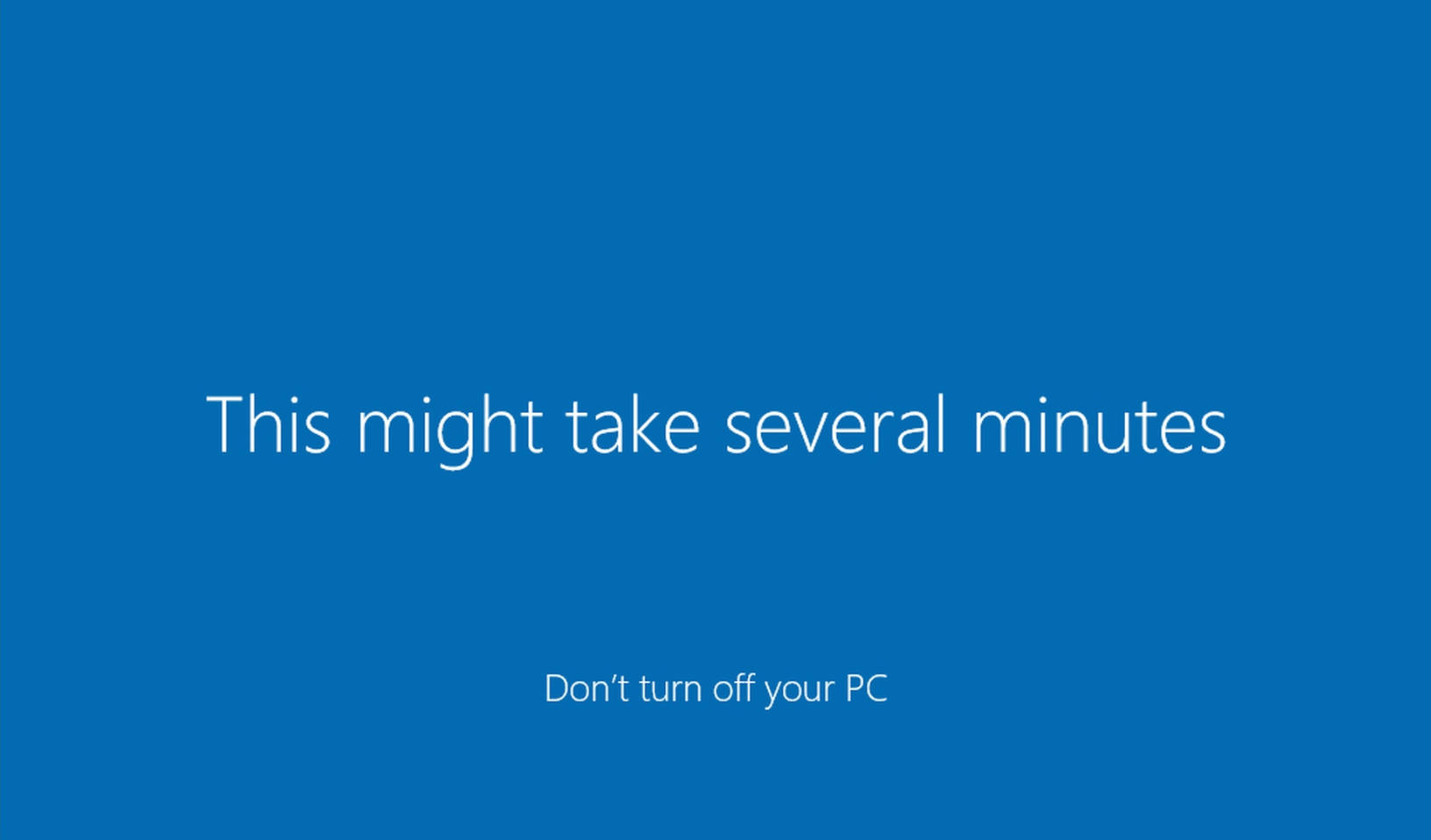
11. Officially entering the desktop
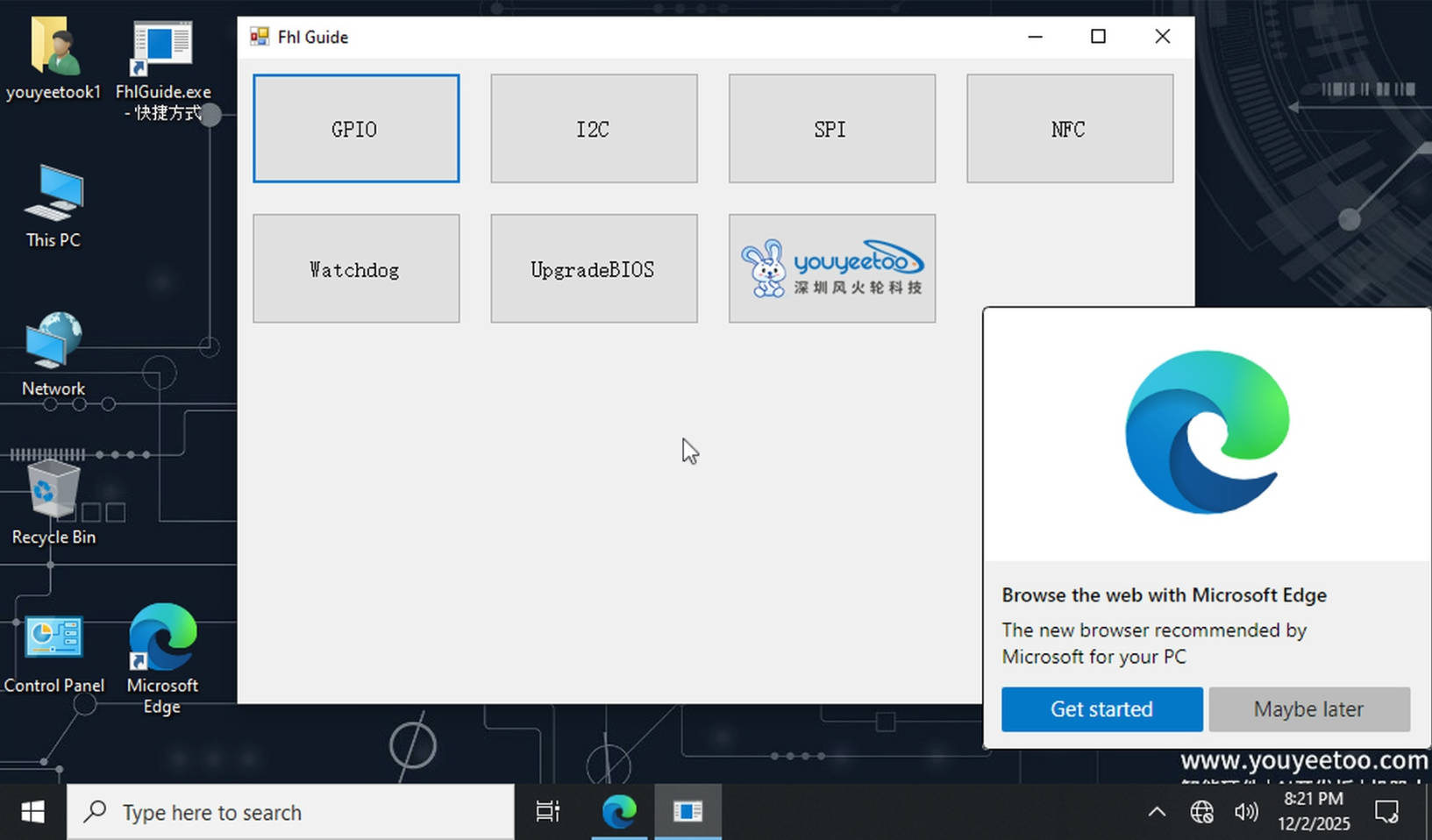
The installation of the Windows 10 IoT LTSC 21H2 system is now complete.
¶ Windows 11 Professional 23H2
After logging in as Administrator
->Open This PC on your desktop.
->Enter C:\youyeetoo
->Double-click to run Cleanup.cmd
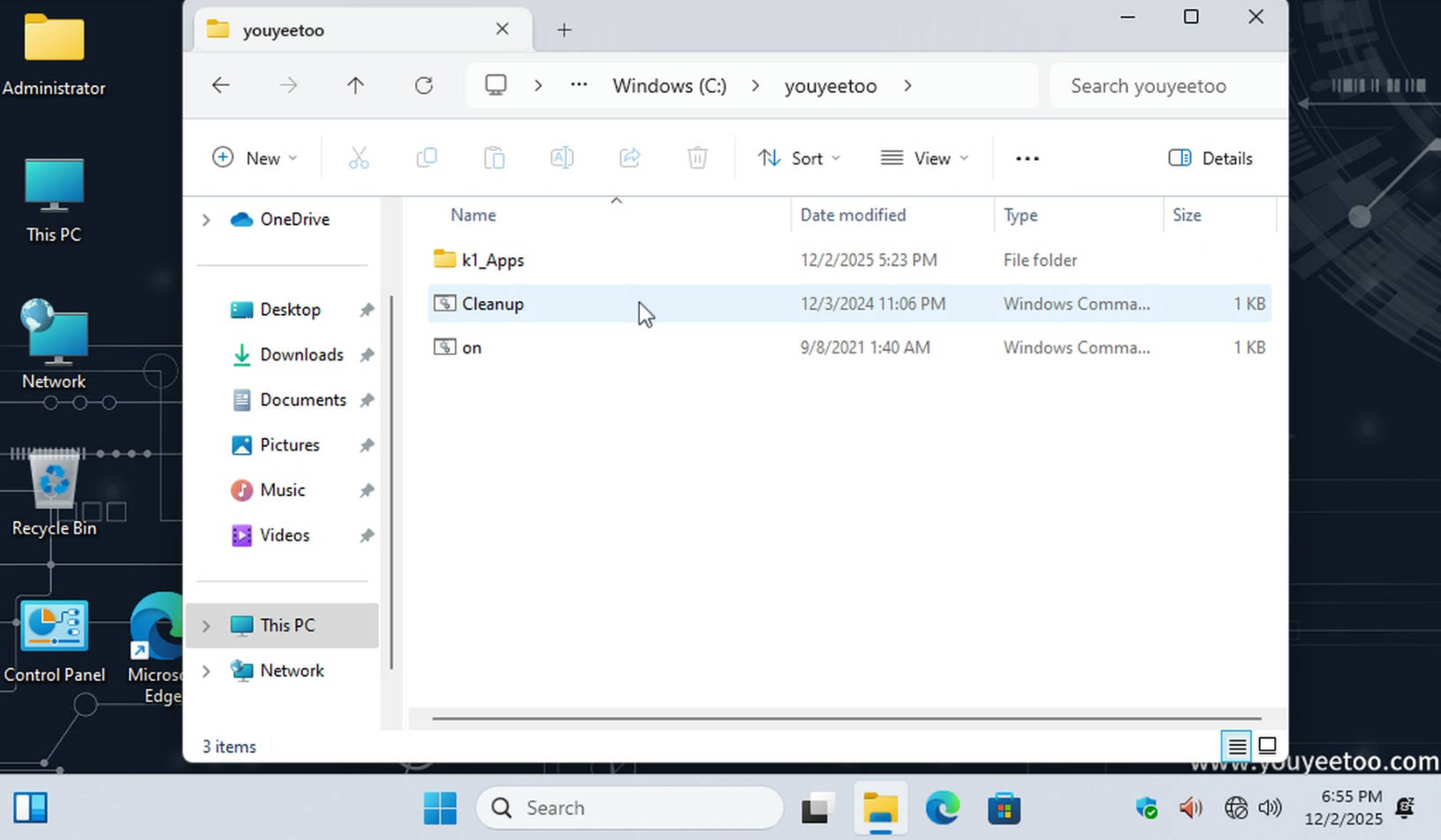
->Type Y or y on the keyboard and wait for the process to complete and then automatically shut down.
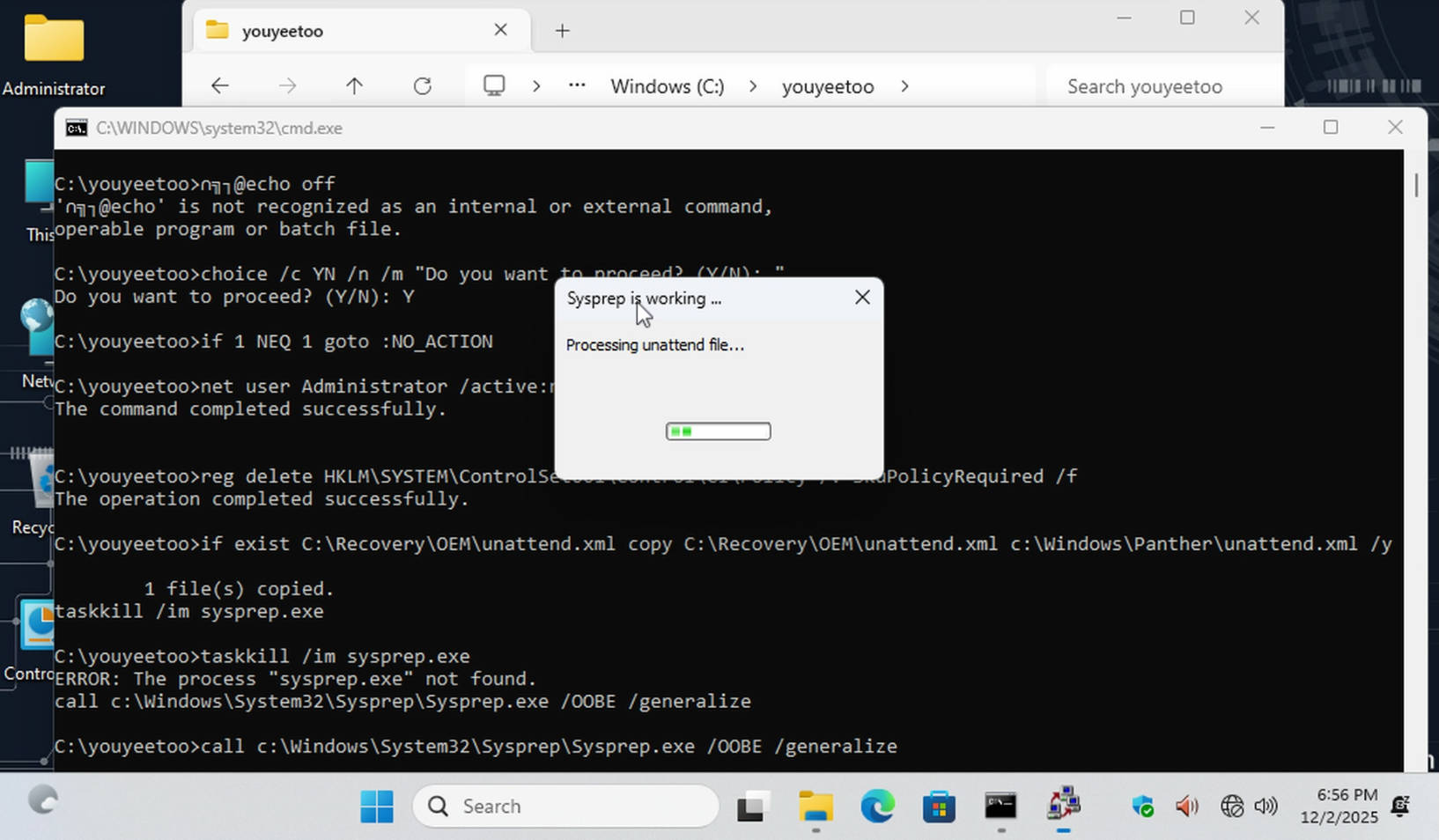
->Upon powering on, you can enter the OOBE startup wizard and select the language interface.
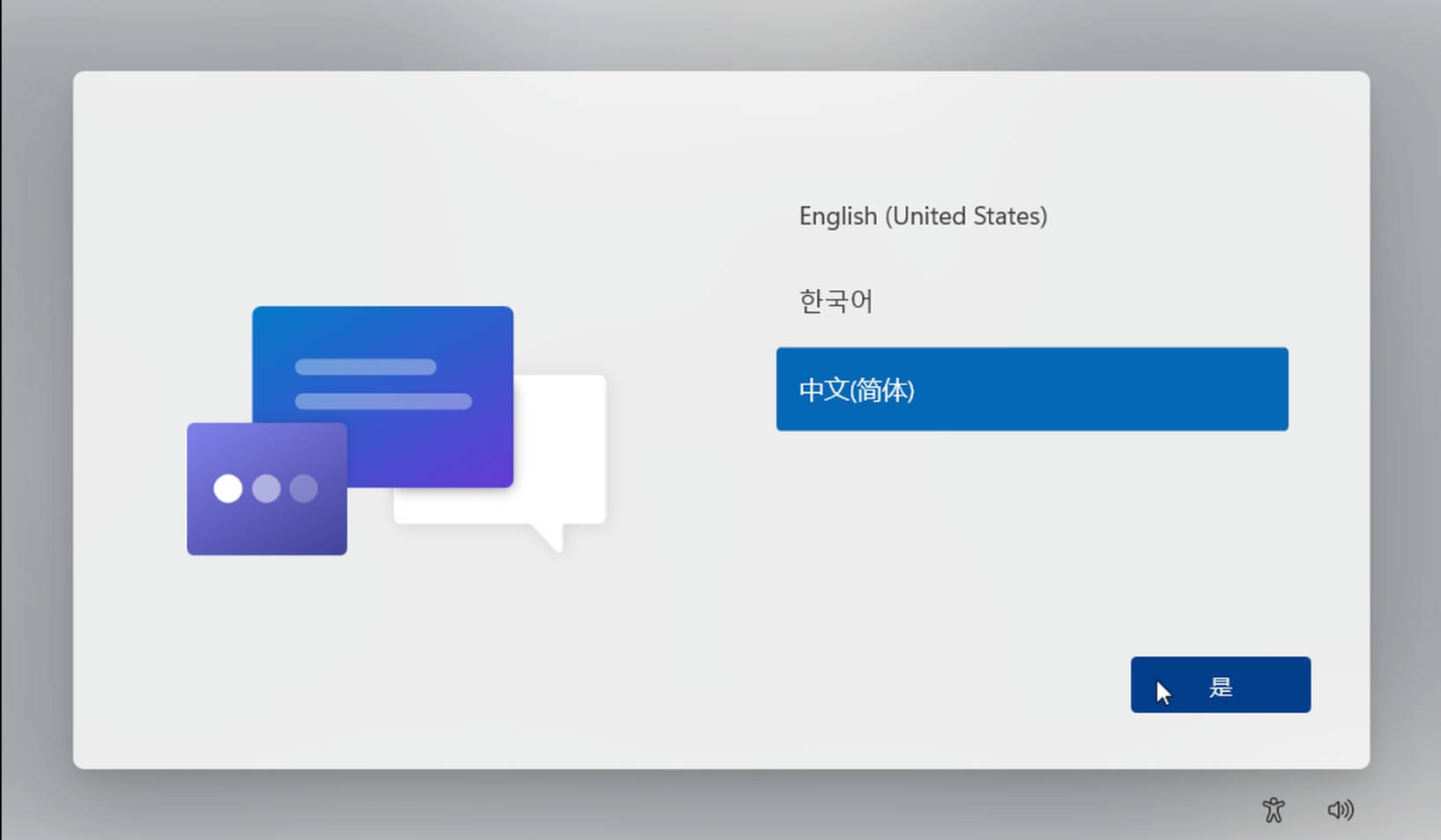
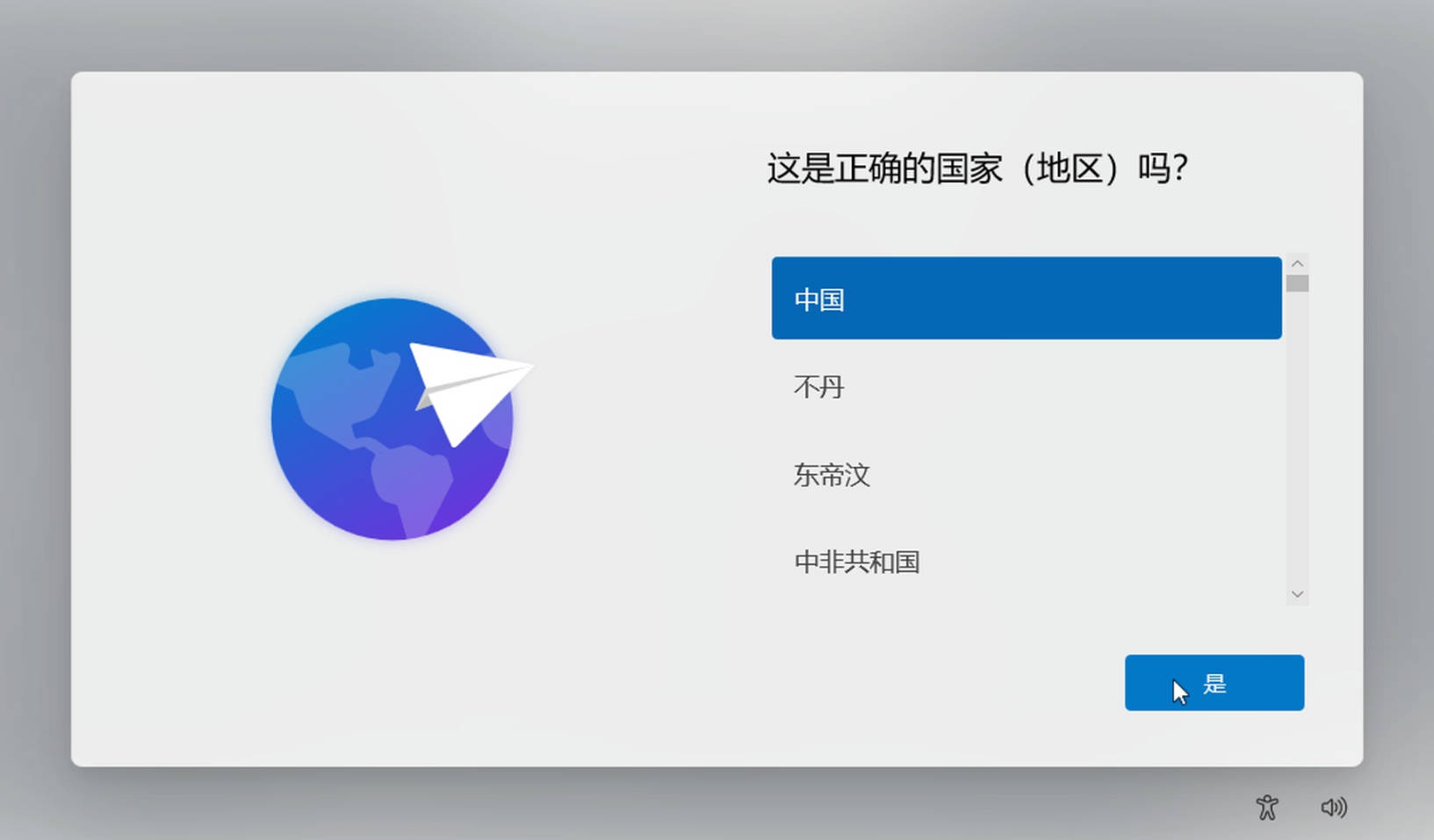
2. Select your country or region
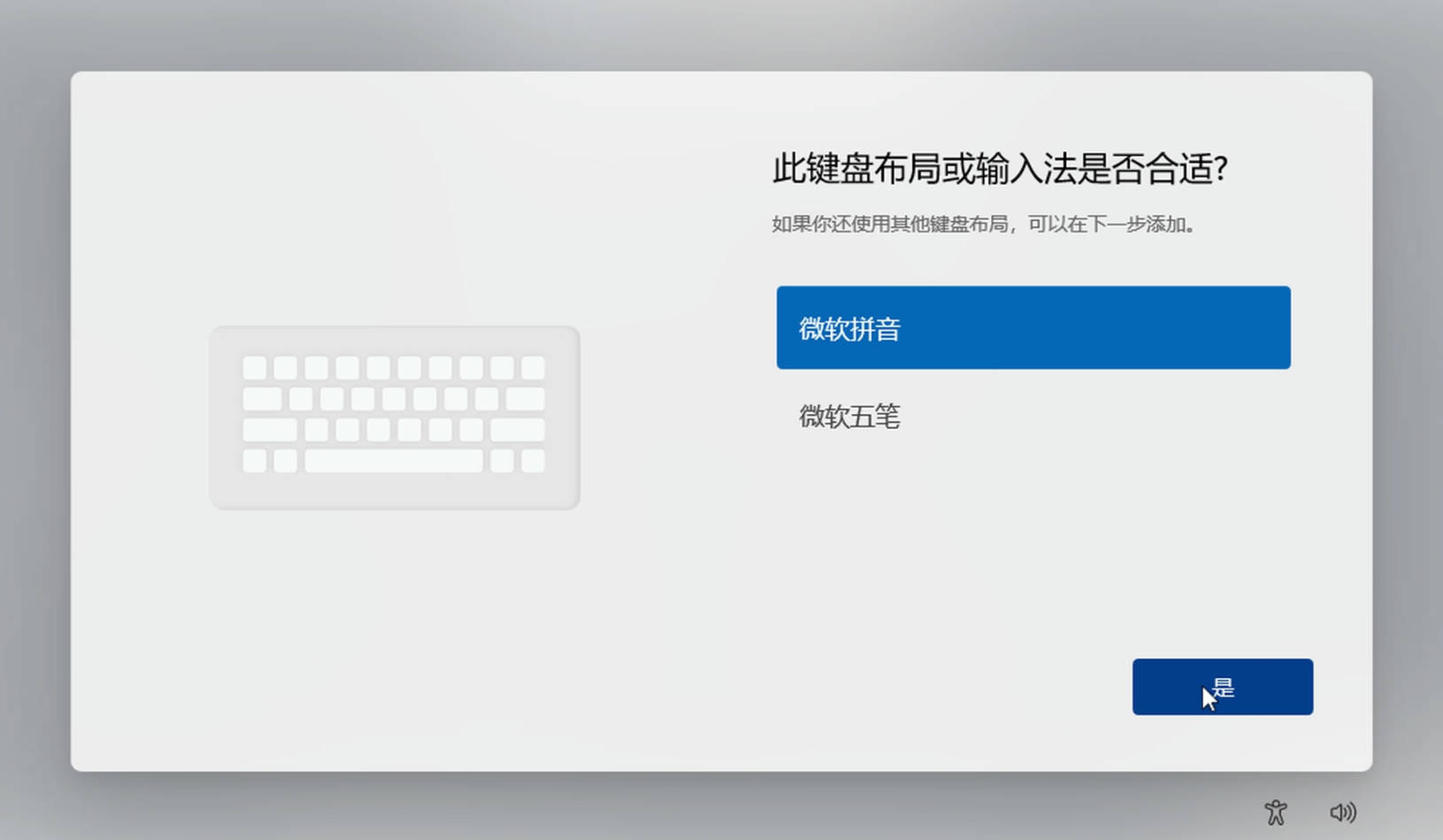
3. Choose your preferred keyboard layout and input method.
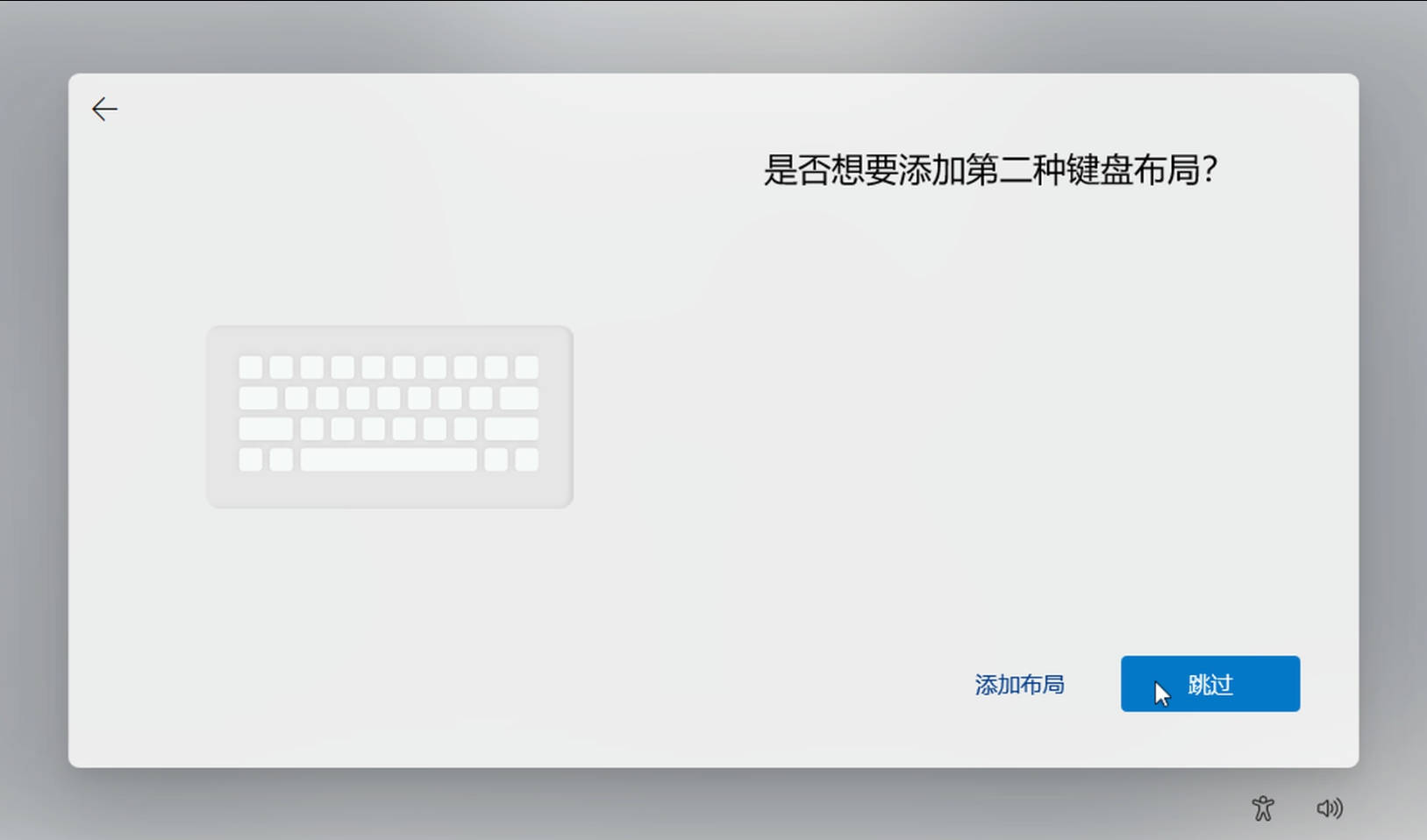
4. Do you need to add other keyboard layouts? Click "Add Layout" if you do, otherwise click "Skip".
5. Select the "I have no Internet connection" option to continue with the restricted settings and wait for a restart to skip the mandatory network verification.
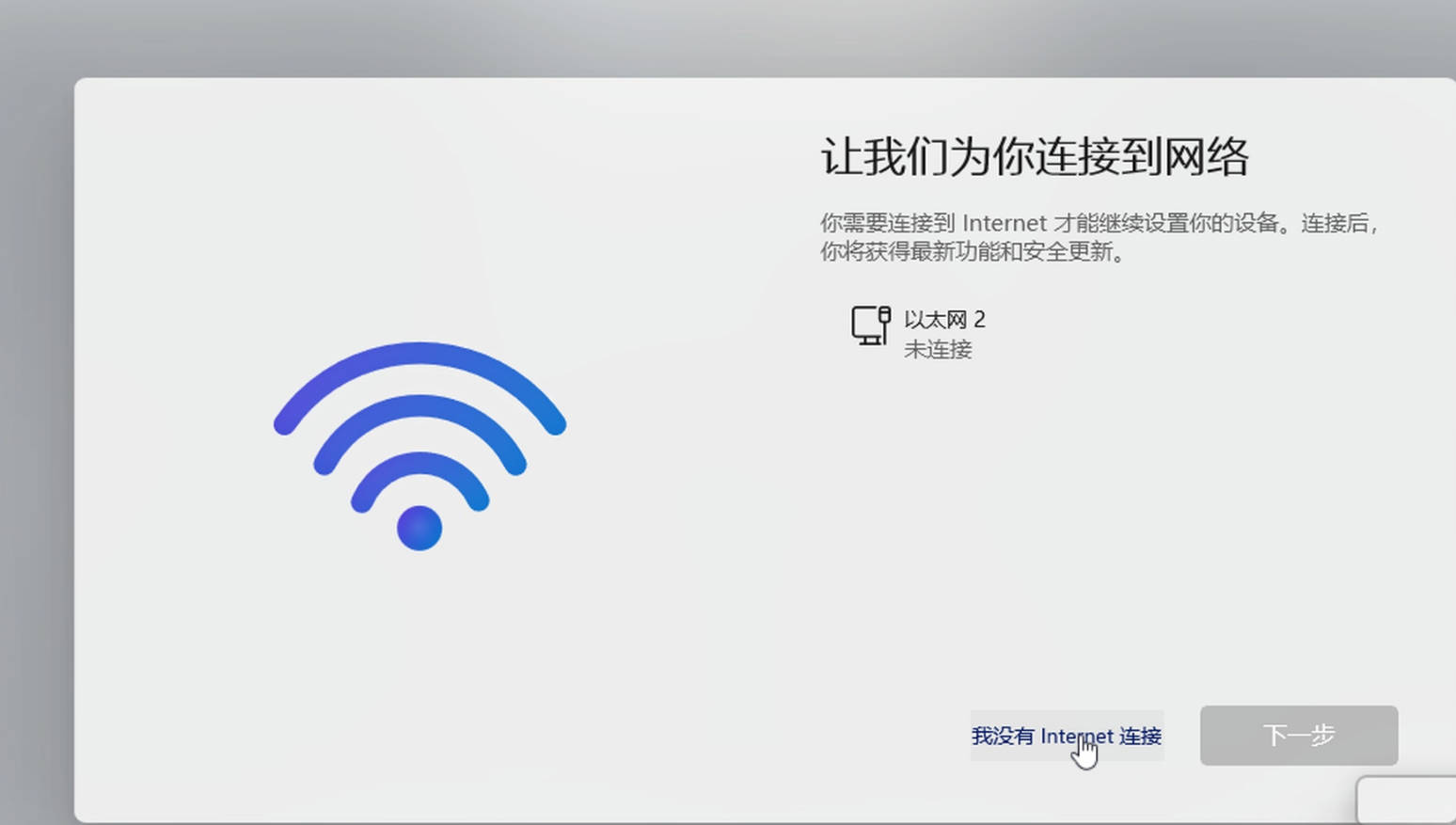
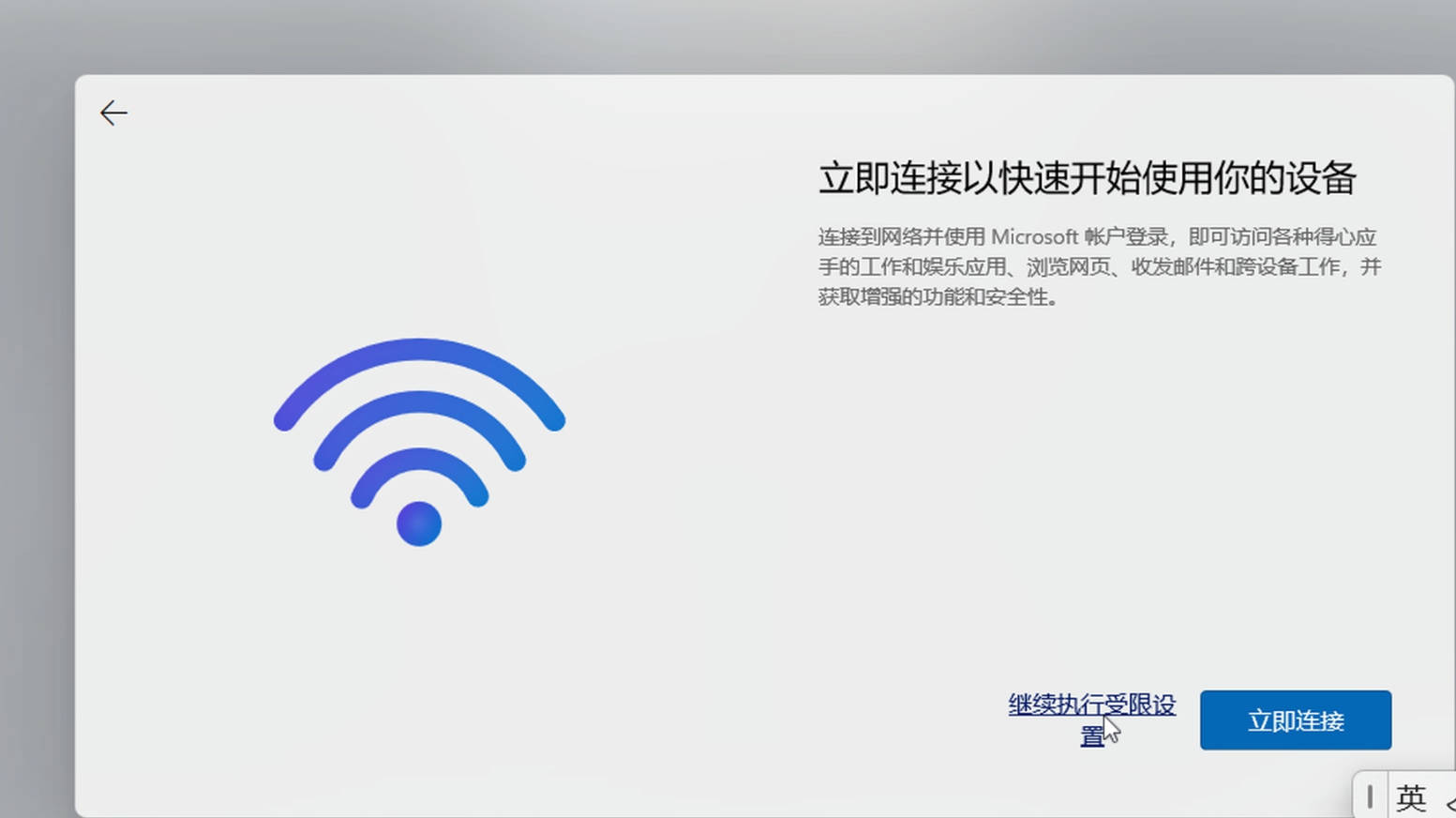
6.After restarting, select the "I have no Internet connection" option to continue with the restricted settings.
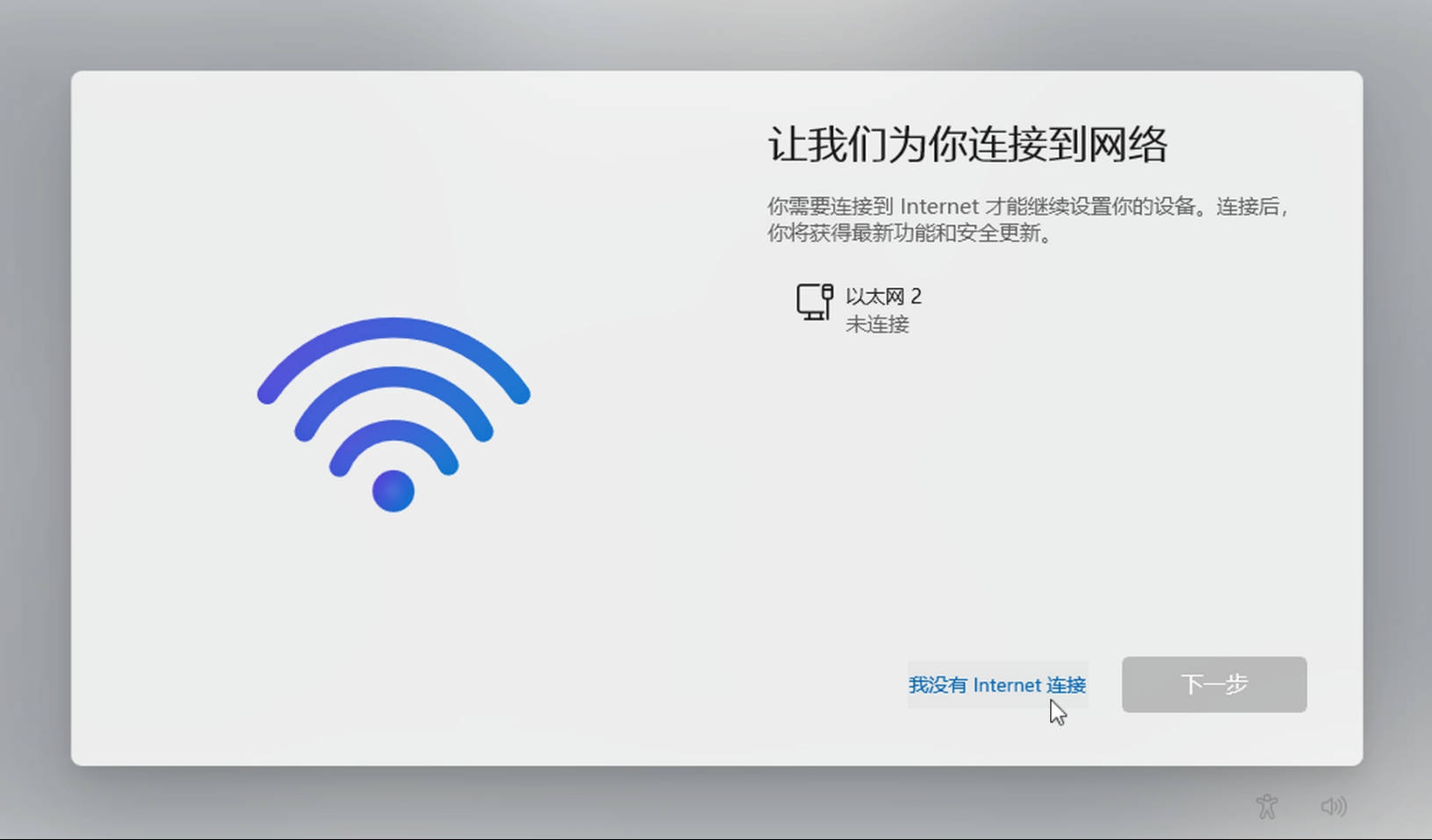
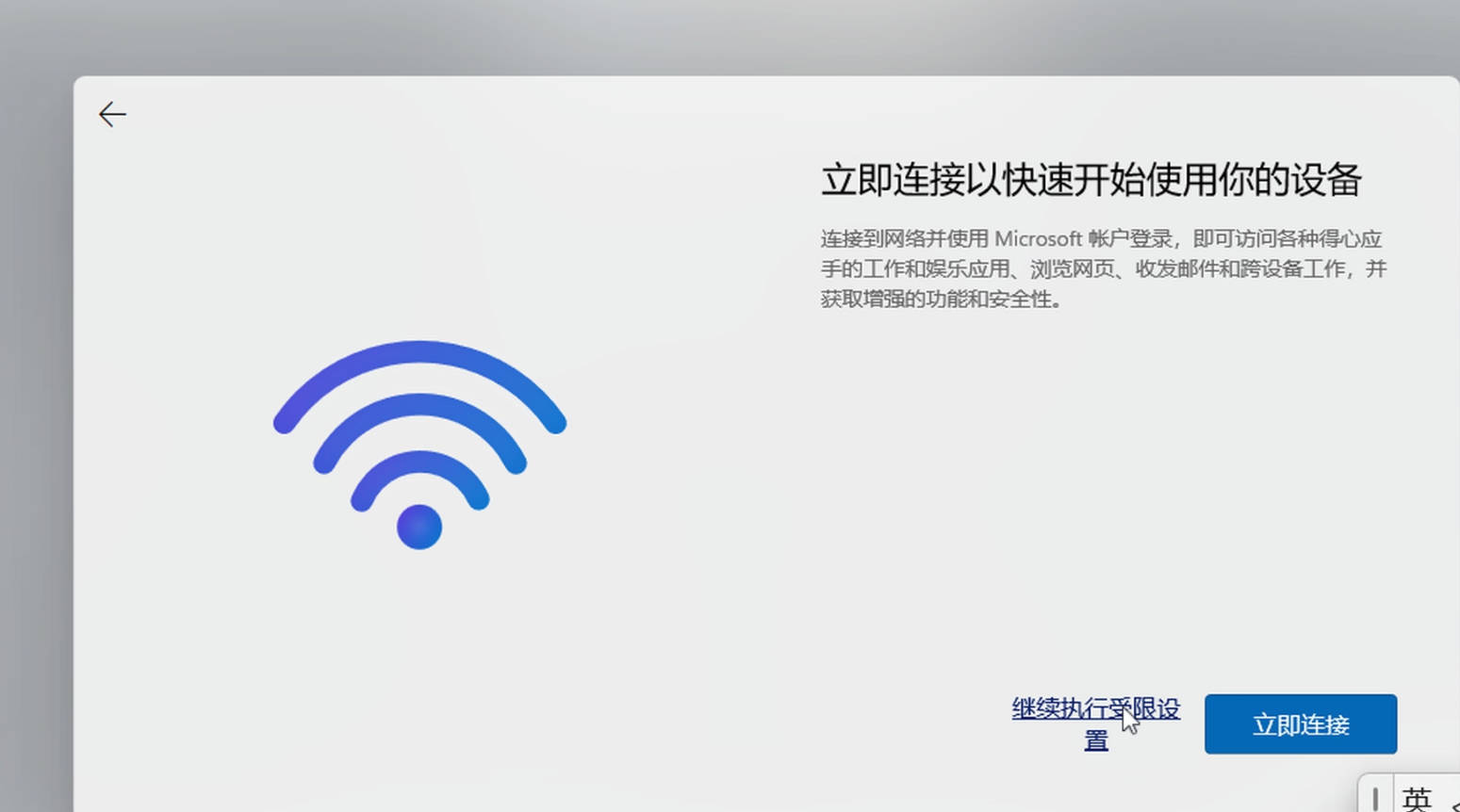
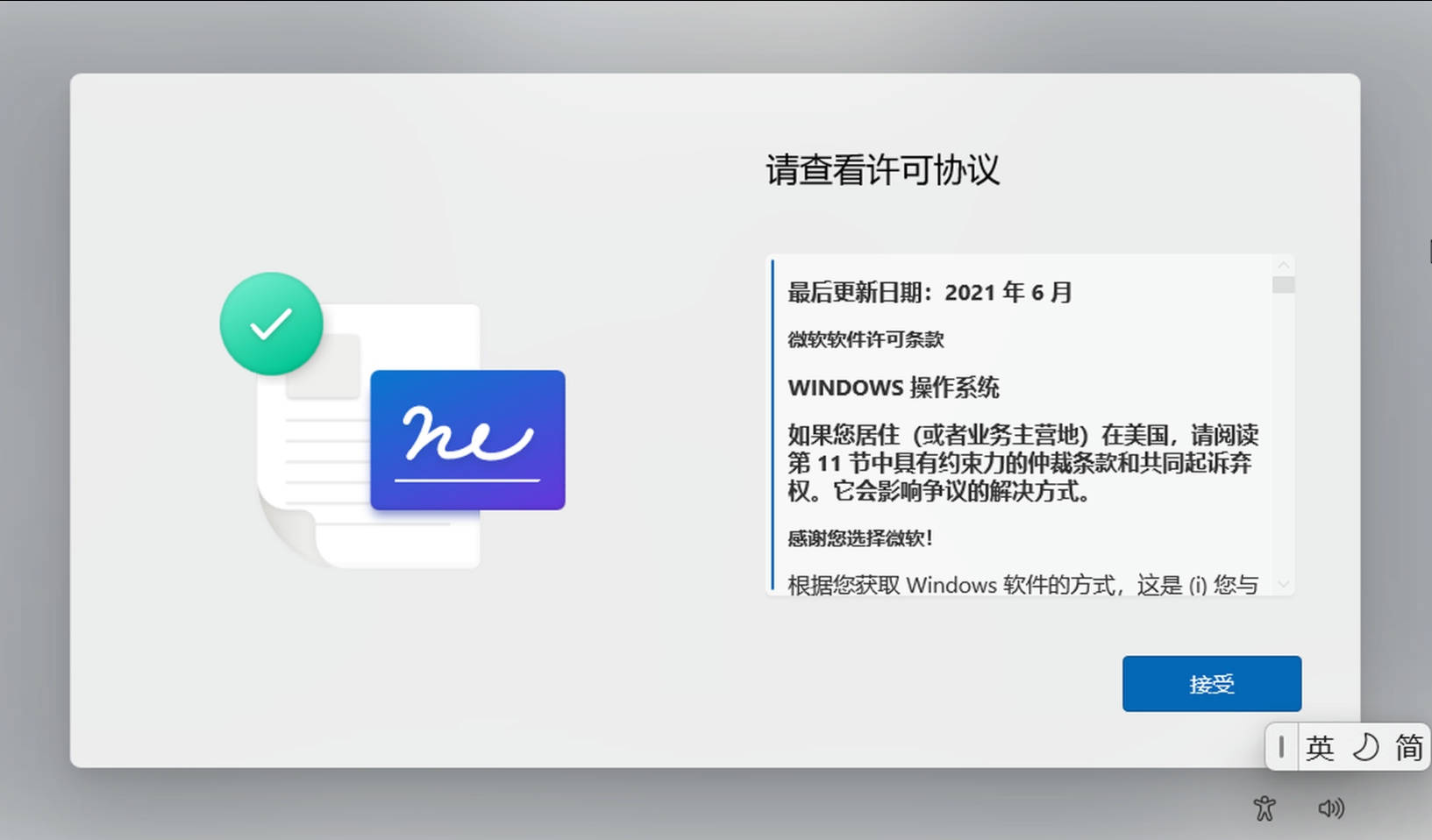
7. Please review the license agreement and click Accept.
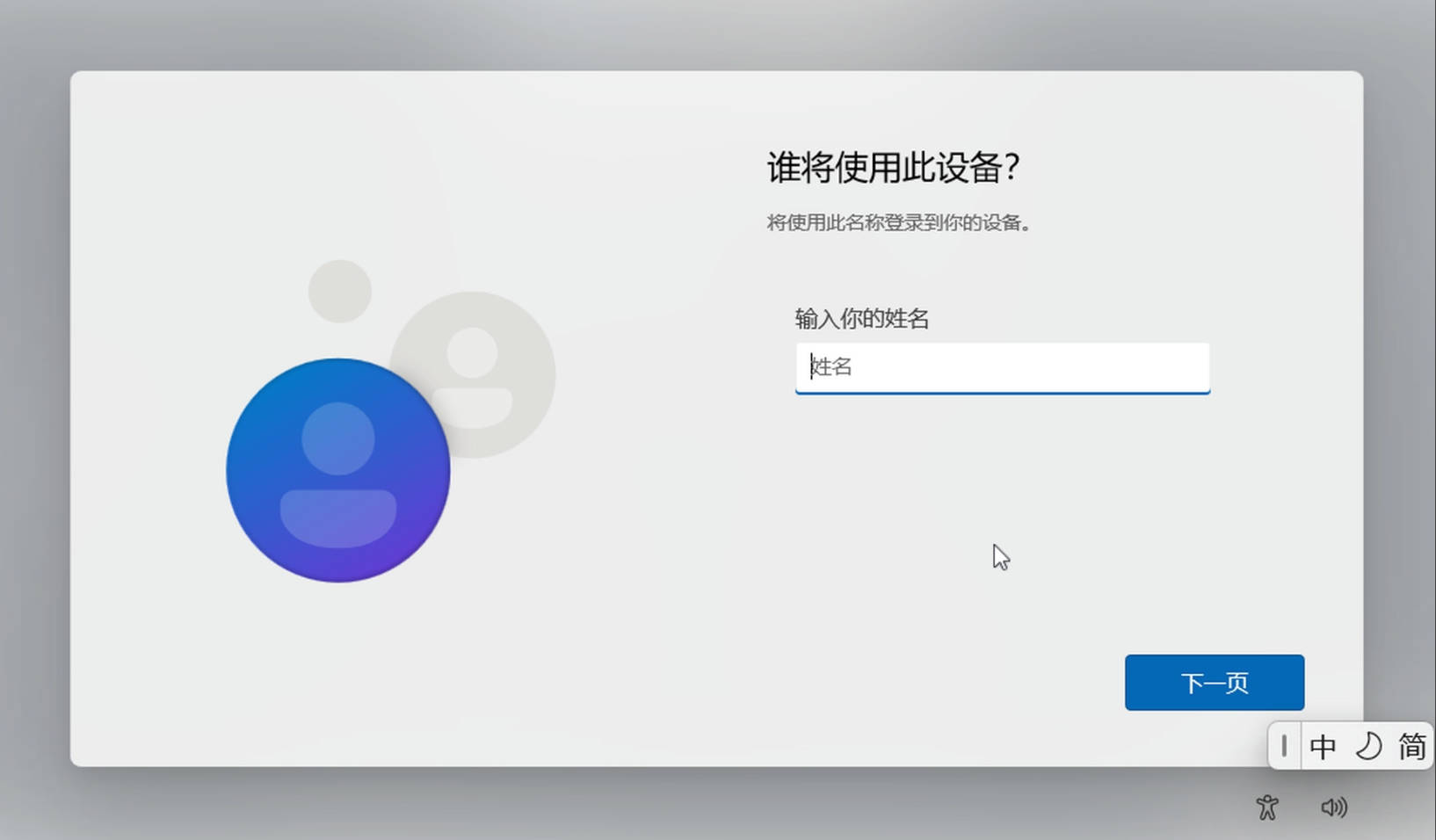
8. Enter your username
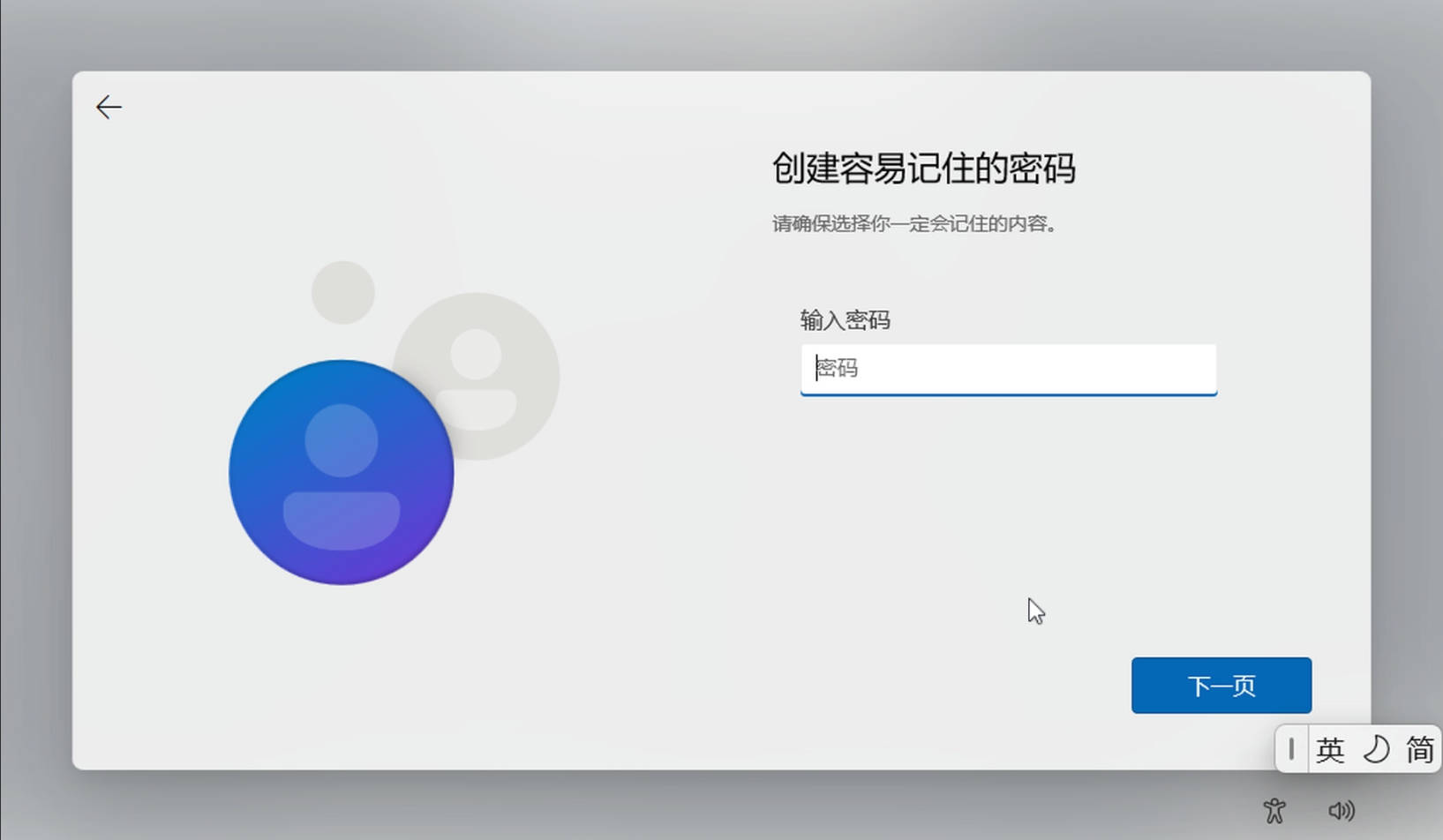
9. Create password
10. Click "Accept" for privacy settings.
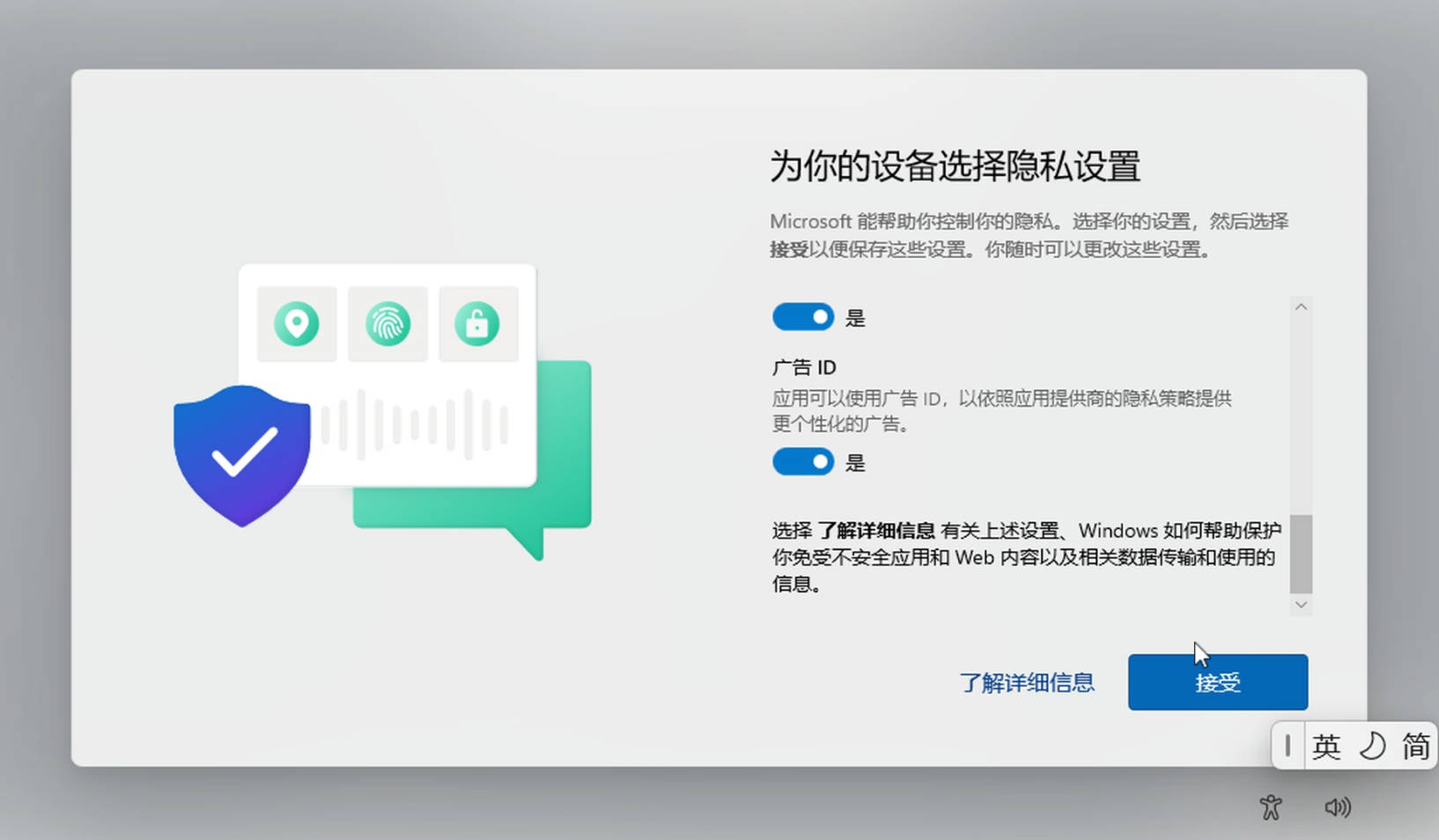
Please wait a few minutes

11. Click Next
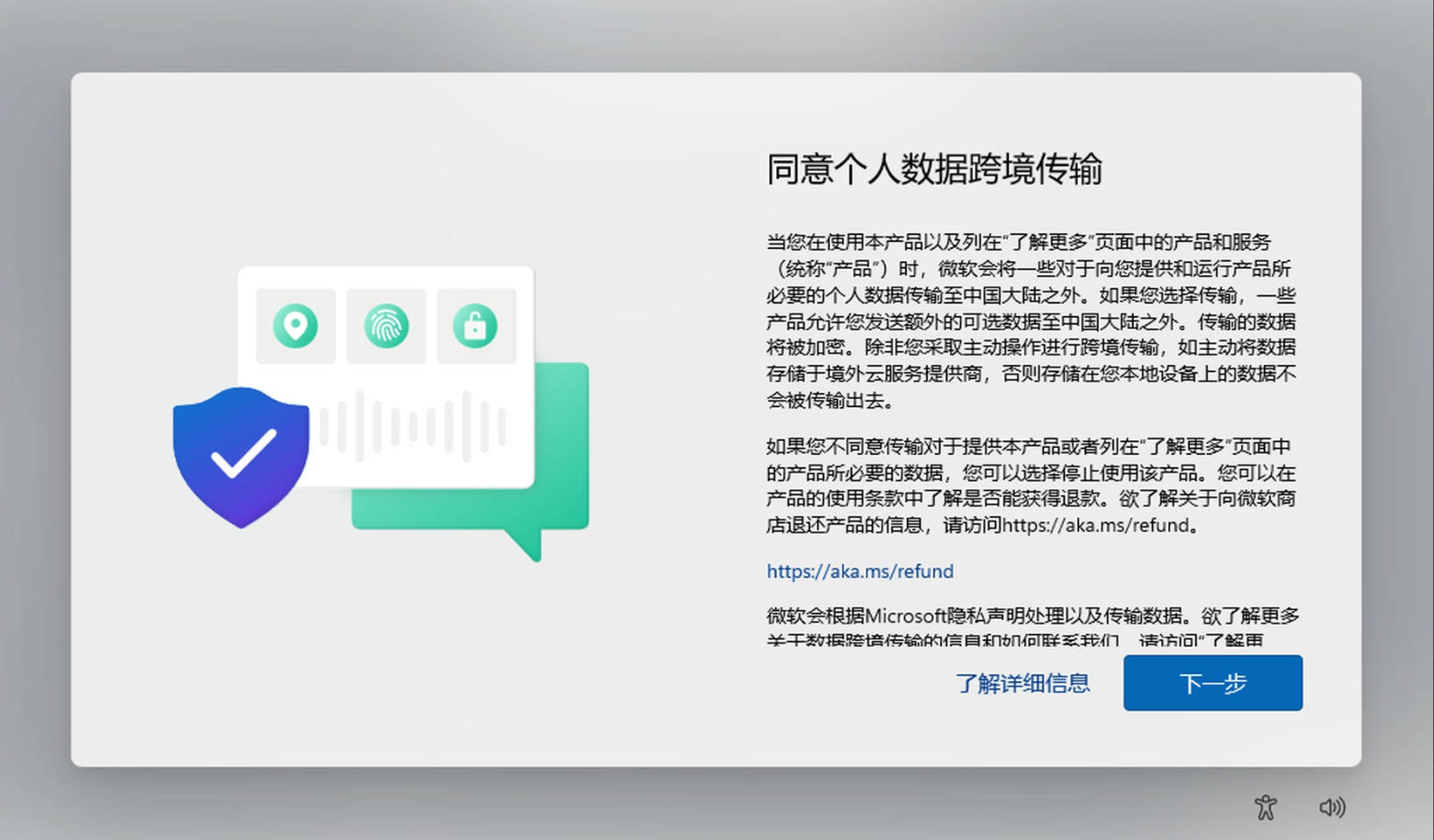
12. Officially entering the desktop
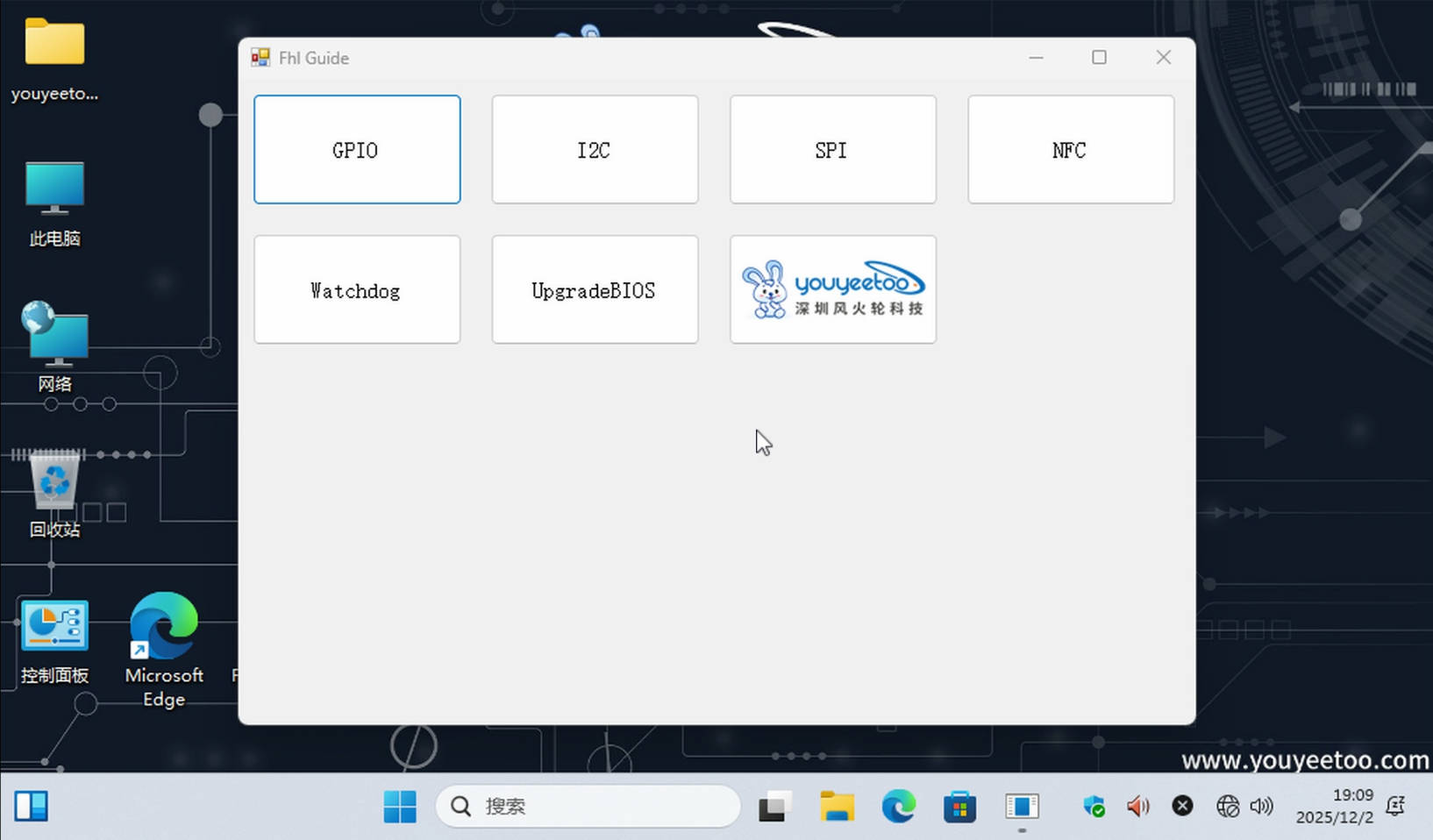
The installation of Windows 11 Professional Edition 23H2 is now complete.